
PhotoCraft Online Editorial Team · Updated:
PhotoCraft Tutorial: Open, Edit and Export
A cautious first-edit workflow for PhotoCraft v0.5.0, with expected results, save-versus-export guidance, and fixes for common browser problems.
Use this PhotoCraft tutorial when you want a first, low-risk edit: open a PNG, add English text, Undo and Redo, download the result, crop, then brighten the image. Those steps passed in a v0.5.0 browser check on one small sample. Treat it as a starter exercise, not as proof that editable project saves, imported PSD text, Chinese fonts, masks, or large files will work the same way. If you are still checking the project identity, free scope, or browser-versus-desktop difference, read What is PhotoCraft? before starting.
Test setup and reproducible sample
Use the details below to compare your own run if something behaves differently. This check was recorded on October 10, 2026, using the unchanged official v0.5.0 Web runtime locally on macOS 26.2 (25C56), in the Codex in-app Chromium browser at a 1280 × 720 viewport. The automation surface did not expose the browser engine version, and the actual WebGPU versus WebGL backend was not independently identified. This was not a speed benchmark or Photoshop comparison.
Download sample.png: 640 × 400 pixels, RGB, 8-bit, 3,390 bytes. It is a simple synthetic image with an amber rectangle, chosen so changes are easy to inspect. Keep the original download and edit a copy. Using the same small sample helps separate basic operation from the demands of a complex project.
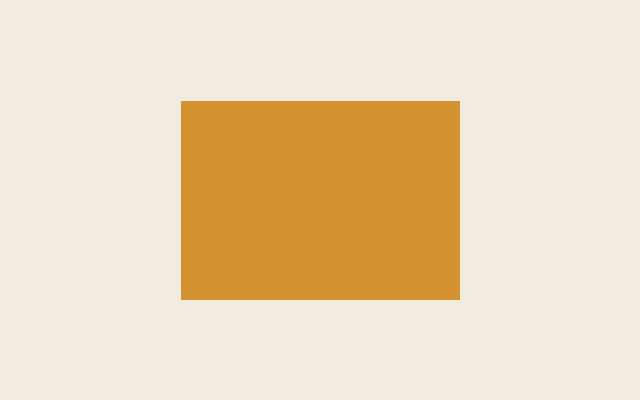
The screenshots below show what a matching run looks like. The exported PNG was checked at 640 × 400 and visibly retained the text. That export happened before the crop, so export your own cropped file if the cropped output is the deliverable.
1. Open the PNG in the editor
Open PhotoCraft Online, wait for the workspace, and choose the application’s Open action. Select the sample copy using the file chooser. Click inside the workspace before typing; embedded-editor shortcuts depend on focus. Official Web focus behavior
Observed result: the image opened as a 640 × 400 canvas with one Background layer. The amber rectangle was visible. Check the document dimensions rather than judging its size from screen zoom.
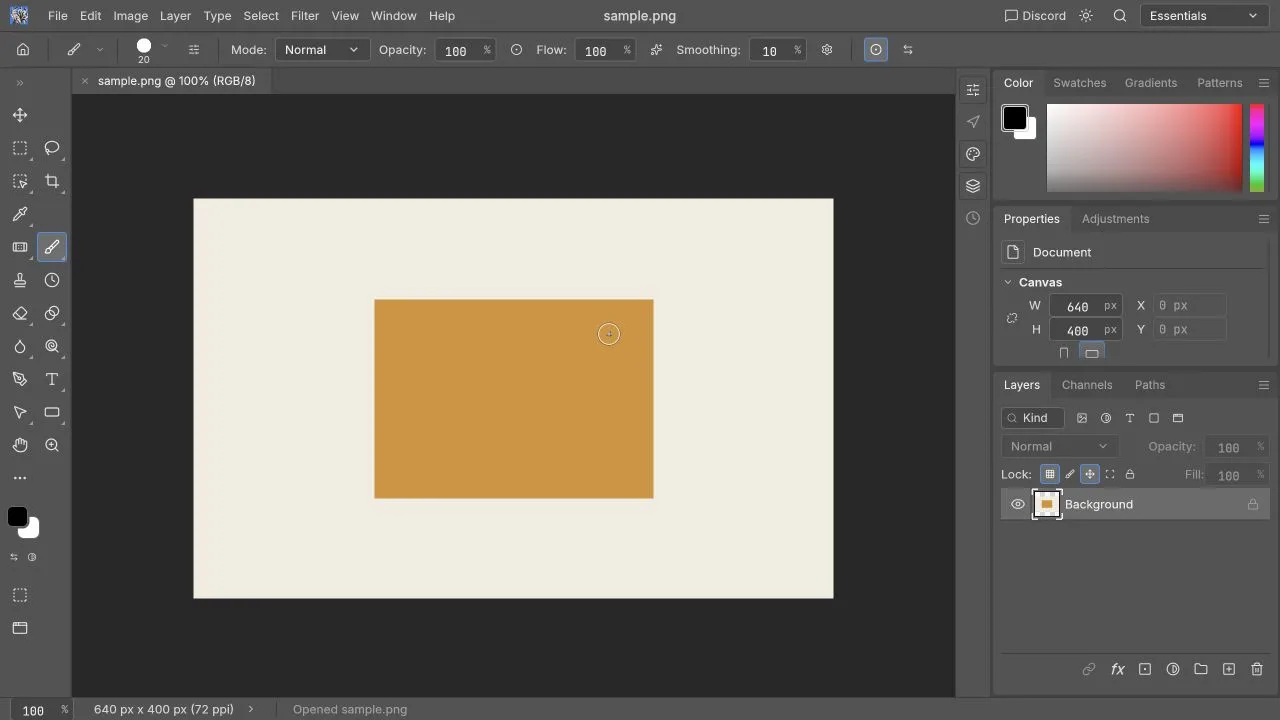
If your result differs: try this exact small PNG before repeatedly opening a large image. A missing workspace points to loading or graphics; an empty canvas after opening a file is a different symptom. Use the troubleshooting guide.
2. Add a short English text layer
Choose Type, click the canvas, and enter PhotoCraft test. In this Web check, Control+Enter committed the text. That key may differ in another browser, macOS desktop build, or customized setup, so use the confirmation control shown by your editor if the shortcut does not work.
Observed result: the words appeared and a new Type Layer was visible in the Layers panel. This verifies newly created English text on the sample; it does not verify Chinese glyphs or text imported from a PSD.
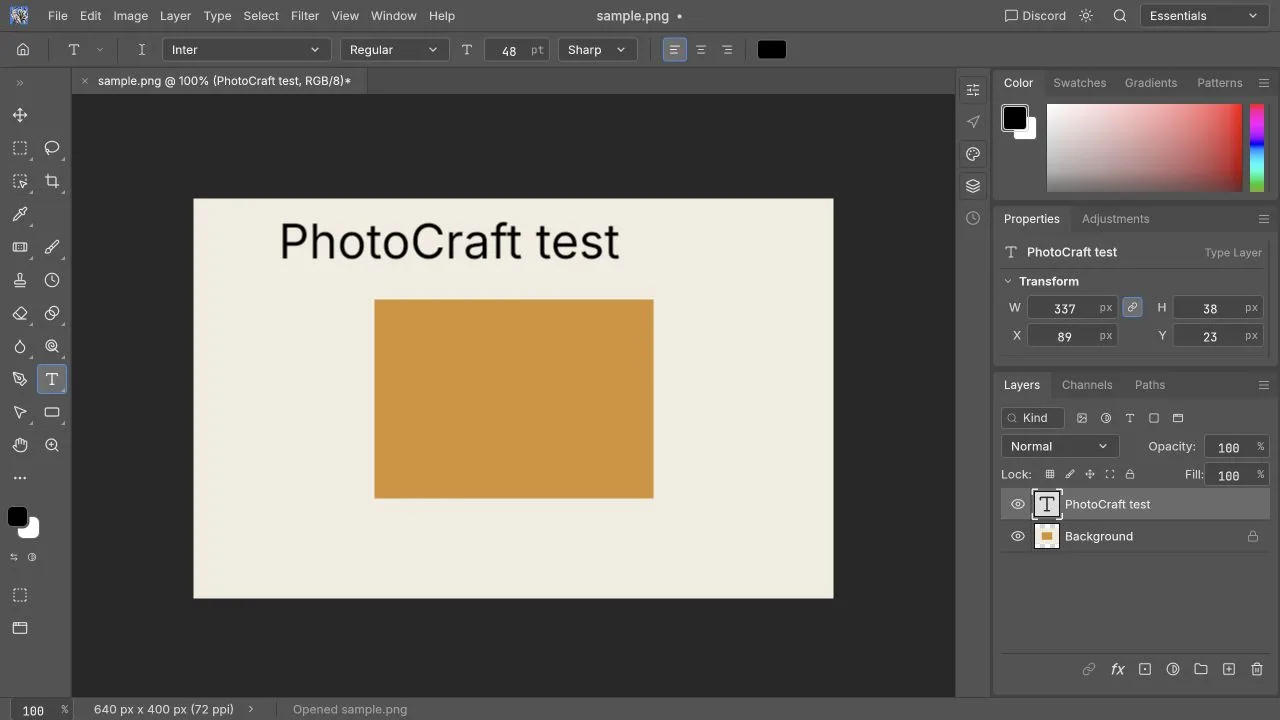
If typing triggers another tool: confirm the text caret and editor focus. If characters become boxes, consult Chinese text and fonts. Keep the original wording in a text note while diagnosing the problem.
3. Undo and Redo the text change
Use Undo, then Redo. In this Web check, Control+Z removed the text and Control+Shift+Z restored it. If browser shortcuts interfere, select the editor’s corresponding menu action instead.
Observed result: the canvas visibly returned to the image without the caption, then recovered the caption. This checks current-tab history only; it does not mean the document can recover after refresh or tab closure.
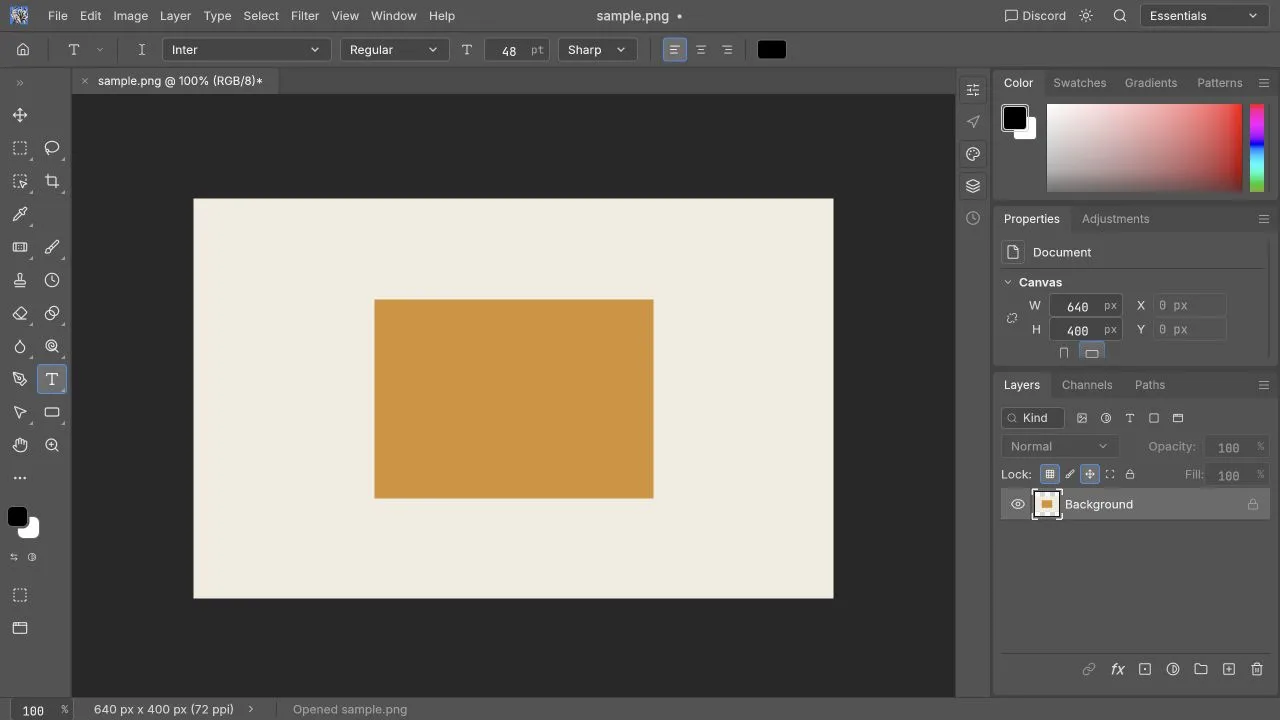
After Redo, verify the text is back before exporting. Use the shortcut guide for the distinction between a browser shortcut and an editor shortcut.
4. Download a PNG and inspect it elsewhere
Use File → Export → Quick Export as PNG. In this check, the download completed, the application warned that layers would flatten, and the PNG decoded at 640 × 400 with the caption preserved.
Expected result when you repeat it: the browser produces a finished image you can open in another viewer. Check spelling, edges, dimensions, and the final background. Finding a filename in downloads is useful, but opening the actual file is the acceptance check.
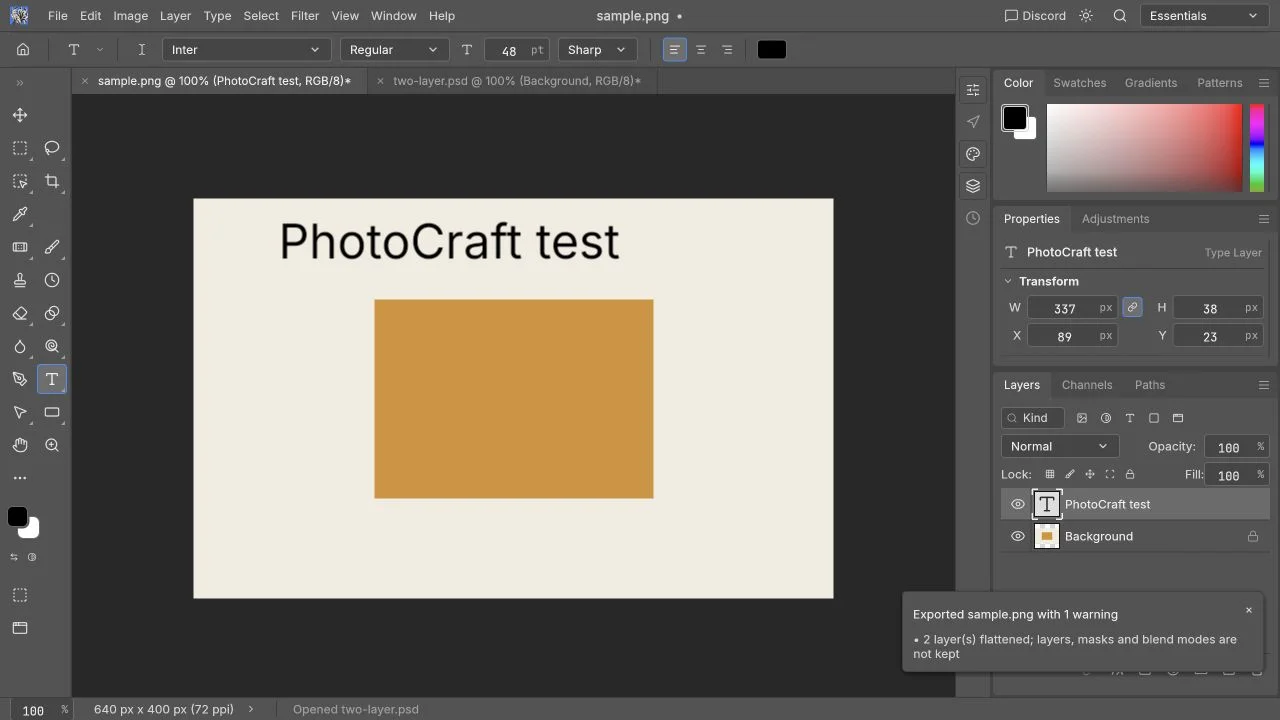
A PNG is the visible result, not a file that preserves separate editable text and photo layers. Browser Save and Export use downloads, and permissions can block them. Official download behavior
If no download appears: check the browser’s download list and permission messages before clicking Export repeatedly. Do not close the tab until a usable copy exists.
5. Crop after the first export
Choose Crop, drag the lower-right crop handle, and commit using the top-right checkmark. This particular drag produced a 600 × 371 canvas; it is not a fixed preset you will obtain automatically.
Observed result: the canvas dimensions changed and the framing was reduced. Cropping changes what the image contains; zoom only changes your view. If you need a specific ratio or output size, verify those requirements separately.
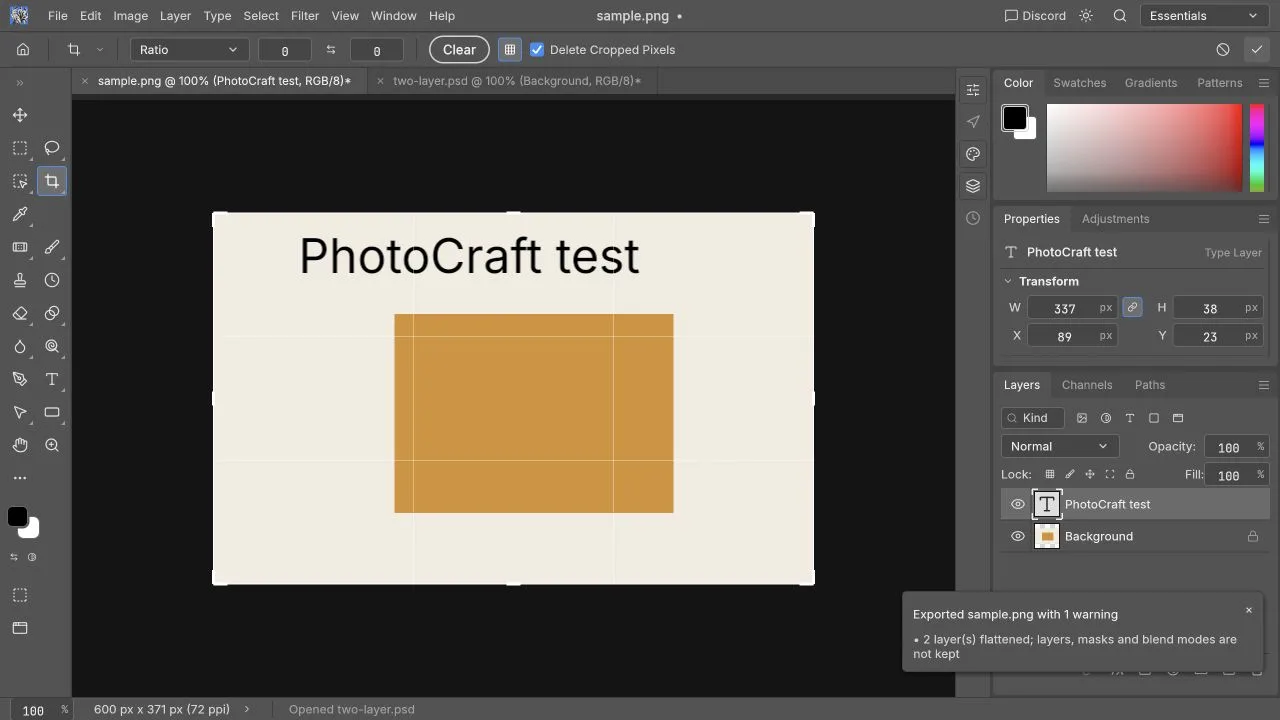
If the crop removes needed content: Undo and try a smaller change. Keep your uncropped original. Exporting this cropped result is a sensible next check, but the recorded successful PNG export above preceded the crop.
6. Brighten the Background pixels
Select the pixel Background layer. Use Image → Adjustments → Brightness/Contrast, move the brightness slider, and confirm. The sample’s background and amber rectangle became visibly brighter.
Observed result: the image pixels changed. This was a direct adjustment, not a tested live adjustment layer. The separately created Type Layer is a reason to check which layer is selected before applying an operation.
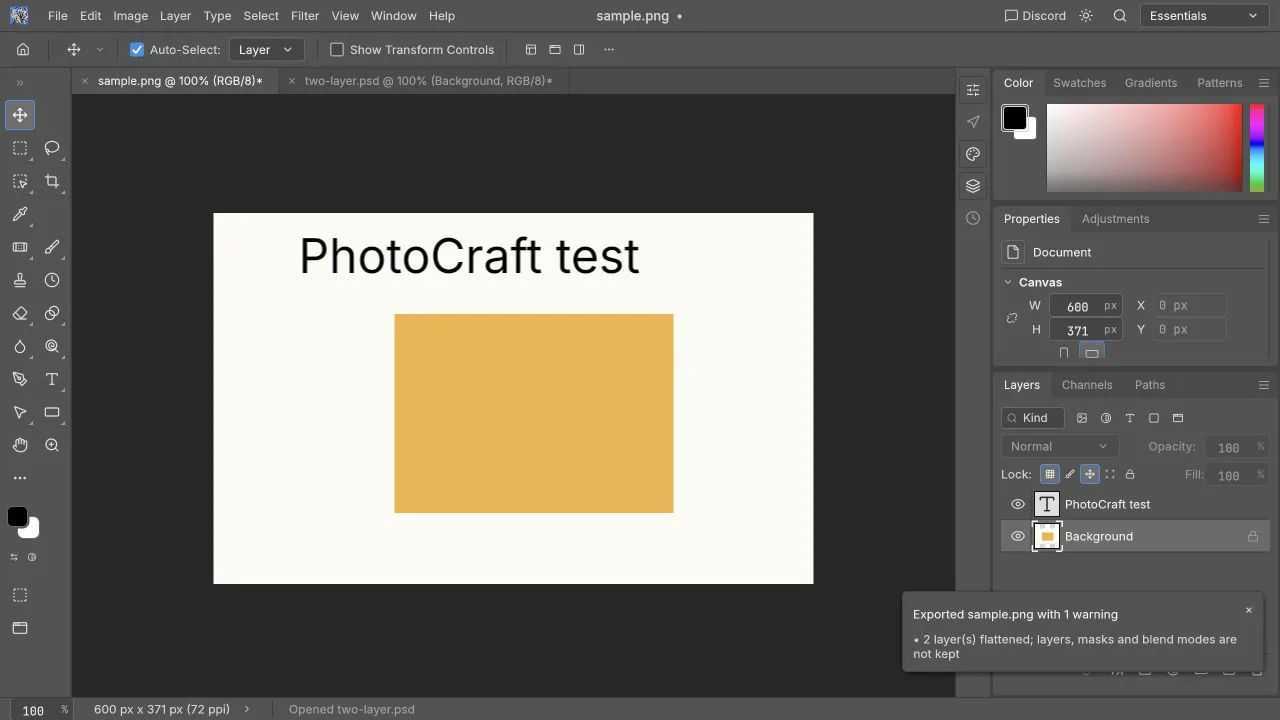
If the wrong content changes: Undo and inspect the layer selection. For a reversible layer-based workflow, read layers and masks; its mask and adjustment-layer procedures remain untested in this browser check.
What should you save next?
For publication, export the finished appearance and reopen it outside the editor. For later editing, separately save a supported project format and test reopening it before you close the working tab. Editable Save and project reopening still need to be checked on your own file.
| Check | Recorded status |
|---|---|
| Open 640 × 400 PNG | Passed on the shared sample |
| Create English text; Undo and Redo | Passed on the shared sample |
| Download PNG with text | Passed; 640 × 400, before crop |
| Crop to 600 × 371 | Canvas change observed |
| Direct Brightness/Contrast | Visible pixel change observed |
| Project reopening, Chinese, masks | Not tested |
A small-file pass is a useful starting point, not a Photoshop replacement claim. Before editing a PSD, read the PSD tutorial, including its layer-order discrepancy, and the compatibility guide.