
PhotoCraft Online Editorial Team
PhotoCraft Not Working? Loading and Export Fixes
Diagnose PhotoCraft web loading failures, blank canvases, PSD import errors and missing downloads without losing your current edit.
When PhotoCraft fails, first separate the editor not loading, one file not opening, and an edit not exporting. They have different causes. Preserve an original copy, download any work you can still access, then test a small disposable image before clearing storage or refreshing an active session.
This guide covers the v0.5.0 web package, with documentation reviewed on 10 October 2026. The steps below are a diagnostic procedure, not a claim that every reported issue has been reproduced here. Renderer options and hosting requirements are described in the official web guide.
Example symptom: PSD opens, but the initial picture is wrong
In a 10 October 2026 local check, v0.5.0 displayed both layers of a 640 × 400 RGB 8-bit synthetic PSD, but Background covered Amber card, unlike the embedded composite. Hiding Background revealed the rectangle; dragging it below Amber card restored the expected reference appearance. The cause was not established; it may be fixture encoding or importer behavior. Reordering is an observed workaround for this sample, not a universal fix for PSD rendering.
The environment was Codex's in-app Chromium on macOS 26.2 (25C56), at 1280 × 720 with the default renderer. Browser engine version and WebGPU/WebGL selection were unrecorded. Download the two-layer PSD and reference PNG, or see the full compatibility record for sizes, hashes and the three states.

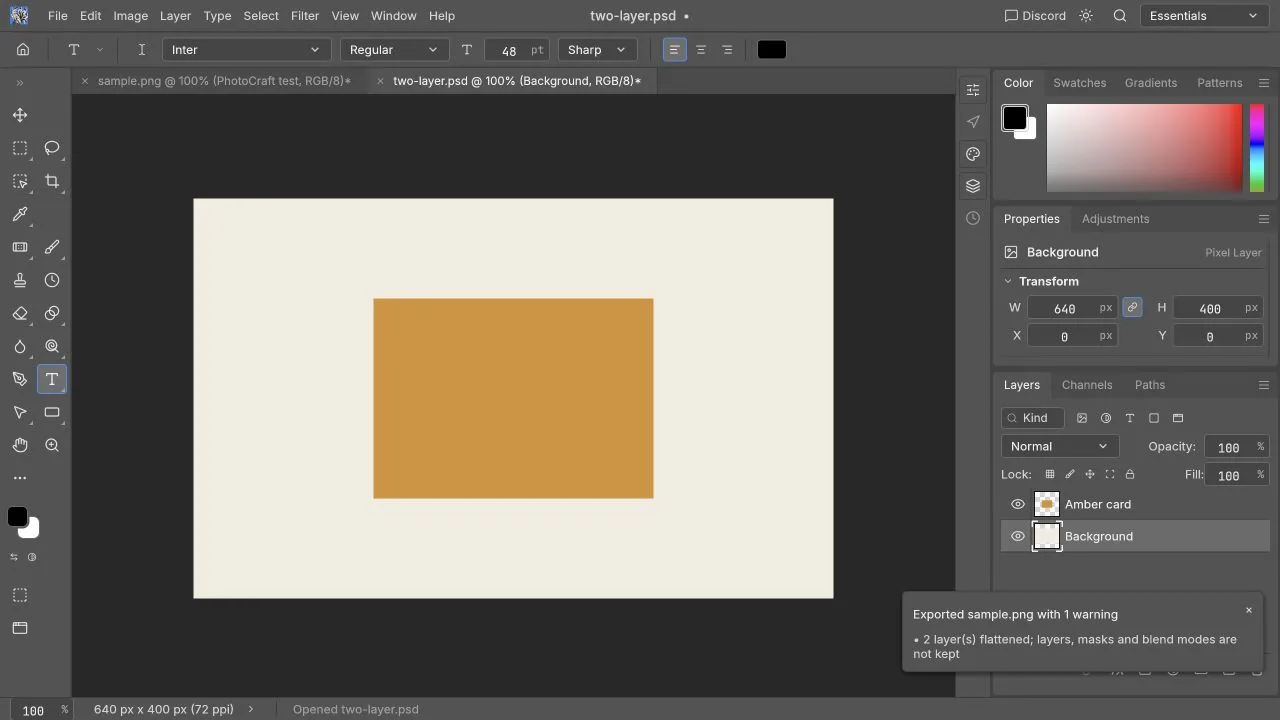
The same session verified a PNG file chooser import, new English text, undo/redo, crop, brightness adjustment and a PNG download checked at 640 × 400. It did not test PSD save/reopen, complex PSD features or mobile devices. If your production file fails, follow the symptom-specific checks below rather than applying this sample workaround blindly.
Start with the symptom
| What you see | First check | What the result tells you |
|---|---|---|
| Loading screen never reaches the workspace | Wait for the runtime download, then inspect failed requests | Network delivery or runtime initialization |
| Menus work but the canvas is black or blank | Try a small PNG and Fit on Screen | Document/view issue versus graphics backend |
| A small PNG opens but one PSD fails | Inspect that PSD's size, depth, layers and features | File-specific decoding or memory problem |
| The page disappears after a shortcut | Check browser shortcut interception | Refresh/new-tab conflict, not necessarily an editor crash |
| Export appears to complete but no file is visible | Check browser Downloads and blocked-download notice | Download delivery rather than image import |
| Download opens but differs from the original PSD | Compare text, masks, effects and color separately | Compatibility problem rather than a successful professional handoff |
Change one condition at a time. If you simultaneously switch browser, file and renderer, you may get a working session without learning what failed.
Why is the first load slow?
The editor downloads a WebAssembly program and initializes its graphics engine. A first visit has more work than a cached visit. The size examples in upstream documentation are measurements from an earlier package, not a promise about this site's v0.5.0 transfer size.
- Keep the tab open while the initial download is progressing. Repeated reloads can restart initialization.
- Check whether ordinary pages load. If they do but the editor does not, open the runtime in its own window using the editor's standalone link.
- Use browser developer tools → Network to look for failed
.wasmor JavaScript requests. Record the status and URL, without sharing cookies or request tokens. - Retry a clean browser profile or private window to identify extension interference. A private window may also change storage behavior, so it is a diagnostic comparison rather than a permanent fix.
- Use the contact/help page to understand what support channels are available. Keep the browser version, OS, time, failed request URL and status code ready.
If a .wasm request fails, record its URL and status code. Repeated refreshes usually do not fix a missing runtime file or an HTML response served from a .wasm URL. The official hosting guide explains why WASM delivery, compression, relative asset URLs and cache consistency matter. Official hosting instructions
What should I do about a blank canvas?
Start with View → Fit on Screen and inspect the Layers panel for hidden content. An empty new document or a canvas panned away from its image does not prove a graphics failure. Open a small known-good PNG next.
If the workspace itself cannot render, save anything accessible and try the alternative renderer links in the editor. Upstream prefers WebGPU when available and falls back to WebGL2; ?webgl forces WebGL2 and ?cpu selects the slower CPU canvas path. A fallback that loads a small image does not establish equal performance or visual results for a large PSD. See the renderer flags.
Use an up-to-date browser with supported graphics enabled. If this is a managed device, do not bypass organization controls: record the unavailable graphics capability for support. On a non-local public URL, HTTPS is required for WebGPU and clipboard secure-context features. GPU availability also depends on the browser, driver and device.
Why does a PSD fail while a PNG works?
A compressed PSD's disk size is only one clue. Decoded pixels, masks, layer previews, smart objects and history can require more memory. A file with unusual color modes or complex filters presents a different test from a three-layer RGB example.
- Confirm the file opens in its originating application and keep the untouched source.
- Record dimensions, file size, color mode, bit depth and layer count.
- Export a flattened reference PNG from the source, then check whether that PNG opens here.
- On a copy, remove one complex feature group at a time to isolate the cause. Never flatten the only editable original.
- If import succeeds, compare against the reference at 100% zoom before editing.
For a feature-by-feature verification process, use PSD compatibility. An imported merged preview is not proof that all editable layer data is understood.
Why can't I find the saved file?
The web build saves through browser downloads. Check Downloads for the expected name, extension, size and completion status. A browser may add a numeric suffix, use its default folder, or require permission for multiple downloads. A download that contains HTML is probably a browser Save Page action: use File → Save As inside the editor instead.
Try File → Export → Quick Export as PNG on a tiny image. If it succeeds, check the original export's format and scale; if it fails too, record any browser download warning. Embedded hosts must permit downloads, as explained in upstream iframe settings. Reopen the finished download before considering the session saved. Refresh and tab closure are not a cloud backup.
What makes a useful bug report?
Report the deployed version, OS/browser versions, renderer used, file dimensions, depth and layers, exact steps, expected versus actual result and error text. Add a screenshot with personal information removed. If possible, attach a small synthetic file that reproduces the issue instead of a client's private artwork.
For website loading and navigation issues, check the contact/help page for available channels. Report editor-engine defects to the official issue tracker only when the problem belongs to the PhotoCraft editor itself. Keep security-sensitive information out of public issues; follow the upstream security policy for a suspected vulnerability. Next, try the first-session tutorial or shortcut reference.