
PSD / PHOTOCRAFT WEB v0.5.0
Edit PSD files online
PhotoCraft Web can open and export PSD files, but compatibility depends on the file. A PSD that opens successfully may still need checks for smart objects, layer effects, fonts and later editing in Photoshop.
Open free editorFree image editing. No account required. PhotoCraft v0.5.0 · early preview.
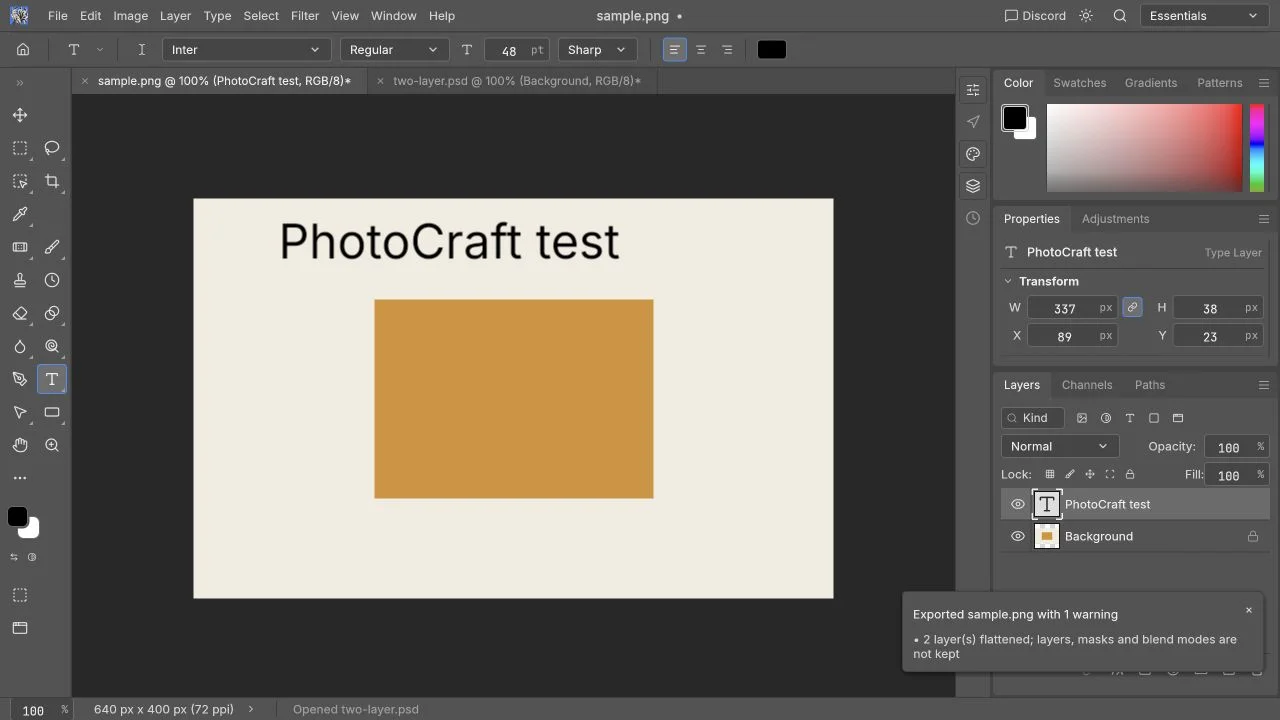
Check the layers
Check the layer count, order, visibility and compositing before you change anything.
Change text and images
Use a copy to explore the text and image tools. Missing fonts can change line breaks and layout.
Check the saved file
Download and reopen the result. Check both appearance and editability in the target application.
How to edit your first image
- 01
Prepare a reference
Duplicate the PSD and keep a reference PNG from the application that created it. Record dimensions, fonts and layer count.
- 02
Open and inspect
Launch the editor, open the copy and compare the canvas with your reference. Stop if important elements are missing or shifted.
- 03
Edit one layer
Change one layer or text element. Inspect masks and visibility, and use Undo to check that you can recover the initial state.
- 04
Save an image or an editable file
An image export is suitable for viewing. A layered PSD must be reopened and checked before it is accepted as an editable handoff.
Can PhotoCraft replace Photoshop?
If your file depends on smart objects, layer styles, adjustment layers, embedded fonts, CMYK color, print output or very large PSB documents, keep Photoshop in your workflow and compare the result before delivery.
Read the official PhotoCraft project notesRead before your first PSD edit
Make your first edit
How to edit a PSD online
Find a layer, make a change and check the saved file.
Layers and masks explained
Change stacking order and understand masks and opacity.