# PhotoCraft Online — Full guide
> Complete tutorials, reviews and site information. Each document links to its original page; capabilities and checks apply to the stated version and date.
## Edit PSD Online: Layers, Changes and Export
[Original page](https://photocraftonline.org/blog/edit-psd-online) · 2026-10-10 / 2026-10-10
You can try editing a PSD in [PhotoCraft Online](https://photocraftonline.org/editor), but a successful open is only the first check. Compare the initial appearance, inspect the layers, make one change, and verify the downloaded result. Save a layered project separately from a PNG or JPEG; a flat image is not a PSD that another designer can continue editing.
This v0.5.0 guide gives you a cautious PSD workflow: compare the starting image, find the layer you need, make one small change, export a preview, then test the editable file separately. The upstream project remains alpha. Keep an untouched copy and test your actual template before committing to a deadline; do not treat a PhotoCraft-only save as a Photoshop handoff until the recipient has reopened it.
### Two-layer browser check
On October 10, 2026, we opened [two-layer.psd](https://photocraftonline.org/test-fixtures/two-layer.psd), a locally generated 640 × 400 RGB 8-bit file of 1,704,206 bytes with two ordinary pixel layers named Background and Amber card. The environment was macOS 26.2 (25C56), Codex in-app Chromium, 1280 × 720 viewport, local official v0.5.0 Web runtime. The browser engine version and actual graphics backend were not independently recorded.
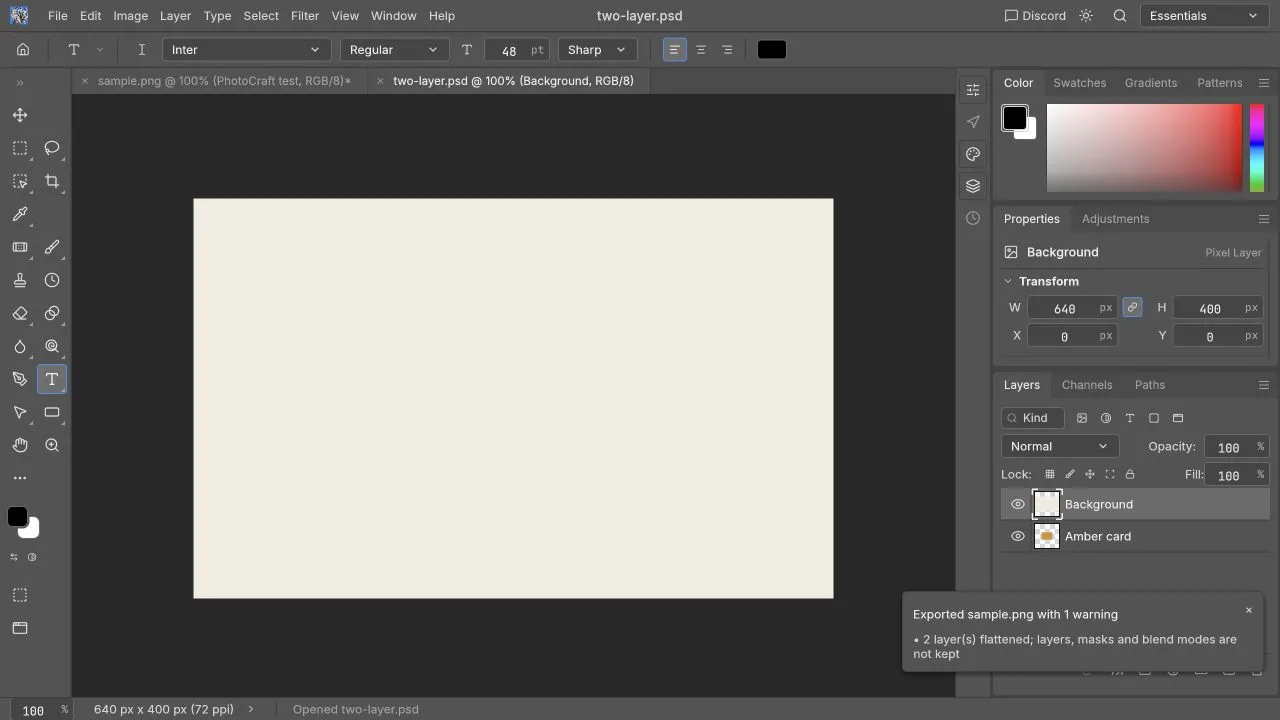
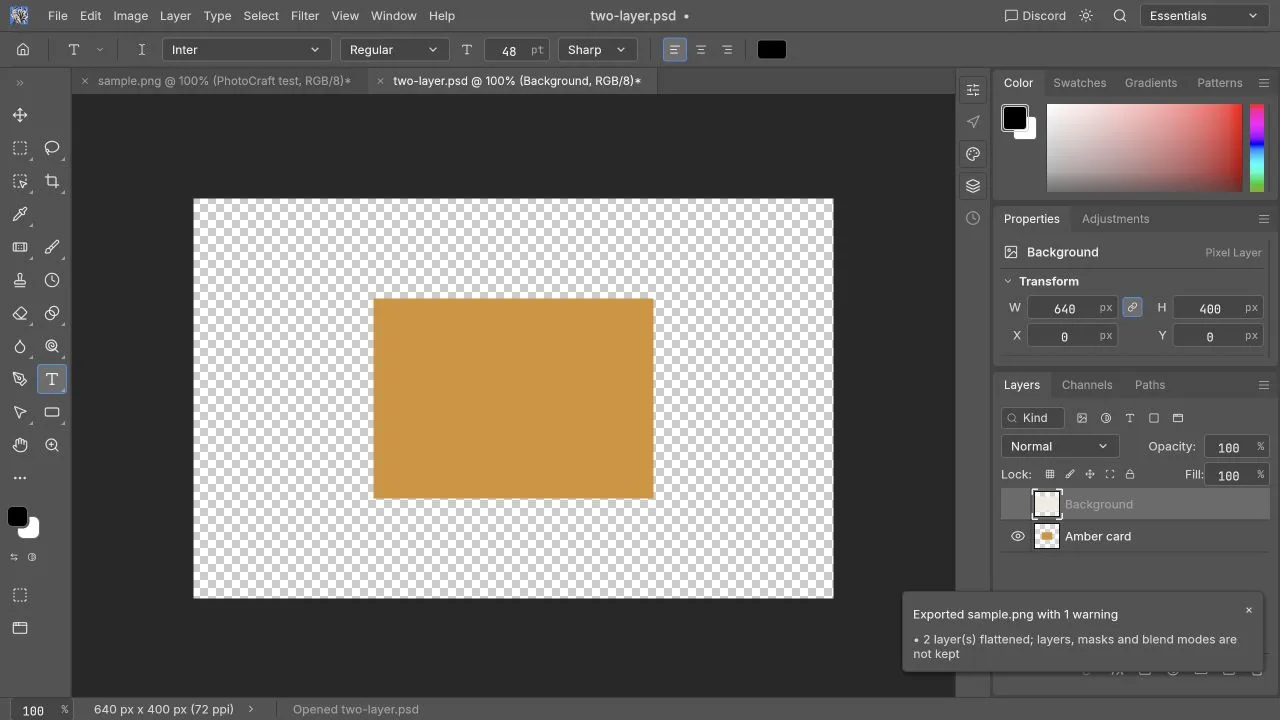
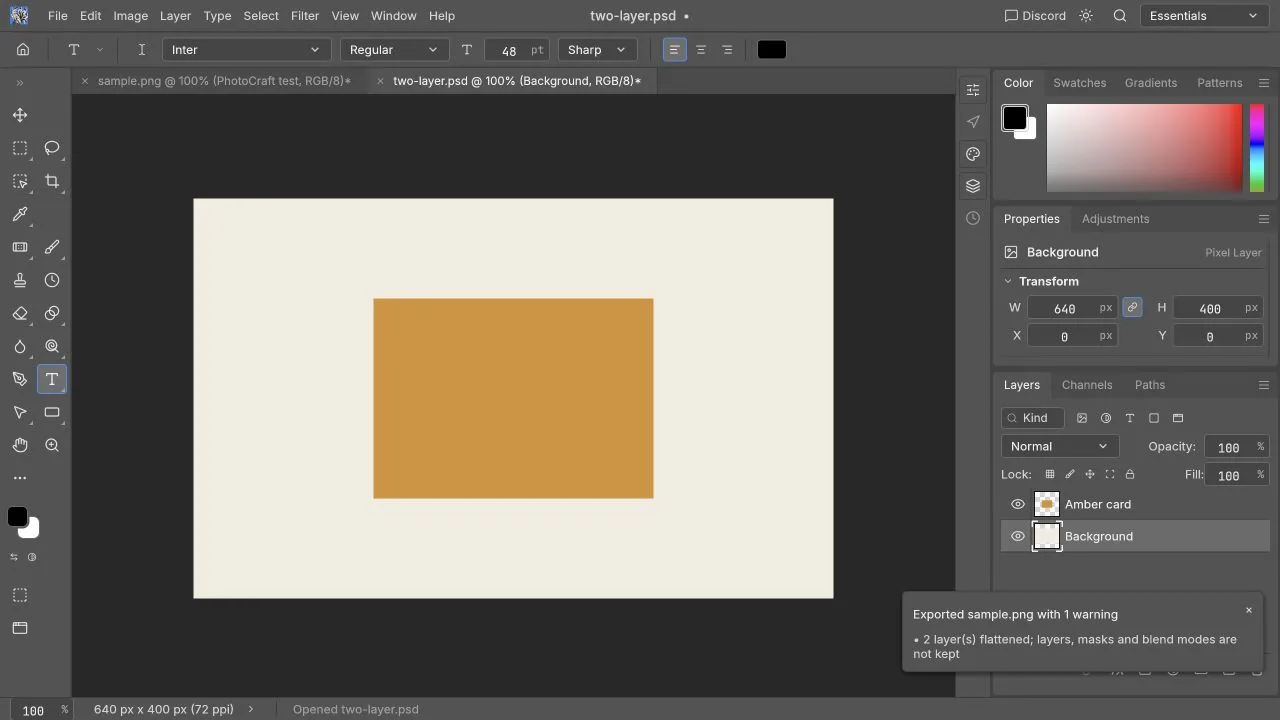
Both layers appeared, but Background initially covered Amber card, contrary to the embedded composite. Hiding Background revealed the amber rectangle over transparency. Dragging Background below Amber card produced a canvas visually matching [the PNG sample](https://photocraftonline.org/test-fixtures/sample.png) (640 × 400, 3,390 bytes).
The discrepancy is unresolved: it may be fixture encoding or importer behavior. This synthetic file is not Adobe-authored, and this check does not validate imported text, masks, styles, smart objects, complex PSDs, or saved-PSD interoperability.
 ### What does “edit a PSD” actually require?
There are three distinct levels of success. A reader may display the merged preview without exposing the intended layers. An editor may let you change some layers but render a font or effect differently. A saved PSD may look right here yet behave differently in the application used by your recipient.
| Requirement | Evidence to collect |
|---|---|
| Opens correctly | Starting canvas matches a trusted preview |
| Remains editable | Required text, masks, groups, and objects remain available |
| Produces the final image | Export has correct dimensions and visual appearance |
| Can be handed off | Recipient's intended editor reopens the project correctly |
PhotoCraft's PSD notes report document sample testing, but that is not a guarantee for your file in this browser editor. They also distinguish saves that preserve the visible result from parser-level byte-for-byte checks. [Official PSD support explanation](https://github.com/storytold/photocraft/blob/v0.5.0/README.md#psd-without-compromise)
### Prepare your document and a reference
Use a copy of the PSD. If possible, obtain a PNG or JPEG exported by its creator before editing. Ask which font was used, which layers are meant to change, and what output is expected. A flattened preview helps compare appearance; it does not replace an editable source.
For a first attempt, prefer a small document with a background, a photograph, and a title. Record its pixel dimensions, file size, approximate layer count, and origin. Those details make any later failure report useful. Never upload a sensitive client file merely to demonstrate a bug; create a sanitized reproduction when needed.
### What does “edit a PSD” actually require?
There are three distinct levels of success. A reader may display the merged preview without exposing the intended layers. An editor may let you change some layers but render a font or effect differently. A saved PSD may look right here yet behave differently in the application used by your recipient.
| Requirement | Evidence to collect |
|---|---|
| Opens correctly | Starting canvas matches a trusted preview |
| Remains editable | Required text, masks, groups, and objects remain available |
| Produces the final image | Export has correct dimensions and visual appearance |
| Can be handed off | Recipient's intended editor reopens the project correctly |
PhotoCraft's PSD notes report document sample testing, but that is not a guarantee for your file in this browser editor. They also distinguish saves that preserve the visible result from parser-level byte-for-byte checks. [Official PSD support explanation](https://github.com/storytold/photocraft/blob/v0.5.0/README.md#psd-without-compromise)
### Prepare your document and a reference
Use a copy of the PSD. If possible, obtain a PNG or JPEG exported by its creator before editing. Ask which font was used, which layers are meant to change, and what output is expected. A flattened preview helps compare appearance; it does not replace an editable source.
For a first attempt, prefer a small document with a background, a photograph, and a title. Record its pixel dimensions, file size, approximate layer count, and origin. Those details make any later failure report useful. Never upload a sensitive client file merely to demonstrate a bug; create a sanitized reproduction when needed.
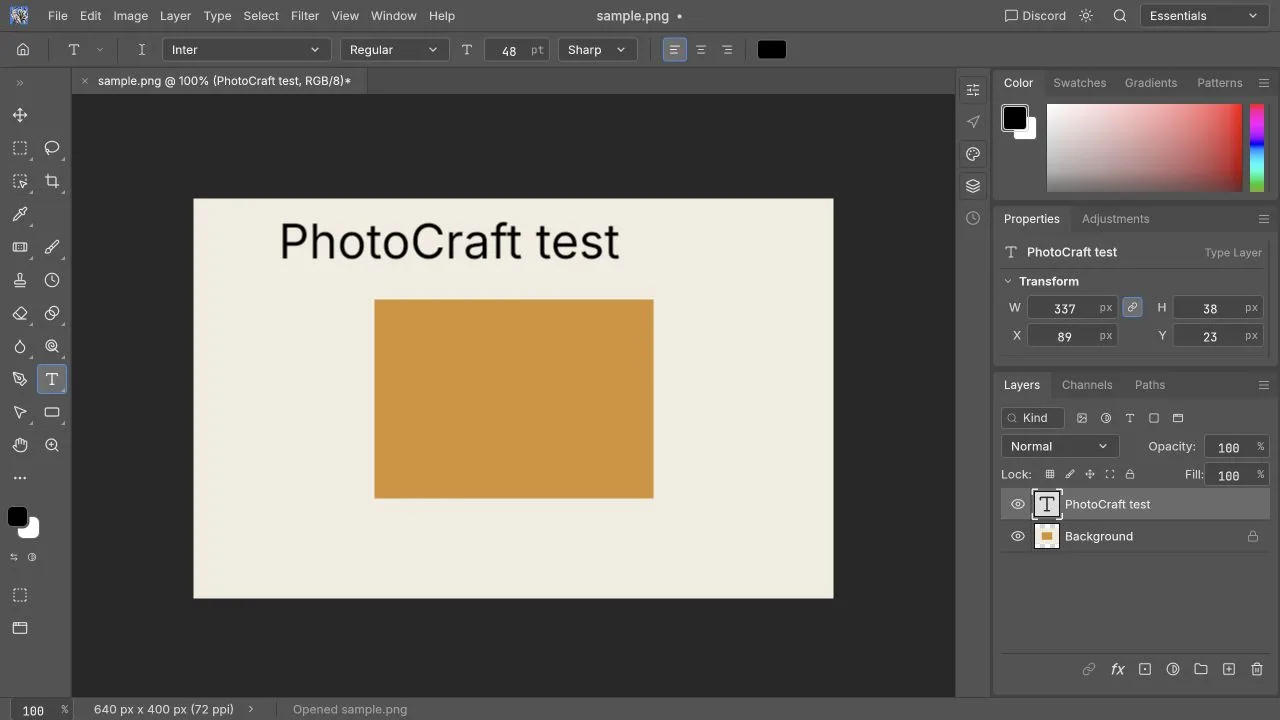
 This workspace image shows where you will inspect a document and its tools. It is not a Photoshop comparison or proof of complex-PSD compatibility. Imported PSD text and editable-save handoff still need their own checks.
### 1. Open and compare before changing anything
Use Open inside the editor and choose the PSD copy. Wait for the canvas to settle. Compare the background, text, colors, transparency, and important effects with the reference at a comparable zoom.
**Expected result:** the starting image matches closely enough for your task, and you can identify its document dimensions. If the file looks wrong before any edit, record the difference immediately. Editing over an import discrepancy makes it harder to distinguish compatibility problems from your own changes.
**If it fails:** test a smaller PSD or a simple image to separate document problems from editor-loading problems. See [troubleshooting](https://photocraftonline.org/blog/photocraft-troubleshooting). Do not flatten the original as a supposed compatibility fix if you still need its layers.
### 2. Find the actual layer to change
Inspect the Layers panel, expand groups, and toggle the candidate layer's visibility. Watch which part of the canvas disappears. Use Undo if you accidentally change something, and give the working copy a distinct name.
**Expected result:** you can connect one layer with one visible part of the design. A group, clipped layer, or masked object may depend on adjacent layers. Move slowly rather than deleting everything that seems unused.
**If it fails:** text that appears in the image may be rasterized, embedded in another object, or hidden inside a group. A layer named “Title” is not proof of editable text. Consult the [layer and mask guide](https://photocraftonline.org/blog/photocraft-layers-and-masks) before changing its structure.
### 3. Modify a short piece of text
When the title is an editable type layer, select it and use the Type controls to change only a few words. Preserve the original font and size initially. Check whether the new words fit the existing text area and whether the line breaks change.
**Expected result:** the new text appears without altering unrelated layers. The upstream project documents editable type and PSD type-layer handling, but a matching font and matching browser rendering remain document-specific checks. [Official type overview](https://github.com/storytold/photocraft/blob/v0.5.0/README.md#type-that-sets-beautifully)
**If it fails:** use a shorter phrase, check the font, and verify you are editing the right layer. For missing Chinese glyphs or substitution, see [fonts and Chinese text](https://photocraftonline.org/blog/photocraft-chinese-and-fonts). If text is rasterized, replacing it requires rebuilding that part of the design; typing cannot restore the original editable text.
### 4. Change imagery without assuming smart-object equivalence
Start with a modest move or scale of an ordinary image layer using the controls available in your build. If replacing a photograph, preserve a duplicate or the original source. Check which clipping masks and layer masks determine the visible region before moving the image.
**Expected result:** the intended photo changes while the frame, text, and background remain intact. Inspect edges and overlap at normal display size.
**If it fails:** Undo and inspect the mask or clipping relationship. A template designed around an embedded smart object may require behavior that you have not validated in this Web build. Do not rasterize it as a hidden workaround when the final deliverable must remain editable. Read [PSD compatibility](https://photocraftonline.org/blog/photocraft-psd-compatibility) before relying on advanced object handling.
### 5. Export a preview and inspect it elsewhere
Use the export action to create a PNG or JPEG appropriate for the task. Confirm dimensions, transparency requirements, and quality before downloading. Browser Save and Export actions produce downloads rather than guaranteeing an overwrite of the original local file. [Official Web download behavior](https://github.com/storytold/photocraft/blob/v0.5.0/packaging/web/README.md#embedding-in-a-page-iframe)
Open the downloaded image in another viewer. Check text spelling, line breaks, clipping edges, shadows, colors, and exact pixel dimensions. For a transparency test, view it against both light and dark backgrounds.
**Expected result:** the exported picture matches the intended edited design. If it differs from the canvas, keep both a screenshot and the file; they document a different problem from import mismatch.
### 6. Save and reopen the editable version
Save a separate layered project in a format supported by the build. If the required deliverable is specifically PSD, make sure you selected PSD rather than another project format or a flat image. Reopen the saved file and repeat the relevant layer checks.
For client handoff, ask the recipient to open it in the application they actually use. A local reopen in PhotoCraft is useful evidence, but it does not prove the file will reopen and remain editable in Photoshop. Do not discard the original until that acceptance check is complete.
### When should you stop and use another workflow?
Stop when the starting render is already unacceptable, required fonts cannot be matched, essential objects lose editability, or the recipient cannot reopen the layered result. A screenshot can help explain the problem, but it does not make the file safe to hand off.
If your deliverable only needs a finished image, a modest edit may still be useful after inspection. If it needs complex layered interchange, use the [Photoshop replacement assessment](https://photocraftonline.org/blog/photocraft-vs-photoshop) to evaluate the risk. The [PSD editor page](https://photocraftonline.org/psd-editor) links the tool with the relevant compatibility and task guides.
---
## Is PhotoCraft Safe? Downloads, Files and Privacy
[Original page](https://photocraftonline.org/blog/is-photocraft-safe) · 2026-10-10
PhotoCraft is an open-source image editor, but you should still check where you download it, what version you use, and what happens to your files. Keep an original copy before editing, and do not treat every site or installer with the same name as official. PhotoCraft Online is an independent site that hosts the web editor; it is not the upstream project's official website. For the project identity and naming boundaries, start with [What is PhotoCraft?](https://photocraftonline.org/blog/what-is-photocraft).
This guide covers **PhotoCraft v0.5.0**, with sources checked on **10 October 2026**. It gives practical checks you can repeat before using the editor; it is not a security certification. The upstream [security policy](https://github.com/storytold/photocraft/blob/v0.5.0/SECURITY.md) treats imported document formats and automation input as potential attack surfaces.
### Which PhotoCraft is this?
The name can appear on unrelated services. The open-source editor used here is maintained in the **storytold/photocraft** GitHub repository. Follow the repository's links to establish the official project identity; a similar domain name or search advertisement does not demonstrate affiliation.
This site is responsible for its pages, hosting choices and privacy policy. Upstream develops the editor. Adobe and Photoshop names identify compatibility and comparison topics; neither PhotoCraft nor this site is an Adobe product. If you want the official desktop application, use [our download guide](https://photocraftonline.org/download) to reach the upstream release, not an attachment in a forum or an unsolicited message.
### How do I verify a desktop download?
Use the [pinned v0.5.0 release](https://github.com/storytold/photocraft/releases/tag/v0.5.0), choose the correct operating system and architecture, and download `SHA256SUMS.txt` from that same release. Match the exact filename, not just the version number.
1. Check the final URL and repository owner before downloading.
2. Select the expected package for your OS and architecture. Avoid a repackaged installer that offers unrelated software.
3. Compute the local file's SHA-256 and compare all hexadecimal characters with the corresponding checksum entry.
4. Keep normal operating-system signature and malware checks enabled. A warning is a reason to investigate provenance rather than blindly bypass protection.
5. Keep the version and checksum record if you need to report a reproducible issue later.
| Platform | Built-in checksum example |
|---|---|
| Windows PowerShell | `Get-FileHash -Algorithm SHA256 .\downloaded-file.zip` |
| macOS Terminal | `shasum -a 256 downloaded-file.dmg` |
| Linux Terminal | `sha256sum downloaded-file.AppImage` |
Replace the example filename with the actual download. A matching checksum confirms that your file matches the checksum source; it does not prove the software contains no vulnerabilities. The release and checksum must come from a trusted source together. The [upstream download documentation](https://github.com/storytold/photocraft/blob/v0.5.0/README.md#downloads) explains release assets, hashes and signing information; that description is not an independent signature audit by this site.
### Which web editor package is hosted here?
The hosted runtime is the unchanged official **photocraft-web-0.5.0.zip** package with SHA-256 **`855da01e7ce518049c6f3a090f1218864f7b780811e340db409e5c3cef93cd6d`**. Its licenses remain with the runtime. This artifact verification links the deployed program to the pinned [official release](https://github.com/storytold/photocraft/releases/tag/v0.5.0); it is not an independent code-security audit.
On 10 October 2026, we checked basic PNG editing and download on macOS 26.2 (25C56) in a Chromium browser, plus visibility and reordering for two synthetic PSD raster layers. PSD save/reopen and Photoshop acceptance were not tested. We have not inspected every possible network request body; the privacy notes below describe the basic editing flow and the limits you should still consider.
### Are my images uploaded during basic editing?
For basic editing, this site loads a WebAssembly editor. When you open a local image, the browser gives the file to the editor running in that tab, and Save/Export downloads a new file back to your device. We currently do not provide cloud save, a basic-editing upload workflow or an AI workflow that sends images to an inference service.
Local processing does **not** mean the browser never uses the network. It downloads the website and runtime. This site uses Plausible Analytics and Google Analytics 4 to measure page visits; Google Analytics uses first-party analytics cookies. Neither analytics tool sends your editor image files. Fonts, documentation and links you choose to open can also make network requests. The [web hosting guide](https://github.com/storytold/photocraft/blob/v0.5.0/packaging/web/README.md) describes the static package, local preferences and download behavior. See our [privacy policy](https://photocraftonline.org/privacy) for the website layer.
If confidentiality is critical, test with a synthetic image first and inspect the browser Network panel on the exact deployed version you plan to use. Compare requests before and after opening the image, and look at destinations and payloads. That check only covers the workflow and build you tested; it cannot cover future integrations or every possible command.
### Does local editing protect against file loss?
Local editing reduces the need to send an image to an application server. It does not create a backup. Unsaved changes may be lost when a tab closes, the browser crashes or the page refreshes. Download a new editable copy and a final viewing image, then reopen them before ending the session.
Browser storage used for preferences is not a promise that project contents are recoverable. Clearing site data can reset editor preferences and related site state. For a client PSD, retain the original plus the creator's flattened reference, and apply the [compatibility checks](https://photocraftonline.org/blog/photocraft-psd-compatibility) before replacing any production asset.
### Can a PSD itself be unsafe?
Complex document parsers can face excessive dimensions, decompression load, malformed metadata or deeply nested data. A file with a small download size can still demand substantial memory. Browser isolation is useful, but it is not a guarantee that every malformed file is harmless or that the graphics driver cannot fail. Use a maintained browser and avoid untrusted documents with no clear provenance.
Desktop automation exposes a different set of permissions from this basic web editor. You do not need to enable a desktop control server to use this website. The [security documentation](https://github.com/storytold/photocraft/blob/v0.5.0/book/src/security/overview.md) separates implemented protections from remaining hardening work.
### What should I do if I suspect a security issue?
For a site-specific issue, check the [contact page](https://photocraftonline.org/contact) for the current feedback channel and include only the affected page/version and a minimal description. Do not send passwords, secret tokens, private PSDs or weaponized files. For an engine vulnerability, follow the [upstream reporting policy](https://github.com/storytold/photocraft/blob/v0.5.0/SECURITY.md); coordinate a private transfer method before sharing sensitive details.
For ordinary loading and export faults, use [troubleshooting](https://photocraftonline.org/blog/photocraft-troubleshooting). For a first non-sensitive sample, [open the editor](https://photocraftonline.org/editor). Keeping a copy, checking the download and verifying the output are useful safeguards even when the software source is legitimate.
---
## Does PhotoCraft Have AI? Generative Fill, Removal and Expand
[Original page](https://photocraftonline.org/blog/photocraft-ai-features) · 2026-10-10
**This site's PhotoCraft v0.5.0 editor does not currently provide prompt-to-image, generative fill or generative expand.** Some editing operations are automatic, and the desktop edition exposes control interfaces. That does not mean you can type a prompt in this browser editor and receive Photoshop-equivalent generated content.
Sources were checked on October 10, 2026. This article separates three things users often mix together: what PhotoCraft documents, what desktop control can operate, and what this independent website offers today. If a feature is not on the page or in the editor, do not assume it is available.
### Why does “AI editing” mean several different things?
An editing task can involve three kinds of assistance:
1. **Classical image processing:** an algorithm adjusts pixels, detects boundaries or borrows nearby texture according to a defined procedure.
2. **Generative processing:** a model synthesizes image content, often guided by text, a selected region or a reference image.
3. **Automation control:** a system decides which editing commands to run and invokes the application's controls.
These can be combined, but they are not interchangeable. Automation might run a crop without generating any pixels. A traditional repair tool might remove a small blemish without understanding a prompt. Generative expansion might create a new background but still require careful masking and review.
The upstream [v0.5.0 roadmap](https://github.com/storytold/photocraft/blob/v0.5.0/docs/roadmap.md) distinguishes classical smart features from a deferred generative backend. That distinction matters more than the word “smart” in a menu.
### What can I do today?
| Task | Current availability | What to keep in mind |
| --- | --- | --- |
| Generate an image from a prompt | Not available | Use a tool that explicitly offers prompt generation |
| Fill a selected area with generated content | Not available | Classical fill or repair is a different kind of tool |
| Expand the image beyond its edges | Not available | Canvas resizing can add space, but it does not invent a new background |
| Remove a small blemish | Conventional repair may help | Work on a copy and inspect the result at full size |
| Select a subject automatically | Smart selection may help | Check the edges before exporting |
| Batch-edit automatically | Not available in this browser editor | Desktop control interfaces are separate from this website |
| Buy AI credits on this site | Not available | No AI credit product is active today |
Conventional editing descriptions are in the [PhotoCraft v0.5.0 documentation](https://github.com/storytold/photocraft/blob/v0.5.0/README.md). The table lists the current user-facing conclusion for this site; for editing evidence, consult the [review record](https://photocraftonline.org/blog/photocraft-review).
#### What we actually checked in the browser
Our October 10, 2026 local v0.5.0 check used macOS 26.2 and a Chromium browser. PNG import, a new English text layer, undo/redo, crop, direct brightness adjustment and PNG download passed. Those were **conventional editing operations**; we did not test generative output or automatic subject-selection quality.
This workspace image shows where you will inspect a document and its tools. It is not a Photoshop comparison or proof of complex-PSD compatibility. Imported PSD text and editable-save handoff still need their own checks.
### 1. Open and compare before changing anything
Use Open inside the editor and choose the PSD copy. Wait for the canvas to settle. Compare the background, text, colors, transparency, and important effects with the reference at a comparable zoom.
**Expected result:** the starting image matches closely enough for your task, and you can identify its document dimensions. If the file looks wrong before any edit, record the difference immediately. Editing over an import discrepancy makes it harder to distinguish compatibility problems from your own changes.
**If it fails:** test a smaller PSD or a simple image to separate document problems from editor-loading problems. See [troubleshooting](https://photocraftonline.org/blog/photocraft-troubleshooting). Do not flatten the original as a supposed compatibility fix if you still need its layers.
### 2. Find the actual layer to change
Inspect the Layers panel, expand groups, and toggle the candidate layer's visibility. Watch which part of the canvas disappears. Use Undo if you accidentally change something, and give the working copy a distinct name.
**Expected result:** you can connect one layer with one visible part of the design. A group, clipped layer, or masked object may depend on adjacent layers. Move slowly rather than deleting everything that seems unused.
**If it fails:** text that appears in the image may be rasterized, embedded in another object, or hidden inside a group. A layer named “Title” is not proof of editable text. Consult the [layer and mask guide](https://photocraftonline.org/blog/photocraft-layers-and-masks) before changing its structure.
### 3. Modify a short piece of text
When the title is an editable type layer, select it and use the Type controls to change only a few words. Preserve the original font and size initially. Check whether the new words fit the existing text area and whether the line breaks change.
**Expected result:** the new text appears without altering unrelated layers. The upstream project documents editable type and PSD type-layer handling, but a matching font and matching browser rendering remain document-specific checks. [Official type overview](https://github.com/storytold/photocraft/blob/v0.5.0/README.md#type-that-sets-beautifully)
**If it fails:** use a shorter phrase, check the font, and verify you are editing the right layer. For missing Chinese glyphs or substitution, see [fonts and Chinese text](https://photocraftonline.org/blog/photocraft-chinese-and-fonts). If text is rasterized, replacing it requires rebuilding that part of the design; typing cannot restore the original editable text.
### 4. Change imagery without assuming smart-object equivalence
Start with a modest move or scale of an ordinary image layer using the controls available in your build. If replacing a photograph, preserve a duplicate or the original source. Check which clipping masks and layer masks determine the visible region before moving the image.
**Expected result:** the intended photo changes while the frame, text, and background remain intact. Inspect edges and overlap at normal display size.
**If it fails:** Undo and inspect the mask or clipping relationship. A template designed around an embedded smart object may require behavior that you have not validated in this Web build. Do not rasterize it as a hidden workaround when the final deliverable must remain editable. Read [PSD compatibility](https://photocraftonline.org/blog/photocraft-psd-compatibility) before relying on advanced object handling.
### 5. Export a preview and inspect it elsewhere
Use the export action to create a PNG or JPEG appropriate for the task. Confirm dimensions, transparency requirements, and quality before downloading. Browser Save and Export actions produce downloads rather than guaranteeing an overwrite of the original local file. [Official Web download behavior](https://github.com/storytold/photocraft/blob/v0.5.0/packaging/web/README.md#embedding-in-a-page-iframe)
Open the downloaded image in another viewer. Check text spelling, line breaks, clipping edges, shadows, colors, and exact pixel dimensions. For a transparency test, view it against both light and dark backgrounds.
**Expected result:** the exported picture matches the intended edited design. If it differs from the canvas, keep both a screenshot and the file; they document a different problem from import mismatch.
### 6. Save and reopen the editable version
Save a separate layered project in a format supported by the build. If the required deliverable is specifically PSD, make sure you selected PSD rather than another project format or a flat image. Reopen the saved file and repeat the relevant layer checks.
For client handoff, ask the recipient to open it in the application they actually use. A local reopen in PhotoCraft is useful evidence, but it does not prove the file will reopen and remain editable in Photoshop. Do not discard the original until that acceptance check is complete.
### When should you stop and use another workflow?
Stop when the starting render is already unacceptable, required fonts cannot be matched, essential objects lose editability, or the recipient cannot reopen the layered result. A screenshot can help explain the problem, but it does not make the file safe to hand off.
If your deliverable only needs a finished image, a modest edit may still be useful after inspection. If it needs complex layered interchange, use the [Photoshop replacement assessment](https://photocraftonline.org/blog/photocraft-vs-photoshop) to evaluate the risk. The [PSD editor page](https://photocraftonline.org/psd-editor) links the tool with the relevant compatibility and task guides.
---
## Is PhotoCraft Safe? Downloads, Files and Privacy
[Original page](https://photocraftonline.org/blog/is-photocraft-safe) · 2026-10-10
PhotoCraft is an open-source image editor, but you should still check where you download it, what version you use, and what happens to your files. Keep an original copy before editing, and do not treat every site or installer with the same name as official. PhotoCraft Online is an independent site that hosts the web editor; it is not the upstream project's official website. For the project identity and naming boundaries, start with [What is PhotoCraft?](https://photocraftonline.org/blog/what-is-photocraft).
This guide covers **PhotoCraft v0.5.0**, with sources checked on **10 October 2026**. It gives practical checks you can repeat before using the editor; it is not a security certification. The upstream [security policy](https://github.com/storytold/photocraft/blob/v0.5.0/SECURITY.md) treats imported document formats and automation input as potential attack surfaces.
### Which PhotoCraft is this?
The name can appear on unrelated services. The open-source editor used here is maintained in the **storytold/photocraft** GitHub repository. Follow the repository's links to establish the official project identity; a similar domain name or search advertisement does not demonstrate affiliation.
This site is responsible for its pages, hosting choices and privacy policy. Upstream develops the editor. Adobe and Photoshop names identify compatibility and comparison topics; neither PhotoCraft nor this site is an Adobe product. If you want the official desktop application, use [our download guide](https://photocraftonline.org/download) to reach the upstream release, not an attachment in a forum or an unsolicited message.
### How do I verify a desktop download?
Use the [pinned v0.5.0 release](https://github.com/storytold/photocraft/releases/tag/v0.5.0), choose the correct operating system and architecture, and download `SHA256SUMS.txt` from that same release. Match the exact filename, not just the version number.
1. Check the final URL and repository owner before downloading.
2. Select the expected package for your OS and architecture. Avoid a repackaged installer that offers unrelated software.
3. Compute the local file's SHA-256 and compare all hexadecimal characters with the corresponding checksum entry.
4. Keep normal operating-system signature and malware checks enabled. A warning is a reason to investigate provenance rather than blindly bypass protection.
5. Keep the version and checksum record if you need to report a reproducible issue later.
| Platform | Built-in checksum example |
|---|---|
| Windows PowerShell | `Get-FileHash -Algorithm SHA256 .\downloaded-file.zip` |
| macOS Terminal | `shasum -a 256 downloaded-file.dmg` |
| Linux Terminal | `sha256sum downloaded-file.AppImage` |
Replace the example filename with the actual download. A matching checksum confirms that your file matches the checksum source; it does not prove the software contains no vulnerabilities. The release and checksum must come from a trusted source together. The [upstream download documentation](https://github.com/storytold/photocraft/blob/v0.5.0/README.md#downloads) explains release assets, hashes and signing information; that description is not an independent signature audit by this site.
### Which web editor package is hosted here?
The hosted runtime is the unchanged official **photocraft-web-0.5.0.zip** package with SHA-256 **`855da01e7ce518049c6f3a090f1218864f7b780811e340db409e5c3cef93cd6d`**. Its licenses remain with the runtime. This artifact verification links the deployed program to the pinned [official release](https://github.com/storytold/photocraft/releases/tag/v0.5.0); it is not an independent code-security audit.
On 10 October 2026, we checked basic PNG editing and download on macOS 26.2 (25C56) in a Chromium browser, plus visibility and reordering for two synthetic PSD raster layers. PSD save/reopen and Photoshop acceptance were not tested. We have not inspected every possible network request body; the privacy notes below describe the basic editing flow and the limits you should still consider.
### Are my images uploaded during basic editing?
For basic editing, this site loads a WebAssembly editor. When you open a local image, the browser gives the file to the editor running in that tab, and Save/Export downloads a new file back to your device. We currently do not provide cloud save, a basic-editing upload workflow or an AI workflow that sends images to an inference service.
Local processing does **not** mean the browser never uses the network. It downloads the website and runtime. This site uses Plausible Analytics and Google Analytics 4 to measure page visits; Google Analytics uses first-party analytics cookies. Neither analytics tool sends your editor image files. Fonts, documentation and links you choose to open can also make network requests. The [web hosting guide](https://github.com/storytold/photocraft/blob/v0.5.0/packaging/web/README.md) describes the static package, local preferences and download behavior. See our [privacy policy](https://photocraftonline.org/privacy) for the website layer.
If confidentiality is critical, test with a synthetic image first and inspect the browser Network panel on the exact deployed version you plan to use. Compare requests before and after opening the image, and look at destinations and payloads. That check only covers the workflow and build you tested; it cannot cover future integrations or every possible command.
### Does local editing protect against file loss?
Local editing reduces the need to send an image to an application server. It does not create a backup. Unsaved changes may be lost when a tab closes, the browser crashes or the page refreshes. Download a new editable copy and a final viewing image, then reopen them before ending the session.
Browser storage used for preferences is not a promise that project contents are recoverable. Clearing site data can reset editor preferences and related site state. For a client PSD, retain the original plus the creator's flattened reference, and apply the [compatibility checks](https://photocraftonline.org/blog/photocraft-psd-compatibility) before replacing any production asset.
### Can a PSD itself be unsafe?
Complex document parsers can face excessive dimensions, decompression load, malformed metadata or deeply nested data. A file with a small download size can still demand substantial memory. Browser isolation is useful, but it is not a guarantee that every malformed file is harmless or that the graphics driver cannot fail. Use a maintained browser and avoid untrusted documents with no clear provenance.
Desktop automation exposes a different set of permissions from this basic web editor. You do not need to enable a desktop control server to use this website. The [security documentation](https://github.com/storytold/photocraft/blob/v0.5.0/book/src/security/overview.md) separates implemented protections from remaining hardening work.
### What should I do if I suspect a security issue?
For a site-specific issue, check the [contact page](https://photocraftonline.org/contact) for the current feedback channel and include only the affected page/version and a minimal description. Do not send passwords, secret tokens, private PSDs or weaponized files. For an engine vulnerability, follow the [upstream reporting policy](https://github.com/storytold/photocraft/blob/v0.5.0/SECURITY.md); coordinate a private transfer method before sharing sensitive details.
For ordinary loading and export faults, use [troubleshooting](https://photocraftonline.org/blog/photocraft-troubleshooting). For a first non-sensitive sample, [open the editor](https://photocraftonline.org/editor). Keeping a copy, checking the download and verifying the output are useful safeguards even when the software source is legitimate.
---
## Does PhotoCraft Have AI? Generative Fill, Removal and Expand
[Original page](https://photocraftonline.org/blog/photocraft-ai-features) · 2026-10-10
**This site's PhotoCraft v0.5.0 editor does not currently provide prompt-to-image, generative fill or generative expand.** Some editing operations are automatic, and the desktop edition exposes control interfaces. That does not mean you can type a prompt in this browser editor and receive Photoshop-equivalent generated content.
Sources were checked on October 10, 2026. This article separates three things users often mix together: what PhotoCraft documents, what desktop control can operate, and what this independent website offers today. If a feature is not on the page or in the editor, do not assume it is available.
### Why does “AI editing” mean several different things?
An editing task can involve three kinds of assistance:
1. **Classical image processing:** an algorithm adjusts pixels, detects boundaries or borrows nearby texture according to a defined procedure.
2. **Generative processing:** a model synthesizes image content, often guided by text, a selected region or a reference image.
3. **Automation control:** a system decides which editing commands to run and invokes the application's controls.
These can be combined, but they are not interchangeable. Automation might run a crop without generating any pixels. A traditional repair tool might remove a small blemish without understanding a prompt. Generative expansion might create a new background but still require careful masking and review.
The upstream [v0.5.0 roadmap](https://github.com/storytold/photocraft/blob/v0.5.0/docs/roadmap.md) distinguishes classical smart features from a deferred generative backend. That distinction matters more than the word “smart” in a menu.
### What can I do today?
| Task | Current availability | What to keep in mind |
| --- | --- | --- |
| Generate an image from a prompt | Not available | Use a tool that explicitly offers prompt generation |
| Fill a selected area with generated content | Not available | Classical fill or repair is a different kind of tool |
| Expand the image beyond its edges | Not available | Canvas resizing can add space, but it does not invent a new background |
| Remove a small blemish | Conventional repair may help | Work on a copy and inspect the result at full size |
| Select a subject automatically | Smart selection may help | Check the edges before exporting |
| Batch-edit automatically | Not available in this browser editor | Desktop control interfaces are separate from this website |
| Buy AI credits on this site | Not available | No AI credit product is active today |
Conventional editing descriptions are in the [PhotoCraft v0.5.0 documentation](https://github.com/storytold/photocraft/blob/v0.5.0/README.md). The table lists the current user-facing conclusion for this site; for editing evidence, consult the [review record](https://photocraftonline.org/blog/photocraft-review).
#### What we actually checked in the browser
Our October 10, 2026 local v0.5.0 check used macOS 26.2 and a Chromium browser. PNG import, a new English text layer, undo/redo, crop, direct brightness adjustment and PNG download passed. Those were **conventional editing operations**; we did not test generative output or automatic subject-selection quality.
 For PSD and broader editing notes, see the [task review](https://photocraftonline.org/blog/photocraft-review). Those results do not establish any AI capability or Photoshop equivalence.
### Is content-aware repair the same as Generative Fill?
No. The user goal may be similar, replacing an unwanted area, but the process and failure modes differ. A texture-based repair can work well on a small patch of plain sky and fail across a patterned garment or a product edge. A generated replacement may introduce plausible-looking detail that was never in the photograph.
Adobe's [Generative Fill documentation](https://helpx.adobe.com/photoshop/desktop/create-open-import-images/create-images/edit-images-with-generative-fill.html) describes selecting a region and using prompts and generation models. That is a useful reference for what users mean by the phrase. It does not establish that PhotoCraft has the same service, models, credits, outputs or usage terms.
For removal, decide whether invented detail is acceptable. A personal creative image and an accurate product photograph have different requirements. Review repaired boundaries at full size, keep the original and reject changes that alter the item's real shape or texture. Those checks apply whatever tool performs the operation.
### Can PhotoCraft expand an image?
Changing canvas dimensions can create extra space without synthesizing new visual content. You can fill that space with a color or add material you already have. Generative expansion instead attempts to create a continuation beyond the original image.
This website does not currently offer generative expansion as an AI service. Do not start a job here expecting prompt-driven background continuation. If you use an external tool you have already checked, save its output as a distinct file and bring it into an editing workflow only after inspecting the generated details and the service's terms.
### What do desktop control interfaces actually provide?
PhotoCraft's [desktop control protocol](https://github.com/storytold/photocraft/blob/v0.5.0/docs/control-protocol.md) describes authenticated local control and a tool bridge. These are interfaces for operating an application. They are not a built-in image-generation model, and they are not a connection this site's editor automatically opens to your computer.
An automation system can invoke commands on behalf of a user. For example, it can implement an editing sequence rather than requiring the user to click each control. It still needs an external decision-making system and appropriate permissions. Its existence says nothing about the visual quality of a repair, nor about the privacy practices of whatever external model drives it.
The [Web hosting documentation](https://github.com/storytold/photocraft/blob/v0.5.0/packaging/web/README.md) describes a static browser package. This site currently embeds that released editor without a desktop control bridge or a custom file-transfer API. There is no promise that an AI result will automatically enter the active canvas.
### Will this website add paid AI?
Basic editing is free today. There is no active AI product on this site now.
If AI features are introduced later, their model or service source, price, allowance and processing terms will be shown before use. Background removal, object removal and expansion are not available features on this site today. The open-source PhotoCraft project, ArtCraft's other services and this independently operated website have separate product boundaries.
### How should you choose an AI workflow now?
Start with the intended output. If you only need a crop or readable caption, conventional editing may be sufficient. If you need newly generated content, select a tool that explicitly supplies that operation and check its current access conditions. If you need accurate reconstruction of an original product, a plausible generated image may not be acceptable at all.
Then separate the questions: Can the operation run? Does its output satisfy the task? Can you use the result under the applicable terms? What information is transmitted? A successful preview answers only part of that checklist.
Our [online editor comparison](https://photocraftonline.org/blog/photocraft-vs-photopea-vs-pixlr) links to other products' current official pages, and the [Photoshop comparison](https://photocraftonline.org/blog/photocraft-vs-photoshop) explains broader migration requirements. For local document handling, read [Is PhotoCraft safe?](https://photocraftonline.org/blog/is-photocraft-safe).
### Frequently asked questions
#### Is everything labeled “smart” based on a generative model?
No. Read the documented operation and inspect its result; the label alone does not identify the algorithm.
#### Does tool-control support mean free built-in AI?
No. Tool control lets an external system operate the app. Model access, costs, processing terms and permissions still belong to that separately configured system.
#### Will future paid AI make basic editing require payment?
This site does not currently offer paid AI features. Terms will be published when a concrete service exists.
[Open the free editor](https://photocraftonline.org/editor) for conventional image editing, or follow the [first task tutorial](https://photocraftonline.org/blog/photocraft-tutorial).
---
## PhotoCraft Chinese Text and Fonts Guide
[Original page](https://photocraftonline.org/blog/photocraft-chinese-and-fonts) · 2026-10-10 / 2026-10-10
A Chinese website interface does not automatically guarantee Chinese editor menus, reliable Chinese typing, or matching PSD fonts. These are separate capabilities. In PhotoCraft v0.5.0, check the editor's language options and test a short Chinese text layer before relying on a long caption or a client's template.
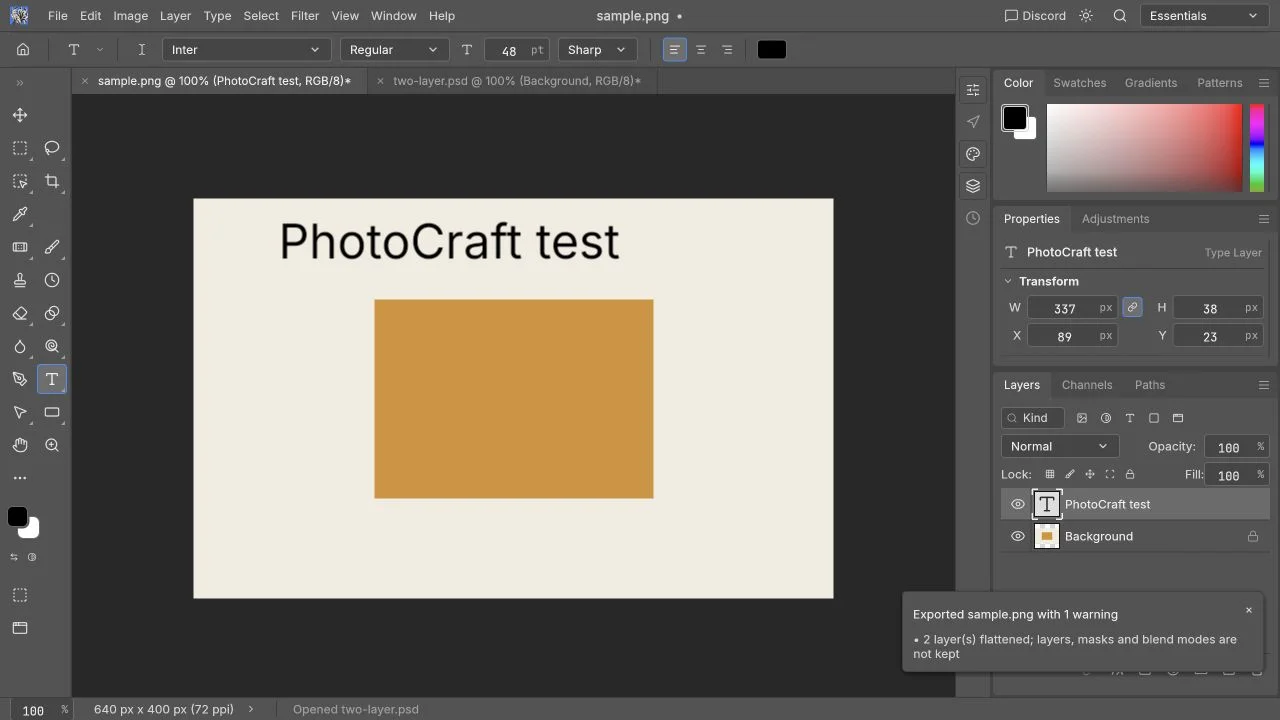
Do a short Chinese sample before trusting a long title or PSD template. The current local check is narrower: on October 10, 2026, the v0.5.0 browser build added the English text `PhotoCraft test` to [sample.png](https://photocraftonline.org/test-fixtures/sample.png) (640 × 400, RGB 8-bit, 3,390 bytes), created a separate Type Layer, and downloaded a 640 × 400 PNG with that text visible. It ran locally on macOS 26.2 (25C56), Codex in-app Chromium, at 1280 × 720; browser engine version and graphics backend were not independently recorded. Chinese input, CJK rendering, and imported PSD text were not tested.
The versioned upstream roadmap records UI localization work, while noting that some messages remain English and CJK Web font support still has open work. Treat those notes as upstream status, not as a pass result for your Chinese text. [Official localization assessment](https://github.com/storytold/photocraft/blob/v0.5.0/docs/roadmap.md#honest-parity-assessment-2026-10-05)
### Four questions that need separate answers
| Question | What to test | What it does not prove |
|---|---|---|
| Is the website in Chinese? | Navigation and article language | Editor localization |
| Are editor menus translated? | Actual editor language settings and visible labels | Chinese font coverage |
| Can I enter Chinese? | Input-method composition and committed characters | Correct rendering in exports |
| Does my PSD font match? | Glyphs, weight, spacing, and line breaks | A font is available merely because its name appears |
This site supplies Chinese and English explanatory pages. The embedded application retains its own upstream settings. Switching the website language must not be understood as a promise that every application message will translate at the same time.
### Start with a short text experiment
Use a non-sensitive photo copy and open [the editor](https://photocraftonline.org/editor). Create a short text layer with `春日散步 PhotoCraft 2026`, then add a second line such as `价格 ¥99,数量 2`. This small sample includes Chinese characters, Latin letters, numbers, punctuation, and a currency sign.
Record the selected font, size, weight, operating system, browser version, and editor version. Try normal typing with your input method; wait until the composition is committed before moving the layer or using shortcuts.
**Expected result:** all characters are visible, punctuation has sensible placement, and the text stays editable. Then export a PNG and check it in another viewer. A successful canvas preview alone does not prove that a saved project or image will preserve the text.
This workspace image shows where to inspect text and font controls. It is not a passed Chinese input or CJK font-rendering test; the Chinese sample above remains a suggested diagnostic sequence.
### The text appears as boxes or missing characters
Start by separating encoding from font coverage. If Latin characters display but Chinese characters become boxes, a missing glyph is a useful hypothesis. If copied text already looks wrong in a plain text application, the problem may predate the editor.
1. Keep the original wording in a plain text note.
2. Select the actual text layer and confirm the font shown by the editor.
3. If an alternative with suitable CJK coverage is available in that build, test it on the short sample.
4. Compare both the canvas and a new export.
5. Keep the failed and successful samples with their font names if you report a problem.
Do not assume that every system font on the machine is available to the browser editor. PhotoCraft's font notes discuss optional CJK font inputs and desktop system-font behavior; that is not a guarantee of identical discovery in the Web build. [Official font notes](https://github.com/storytold/photocraft/blob/v0.5.0/README.md#get-started)
Installing a font and reloading the page may also discard unsaved work. Save first, and do not present a speculative installation as a confirmed fix.
### A PSD opens, but the title wraps differently
Font substitution changes more than appearance. A different face or weight can change character widths, line breaks, paragraph height, and the relationship between text and neighboring graphics.
First compare the imported design with a trusted preview. Ask its creator for the exact family and weight, the text box dimensions, and any relevant font license. Inspect whether the text is still an editable type layer. A rasterized title is already pixels; changing font controls will not reconstruct its source.
**Expected result:** matching font and layout give acceptable line breaks and position. If a substitute is necessary, treat it as a deliberate design change requiring approval, rather than describing the import as unchanged.
Do not shrink the font repeatedly to conceal a mismatch. That can make a poster fit while introducing inconsistent hierarchy and spacing. When the original typeface is unavailable, a flat preview may serve as a visual reference, but it does not preserve editable text.
### Typing triggers shortcuts or commits unexpectedly
Click into the editor, select the text layer, and ensure the caret is active. Keys sent to an embedded workspace depend on focus; keys outside it may go to the surrounding page or browser. [Official embedding and focus behavior](https://github.com/storytold/photocraft/blob/v0.5.0/packaging/web/README.md#embedding-in-a-page-iframe)
During input-method composition, Enter and other keys may belong to the input method rather than the application. Finish a short composition first, then use menu actions to move or transform the layer. If necessary, compare a direct editor window with the embedded one, after saving your current work.
Report the exact sequence: input method, characters, active tool, and whether the issue occurs during composition or after commitment. “Chinese is broken” does not distinguish a glyph problem from a focus or input-event problem.
### The menu language is unexpected
Inspect the language options actually available in the editor's preferences. Upstream localization does not mean all status strings are translated, and its roadmap specifically notes browser-locale detection as open work. A browser configured for Chinese therefore does not establish which language the application will start in. [Versioned localization limits](https://github.com/storytold/photocraft/blob/v0.5.0/docs/roadmap.md#honest-parity-assessment-2026-10-05)
Use the matching English command name from a tutorial when needed. Keep language problems separate from image editing failures: a partially English dialog may still operate correctly, while translated labels do not prove the requested edit succeeded.
### What should you check before delivery?
Check characters, punctuation, line breaks, alignment, clipping, and readability at final display size. Verify the downloaded image in another viewer and, if required, reopen the layered project in the recipient's software. Font names stored in a project do not automatically grant access to the font files or their usage rights.
For a website graphic, an accepted flat export may complete the task. For an editable PSD handoff, unresolved substitution is a compatibility issue. Continue with [PSD editing](https://photocraftonline.org/blog/edit-psd-online), [PSD compatibility](https://photocraftonline.org/blog/photocraft-psd-compatibility), or the [troubleshooting guide](https://photocraftonline.org/blog/photocraft-troubleshooting) depending on the symptom.
---
## PhotoCraft Keyboard Shortcuts for Web
[Original page](https://photocraftonline.org/blog/photocraft-keyboard-shortcuts) · 2026-10-10
PhotoCraft uses Photoshop-style keyboard bindings, but the web editor shares its keyboard with your browser. A shortcut listed by the application may open a browser tab, reload the page or operate on a text field instead. Start by clicking inside the editor, use menus for commands that conflict, and download your work before experimenting with browser-reserved keys.
This reference is based on the **v0.5.0 source**, reviewed on **10 October 2026**. Treat it as a starting map, then confirm the keys in your browser before editing an important file. User-customized shortcuts can differ. The [upstream shortcut implementation](https://github.com/storytold/photocraft/blob/v0.5.0/crates/ui-egui/src/shortcuts.rs) interprets `Cmd` as Command on macOS and Control elsewhere; WebAssembly menu labels can use different platform notation, so check the displayed command too.
### Which key behavior is confirmed here?
On 10 October 2026, the official v0.5.0 runtime in Codex's in-app Chromium on macOS 26.2 (25C56) accepted **Control+Z** to remove newly added English text and **Control+Shift+Z** to restore it. **Control+Enter** committed the text. The check used a 640 × 400 RGB 8-bit PNG (3,390 bytes) at a 1280 × 720 viewport. The browser engine version and graphics backend were not independently identified.
This matters on Mac: the confirmed Web combinations used **Control**, while the upstream native-macOS convention uses **Command**. The table below describes source defaults; it is not proof that every Mac Web key combination matches the desktop convention. A Windows browser shortcut matrix has not been run. Use the menu when a listed key is intercepted, and check the result on a disposable document.
### Which shortcuts should I learn first?
Learn Open, Save, Free Transform and canvas navigation before a long list of tool keys. These cover the repeated parts of a small image-editing session. Prefer **File → Open** for your first file and **File → Export → Quick Export as PNG** for a visible result; the menu makes it clear which application received the command.
| Operation | Windows / Linux default | macOS default | Menu alternative |
|---|---|---|---|
| Open a file | Ctrl+O | Command+O | File → Open |
| Save | Ctrl+S | Command+S | File → Save |
| Save As | Ctrl+Shift+S | Command+Shift+S | File → Save As |
| Free Transform | Ctrl+T | Command+T | Edit → Free Transform |
| Export As | Ctrl+Alt+Shift+W | Command+Option+Shift+W | File → Export → Export As |
| Zoom in | Ctrl+plus or Ctrl+= | Command+plus or Command+= | View → Zoom In |
| Zoom out | Ctrl+minus | Command+minus | View → Zoom Out |
| Fit canvas on screen | Ctrl+0 | Command+0 | View → Fit on Screen |
| View at 100% | Ctrl+1 | Command+1 | View → 100% |
| Show rulers | Ctrl+R | Command+R | View → Rulers |
| Show Layers panel | F7 | F7, sometimes Fn+F7 | Window → Layers |
| Search commands | Ctrl+K | Command+K | Edit → Search |
These bindings come from the [v0.5.0 UI command registry](https://github.com/storytold/photocraft/blob/v0.5.0/crates/ui-egui/src/menus.rs). A command being registered does not establish that every browser delivers its shortcut. Save in the web build downloads a file; it does not give the site permission to overwrite the original on your disk.
### What happens during an active edit?
Keyboard behavior depends on the current task. While entering text, typing belongs to the text object or field. While a menu is open, arrow keys navigate that menu. A modal dialog can keep other editor commands from running. This is why a key that worked a moment ago may stop selecting a tool.
For Free Transform, **Enter commits** the change and **Escape cancels** it. For an active crop, Enter commits and Escape cancels the crop frame. Outside text input, arrow keys can nudge with the Move tool or transform active; Shift increases the nudge. These rules are documented by the [shortcut handlers](https://github.com/storytold/photocraft/blob/v0.5.0/crates/ui-egui/src/shortcuts.rs), and should be confirmed on a disposable layer before editing an important layout.
To undo a trial, choose the undo command shown in **Edit** and inspect **Window → History**. Do not infer the complete redo history model from Photoshop muscle memory: check the current menu label and the visible history result.
### Why does Ctrl+T open a new browser tab?
Browsers reserve several familiar editor combinations. They may intercept a key before the embedded canvas sees it. Fullscreen and a standalone editor window improve working space; neither guarantees that browser-reserved keys will become available.
| Symptom | Likely competing action | Safe alternative |
|---|---|---|
| Free Transform opens a tab | Browser new-tab shortcut | Edit → Free Transform |
| Rulers reloads the page | Browser refresh shortcut | View → Rulers; save before any retry |
| Fit on Screen changes page zoom | Browser reset-zoom shortcut | View → Fit on Screen |
| Search moves to the address bar | Browser search shortcut | Edit → Search |
| Save downloads an HTML page | Browser save-page shortcut | File → Save As; inspect the downloaded extension |
| F7 toggles caret browsing | Browser accessibility shortcut | Window → Layers |
Browser behavior varies with OS, extensions and settings. This table identifies conflicts to watch for rather than asserting that all browsers intercept all listed keys.
### A five-step check for a shortcut that does nothing
1. **Protect the current work.** Download an editable copy or an export before trying keys that could refresh or close the tab.
2. **Give the canvas focus.** Click inside the editor, away from a text box. The [embedding guide](https://github.com/storytold/photocraft/blob/v0.5.0/packaging/web/README.md) specifically notes that shortcuts reach an iframe after the user clicks into it.
3. **Finish the current operation.** Commit or cancel the crop, transform or dialog. If you are editing text, finish that edit first.
4. **Try the menu command.** A disabled item can indicate a missing active document, unsuitable layer type or unavailable service. If the menu works, investigate key delivery rather than the image operation.
5. **Check customization and layout.** Inspect Edit → Keyboard Shortcuts for changed bindings. Punctuation keys differ on international layouts; laptop function keys may need Fn. Retry with the actual key shown in the editor.
If both the menu and key fail, record the file type, selected layer type, operation and error, then use the [troubleshooting guide](https://photocraftonline.org/blog/photocraft-troubleshooting).
### Are these exactly the same as Photoshop?
Familiar bindings reduce learning effort, but command names and default keys are only one part of compatibility. Clipboard image permissions, browser focus, platform modifiers and alpha-stage interaction bugs affect the workflow. Keep a short list of menu alternatives for your first project; rely on shortcuts for speed only after you have checked them on your own device.
For a complete first session, follow the [PhotoCraft tutorial](https://photocraftonline.org/blog/photocraft-tutorial). For editable PSD handoff, read the [PSD compatibility checklist](https://photocraftonline.org/blog/photocraft-psd-compatibility). You can [open the free editor](https://photocraftonline.org/editor) without an account.
---
## PhotoCraft Layers and Masks Guide
[Original page](https://photocraftonline.org/blog/photocraft-layers-and-masks) · 2026-10-10 / 2026-10-10
Layers separate the parts of an image. Masks control where a layer is visible, and adjustment layers change appearance while keeping the underlying image separate. In PhotoCraft, start by changing one property at a time and checking the canvas. Keep an editable project as well as your final export if you want those choices to remain adjustable.
Use this guide to practice one layer decision at a time. Start with visibility and order, then move to opacity, masks, and adjustments only after you can see which layer is changing. The v0.5.0 browser check recorded on October 10, 2026 covered layer visibility and ordering; masks, clipping, adjustment layers after saving, and editable saves remain tasks for you to verify on your own file.
### What the layer check showed
We used [two-layer.psd](https://photocraftonline.org/test-fixtures/two-layer.psd): 640 × 400, RGB 8-bit, 1,704,206 bytes, containing synthetic ordinary pixel layers Background and Amber card. The test ran locally in the official Web build on macOS 26.2 (25C56), Codex in-app Chromium, at a 1280 × 720 viewport. Browser engine version and WebGPU/WebGL selection were not independently established.
Both layers appeared, but their initial ordering differed from the embedded composite. Toggling Background exposed Amber card over transparency; moving Background beneath it matched the [PNG reference](https://photocraftonline.org/test-fixtures/sample.png), a 640 × 400 RGB 8-bit file of 3,390 bytes. The ordering discrepancy could be fixture encoding or importer behavior and remains unresolved.
Use this fixture for simple pixel-layer visibility and ordering practice. It does not establish mask editing or complete PSD fidelity. A separate direct Brightness/Contrast operation changed the PNG's pixels, which is different from a verified adjustment-layer workflow.
### What changes when you change a layer?
Imagine a simple poster: a photograph underneath, a title above it, and an optional color adjustment. You should be able to edit the title without painting into the photograph. You should also be able to hide the title temporarily to inspect the image beneath it.
| Control | What it changes | Useful check |
|---|---|---|
| Layer order | Which content appears above other content | Move a visible layer and inspect overlap |
| Visibility | Whether a layer contributes to the displayed result | Toggle once and look for the affected region |
| Opacity | The strength of a layer across its visible area | Compare at full and reduced opacity |
| Layer mask | Where that layer is visible | Confirm the mask thumbnail is selected |
| Adjustment layer | A separate change to tone or color | Turn it off to compare the original |
These concepts are general layered-editing guidance. The upstream project lists layer, mask, and adjustment features, but a named feature alone is not evidence of identical behavior for every Photoshop document. [Official v0.5.0 feature overview](https://github.com/storytold/photocraft/blob/v0.5.0/README.md#everything-in-the-box)
### Prepare an exercise you can undo
Use a small photo copy and add a short title, following the [first-edit tutorial](https://photocraftonline.org/blog/photocraft-tutorial). Keep the original outside the editor. If your chosen build supports duplicating a layer, duplicate the photograph before trying a mask. Otherwise, save a separate working project before the experiment.
Write down the intended result: “The title remains above the photograph; one side of the photograph fades; a mild color adjustment can be disabled.” A visible goal prevents you from confusing the existence of a control with a successful edit.
This image helps you locate the real browser workspace. It is not a before-and-after mask exercise. The mask and adjustment-layer instructions below are source-backed procedures awaiting local verification.
### 1. Identify layers with visibility
Find the title and photograph in the Layers panel. Toggle the title's visibility off and back on. Then repeat with the photograph. If you are inspecting a PSD, expand groups first and watch whether toggling a parent affects several children.
**Expected result:** the corresponding canvas content disappears and reappears. Use this to locate a layer before moving or deleting it.
**If it fails:** a hidden parent, an opaque layer above it, a clipping relationship, or an already transparent region can make the change hard to see. Isolate the simplest layer and inspect the surrounding structure. Do not conclude that a layer is empty solely because one toggle appears to do nothing.
### 2. Check order with a simple overlap
Move the title above the photograph if needed, using the available layer-order control. Keep the caption over a part of the image where its color remains readable. Return it to the original position if the experiment obscures content.
**Expected result:** the title is visible above the photo. If it drops behind an opaque full-canvas image, it may disappear even though its visibility setting is still enabled.
**If it fails:** confirm you are moving a layer rather than a group or the canvas object itself. A masked or clipped layer may not behave as a free-standing rectangle. Undo and inspect its dependencies before moving it across groups.
### 3. Compare opacity without changing color
Select the title or a duplicated image layer and reduce opacity using the control actually exposed by the build. Compare it with the original opacity and restore it when finished.
**Expected result:** the whole layer becomes less prominent. Opacity is different from changing text color or painting gray into the image.
**If it fails:** identify the selected layer and check its parent group. In a PSD, opacity and fill can interact differently with effects; do not substitute one for the other without comparing the visible result. Prefer a simple layer for this first exercise.
### 4. Use a mask to hide rather than erase
If your build exposes a layer-mask action, add a mask to the photograph copy. Select the mask thumbnail before making a small brush mark. In conventional raster masks, white reveals, black hides, and intermediate values partially reveal the layer. Use a small area first and check that the image pixels remain separate from the mask.
**Expected result:** painting on the mask changes the visible area without directly painting a color over the photo. Painting the opposite mask value should restore the area.
**If it fails:** stop and Undo. If black paint appears on the picture, you may have selected the image rather than its mask. If nothing changes, check whether the mask is active and whether another layer covers the region. Do not erase the original to imitate a mask while describing the workflow as reversible.
The upstream documentation describes turning a selection into a mask. That is another starting point: select an area and inspect the resulting mask, then test its edges. The exact selection quality is image-specific. [Official selection and mask overview](https://github.com/storytold/photocraft/blob/v0.5.0/README.md#selections-that-understand-your-image)
### 5. Add an adjustment and compare before and after
Choose one available adjustment-layer operation and apply a restrained change. Toggle the adjustment on and off, then observe whether it changes all lower content or only the area you intended. If the build supports masking the adjustment, use the same selected-thumbnail discipline.
**Expected result:** you can disable the change without restoring the image from an earlier history state. This is the practical value of a separate adjustment layer. [Official live-adjustment description](https://github.com/storytold/photocraft/blob/v0.5.0/README.md#edit-without-regret)
**If it fails:** remove the new adjustment and confirm the underlying layers still match the starting image. Do not use a stack of compensating adjustments to hide an unexplained import problem.
### Mask, clipping mask, or eraser?
A layer mask describes visibility on one layer. A clipping relationship uses another layer's content to constrain visibility. An eraser changes the target pixels or transparency directly. They can sometimes create a similar-looking preview, but they leave different editing options.
Choose a mask when you need to restore hidden content later. Keep clipping relationships intact when modifying a template built around them. Use direct pixel deletion only when that destructive change is intentional and you retain a source copy.
### Save the structure, export the appearance
Download a finished image for publication and separately save a supported layered project. Reopen the project and verify the title, mask, opacity, and adjustment independently. Browser downloads are the Web application's Save and Export mechanism. [Official Web workflow](https://github.com/storytold/photocraft/blob/v0.5.0/packaging/web/README.md#embedding-in-a-page-iframe)
If the saved PSD must be opened and edited elsewhere, also check the intended recipient's editor. For those tests, see [PSD compatibility](https://photocraftonline.org/blog/photocraft-psd-compatibility). To practice on a template, use [the PSD walkthrough](https://photocraftonline.org/blog/edit-psd-online) and [open the editor](https://photocraftonline.org/editor) with a copy.
---
## PhotoCraft PSD Compatibility: What We Tested
[Original page](https://photocraftonline.org/blog/photocraft-psd-compatibility) · 2026-10-10
PhotoCraft supports PSD in its upstream engine, but **opening a file is not proof of Photoshop-equivalent editing or export**. A useful compatibility check asks whether the image renders correctly, whether required features remain editable, and whether a saved copy reopens correctly in the receiving application. Keep the original PSD until all three checks pass.
This assessment covers **v0.5.0**, with official documentation reviewed on **10 October 2026**. Upstream test results are attributed below, but your file still needs its own check in the browser build. The source project's [alpha warning](https://github.com/storytold/photocraft/blob/v0.5.0/README.md) is relevant whenever editable PSD delivery is part of paid work.
### What does PSD support actually mean?
There are four separate questions:
1. **Can it parse the file?** A decoder may read a PSD successfully without understanding all of its content.
2. **Can it show the expected image?** A correct composite preview can hide missing or opaque editability.
3. **Can it edit the specific feature?** A text layer, smart object or effect must expose the controls you need and produce the intended change.
4. **Can another application reopen the edited copy?** A successful browser download says nothing about the receiving application's interpretation.
Testing each question avoids an expensive mistake: approving a layout from its initial appearance, then discovering that the next person cannot change the headline or filter.
### Raw-block preservation is not editable feature support
PSD stores image channels, resources, descriptors and additional layer data. An application can carry unrecognized data forward without converting it into editable controls. That can protect information when a file is saved and reopened, but it does not establish that PhotoCraft can render, modify or regenerate the feature correctly after an edit.
Upstream distinguishes its standalone PSD parser/writer from the editor's document model: the editor rewrites parts of the file rather than producing a byte-identical copy. This distinction is described in [the v0.5.0 PSD section](https://github.com/storytold/photocraft/blob/v0.5.0/README.md#psd-without-compromise). Do not turn parser corpus results into a promise that every Web edit preserves every Photoshop behavior.
### Compatibility matrix and evidence status
“Officially described” means the pinned upstream documentation describes the capability. “Unverified here” means no completed file-level acceptance record is attached to that capability on this site. Neither label means that every possible file works or fails.
| PSD feature | Upstream engine description | What still needs checking in this Web build |
|---|---|---|
| Raster layers, names and groups | Officially described | Two named raster layers opened; hide and reorder worked. Initial order differed from the embedded composite. Groups, opacity and PSD re-save remain untested. |
| Pixel and vector masks | Officially described | Feathered edges, transform alignment, enabled state and export result |
| Editable text | Officially described, with typography gaps noted | Required font, CJK glyphs, line breaks, weight, tracking and editable text after save |
| Adjustment layers | Officially described | Supported parameters, mask influence and reference-image appearance |
| Layer effects and blend modes | Officially described | Shadows, strokes, clipping, fill opacity and interactions between effects |
| Smart objects and smart filters | Officially described, rendering limitations documented | Linked/embedded content, opening content, transforms, filters and recipient compatibility |
| Unknown descriptors / raw blocks | Preservation described | Survival after the particular edit; editable controls are not implied |
| CMYK, Lab, 16/32-bit and PSB | Native engine support described | Browser memory, graphics limits, color conversion and your delivery requirements |
| Large or complex PSDs | No universal Web performance promise | Open, edit, export and reopen on the target device without failure |
Sources: [v0.5.0 project overview](https://github.com/storytold/photocraft/blob/v0.5.0/README.md), [dated parity assessment](https://github.com/storytold/photocraft/blob/v0.5.0/docs/roadmap.md#honest-parity-assessment-2026-10-05). **Only the two-layer raster operations below have a recorded Web check; the other detailed feature rows remain unverified here.** Native-engine and corpus evidence cannot establish browser memory limits or font availability.
### Our reproducible two-layer browser check
On **10 October 2026**, we ran the official v0.5.0 Web runtime locally in the **Codex in-app Chromium browser on macOS 26.2 (25C56)**, at **1280 × 720**. The automation surface did not expose the browser engine version. We used the default renderer without independently identifying WebGPU or WebGL. This was not a timing benchmark or a Photoshop comparison.
| Downloadable input | Structure | File size | SHA-256 |
|---|---|---|---|
| [two-layer.psd](https://photocraftonline.org/test-fixtures/two-layer.psd) | 640 × 400, RGB, 8-bit; two ordinary raster layers: Background and Amber card | 1,704,206 bytes | `54b1edac5999f2222d0ff0e1f67fa469902058b177e479851039cf35f4786890` |
| [sample.png](https://photocraftonline.org/test-fixtures/sample.png) | 640 × 400, RGB, 8-bit flattened reference | 3,390 bytes | `79962775aa2815a7aca061d1ce6c2df0576e19c133601d0716f080216a4ea9a5` |
Both inputs are locally generated CC0 fixtures, not Adobe-authored compatibility specimens. The PSD contains no text, masks, effects or smart objects. [Fixture documentation](https://photocraftonline.org/test-fixtures/README.md) records their provenance and hashes.
Opening the PSD exposed both named layers, but **Background initially covered Amber card**, unlike the embedded composite. We have not determined whether the fixture encoding or importer caused that ordering difference. Treat this as a documented result of this sample, not a proven cause or a universal PSD bug.
Hiding Background revealed the amber rectangle over transparency. This verifies the visibility control on this imported raster sample.
Dragging Background below Amber card produced a composite that visually matched the synthetic PNG. This was checked by sight, not by a pixel-difference tool.
The same session verified PNG opening, new English text, undo/redo, crop, direct brightness adjustment and a downloaded PNG checked at 640 × 400 with the text visible. **PSD saving and editable-project reopening were not tested.** Neither this sample nor those PNG operations verify imported text, masks, adjustment layers after saving, smart objects, color-managed print work or Photoshop acceptance.
### A safe before-and-after test for your file
Work from a copy with a name such as `banner-compatibility-test.psd`. Ask the file's creator for a flattened reference image and a list of fonts, linked assets and features they expect you to edit. A missing linked file or font is not automatically a PSD decoder defect.
1. Record source application/version, dimensions, byte size, color mode, bit depth and layer count. Also record your OS, browser version and PhotoCraft runtime version.
2. Open the copy in [the editor](https://photocraftonline.org/editor). Compare at 100% against the reference; inspect text baselines, mask edges, shadows, transparency and color.
3. Toggle a raster layer's visibility, then undo. Confirm that the intended layer changes rather than just a merged image.
4. Make one small edit to each required feature: change a word, move an object, alter a mask or adjust one filter. Verify visually after each change.
5. Download an editable copy separately from the flattened PNG/JPEG delivery image. A flat export deliberately discards layers.
6. Reopen both downloads. For a Photoshop handoff, have the recipient open the PSD in their Photoshop version and perform one edit, not just view the composite.
If an operation fails, record it as a limitation for that specific file, version and environment. Do not overwrite the original to “see whether it works.”
### What should a published compatibility result contain?
A reproducible record needs more than “PSD passed.” Use a small sample per feature and include the following fields:
| Field | Example of a useful entry |
|---|---|
| Sample | Self-authored RGB 8-bit PSD, dimensions and actual file size |
| Structure | Number and types of layers, masks, text and effects |
| Environment | Exact browser/OS versions and renderer |
| Operation | Change one text string, toggle one layer, save a PSD copy |
| Result | Import, visual comparison, edit, export and reopen assessed separately |
| Limit | Missing font, unsupported filter control or untested receiver |
This article gives you a procedure and a sourced matrix. The checked tiny raster-layer sample cannot verify text, smart filters or professional print delivery, so those features still need their own sample and recipient check.
### Can I use PhotoCraft instead of Photoshop for PSD work?
Try it first for non-critical edits where you can inspect the downloaded result and retain a fallback. Complex layouts, unfamiliar smart filters, strict typography and professional color workflows require a file-specific test and recipient approval. For a broader task-based decision, read [PhotoCraft versus Photoshop](https://photocraftonline.org/blog/photocraft-vs-photoshop). For operation steps, use [edit PSD online](https://photocraftonline.org/blog/edit-psd-online); for crashes or import failures, use [troubleshooting](https://photocraftonline.org/blog/photocraft-troubleshooting).
---
## PhotoCraft Review: Photo Editing, Text and PSD Files
[Original page](https://photocraftonline.org/blog/photocraft-review) · 2026-10-10
**PhotoCraft v0.5.0 is worth trying for small browser edits such as opening an image, adding English text, undoing changes, cropping, adjusting brightness and downloading a PNG.** In a simple two-layer PSD, both layers appeared and could be shown, hidden and reordered, but the first view did not match the intended layer order. Treat PSD templates as files to test with a copy before using them in a real Photoshop handoff.
This review explains what the browser editor handled in our session and where you should try your own file first. Official sources were reviewed on October 10, 2026. The test details below are included so you can compare them with your own image or PSD.
### Which version did we try?
This review is about the **PhotoCraft v0.5.0 browser editor hosted on this site**. Desktop packages, future releases and other hosted builds may behave differently, so treat this as a guide to the current online experience rather than a review of every PhotoCraft edition.
The [v0.5.0 README](https://github.com/storytold/photocraft/blob/v0.5.0/README.md) presents layered image editing and PSD workflows, while explicitly describing the project as early alpha. The [Web packaging notes](https://github.com/storytold/photocraft/blob/v0.5.0/packaging/web/README.md) describe the browser distribution. All conclusions here are tied to that pinned release, because later development changes may behave differently.
### The source-based case for trying it
Its main attraction is the prospect of doing familiar image-editing work without installing a desktop application. A layer-oriented workflow lets you revise an image in stages: retain the background, add text separately, and keep a correction adjustable. Those are useful evaluation tasks because you can check both the final picture and the next edit.
For someone learning, a familiar arrangement of tools can reduce the initial search for controls. That does not remove the need to understand layers, selections and export formats. Our [first editing tutorial](https://photocraftonline.org/blog/photocraft-tutorial) follows a complete task rather than asking beginners to memorize every panel.
For a Photoshop user, PSD support is potentially more valuable than another filter collection. The important question is whether your particular template remains useful after editing and saving. The [PSD compatibility guide](https://photocraftonline.org/blog/photocraft-psd-compatibility) explains what to check for text layers, ordinary layers, masks, styles and saved copies.
### What prevents an unconditional recommendation?
The upstream [roadmap assessment](https://github.com/storytold/photocraft/blob/v0.5.0/docs/roadmap.md) describes an early product with unfinished production workflows. For users, the practical takeaway is simple: even if the editor opens cleanly, you should still test complex typography, smart filters, demanding documents and files that another person must continue editing.
The generated [parity report](https://github.com/storytold/photocraft/blob/v0.5.0/docs/parity.md) helps explain why some familiar menus appear. A menu item you can click does not guarantee the full task will behave the way you expect: still check the canvas result, exported file, fonts and any saved copy you plan to reopen.
We also avoid an “offline therefore private” shortcut. Document processing and website traffic are separate questions. See the [safety guide](https://photocraftonline.org/blog/is-photocraft-safe) for the project's source, this site's role, and the distinction between editing, downloads and optional external services.
### Browser test conditions
We tested on **October 10, 2026**, using **macOS 26.2 (25C56), the Codex in-app Chromium browser and a 1280 × 720 viewport**. The browser engine version was not exposed by the automation surface, and we did not independently identify whether WebGPU or WebGL was selected. The official, unchanged v0.5.0 runtime ran on a local HTTP server. No Photoshop installation or timing benchmark was used.
The downloadable [PNG sample](https://photocraftonline.org/test-fixtures/sample.png) is 640 × 400, RGB, 8-bit and **3,390 bytes**. The [PSD sample](https://photocraftonline.org/test-fixtures/two-layer.psd) is 640 × 400, RGB, 8-bit and **1,704,206 bytes**, with two ordinary pixel layers named Background and Amber card. Both are locally generated synthetic fixtures; the PSD was not authored in Adobe Photoshop. [Fixture hashes and provenance](https://photocraftonline.org/test-fixtures/README.md) are available separately.
### What worked in this session?
| Operation | What happened | What to keep in mind |
| --- | --- | --- |
| Start the Web runtime | Welcome canvas and menus appeared | One local browser environment |
| Open sample.png | Correct 640 × 400 canvas, one Background layer | PNG only; JPEG untested |
| Type `PhotoCraft test`, then Control+Enter | Visible English text and a new Type Layer | Chinese and imported PSD text untested |
| Control+Z, then Control+Shift+Z | Text disappeared and returned | This pair in this focused session |
| File → Export → Quick Export as PNG | Download completed; independent decoding confirmed 640 × 400 and preserved text | Flattened image, not an editable save |
| Crop by handles and confirm | Canvas became 600 × 371 | Crop interaction observed; this state was not the exported PNG above |
| Brightness/Contrast on pixel Background | Background and amber rectangle became brighter | Direct pixel adjustment; adjustment layers after saving were not checked |
| Open two-layer.psd | Both named layers appeared, but Background initially covered Amber card | Check layer order before editing a PSD template |
| Toggle Background; drag it below Amber card | Rectangle appeared over transparency, then expected composite appeared | Visibility and reordering passed; saving and reopening a PSD was not checked |
The screenshot shows the newly created English type layer. It does not establish imported Photoshop typography or Chinese font compatibility.
The export warning explicitly states that layers flatten. The downloaded file preserved the text and original 640 × 400 dimensions. This proves a finished PNG was produced, not that the layered project could be reopened for another edit.
### How to reproduce the tested small-image task
1. Open the [editor](https://photocraftonline.org/editor), choose Open and load the PNG fixture. Confirm the 640 × 400 canvas and Background layer.
2. Select Type, enter `PhotoCraft test` and commit with Control+Enter. Check the visible heading and Type Layer.
3. Use Control+Z and Control+Shift+Z in the focused editor. Observe the heading disappear and return.
4. Choose File → Export → Quick Export as PNG. Open the downloaded image outside the editor and inspect its dimensions and text.
5. Drag the lower-right crop handle and confirm using the top-right checkmark. Our gesture produced 600 × 371; your drag may produce a different size.
6. Select the pixel Background, open Image → Adjustments → Brightness/Contrast, move the brightness slider and confirm. Check that the background pixels brighten.
These are recorded operations. They do not include exporting the later crop/brightness state. For your own image, repeat the final download check after all edits. If a control fails, record focus, the menu or shortcut, and the error before refreshing away a recoverable session.
### The PSD layer-order caution
The synthetic fixture was intended to show Amber card over Background. The imported layer list contained both names, but the initial canvas showed the background covering the card. Hiding Background exposed the card over transparency; moving Background below Amber card made the composite visually match the synthetic PNG.
This does not prove every PSD will open with the wrong order, and it also does not prove PSD compatibility for professional handoff. The sample contains no text, masks, smart objects or styles. We did not save it back to PSD and reopen it. Before using your own PSD, open a copy, check the visible result, inspect the Layers panel, make one small change, save separately and reopen that saved file.
### What remains untested?
Editable project reopening, saving and reopening PSD files, JPEG import, imported text layers, Chinese rendering, masks, adjustment layers after saving, smart objects, styles, CMYK/ICC/print, plugins, generative AI, large documents, mobile editing, tablet hardware and desktop installers remain outside this session. A Photoshop visual comparison was not performed.
### A separate PSD trial
Use a template with at least a background, an image and editable type. Identify important masks and effects before opening it. Change one text element, move one image, and save a distinct copy. Then reopen it and inspect group structure, editable text and unchanged visual regions.
If the deliverable goes to another person, their receiving application must open the saved document and make another edit. A PNG exported from a PSD can be a useful finished image, but it does not show that the layered file is ready for handoff. Read the [PSD tutorial](https://photocraftonline.org/blog/edit-psd-online) before using an irreplaceable file.
### Who should evaluate it first?
| User | Suitable first trial | Reason to stop the trial |
| --- | --- | --- |
| Beginner | Crop a personal image and add a heading | Cannot reliably repeat or download the task. |
| Social creator | One post with a fixed output size | Font or layout differs in the final file. |
| Ecommerce operator | One product photo | Edge quality or color changes the product's appearance. |
| Template user | A copy with simple layers | Editable content is lost on reopening. |
| Professional designer | A copy of a noncritical file | A saved copy reopens wrong, or fonts and layout shift. |
The useful conclusion is **try it first on a small, reversible task, and keep your current tool for files that must survive a professional handoff**. For the choice itself, read [PhotoCraft versus Photoshop](https://photocraftonline.org/blog/photocraft-vs-photoshop); for browser alternatives, read [PhotoCraft, Photopea and Pixlr](https://photocraftonline.org/blog/photocraft-vs-photopea-vs-pixlr).
---
## PhotoCraft Not Working? Loading and Export Fixes
[Original page](https://photocraftonline.org/blog/photocraft-troubleshooting) · 2026-10-10
When PhotoCraft fails, first separate **the editor not loading**, **one file not opening**, and **an edit not exporting**. They have different causes. Preserve an original copy, download any work you can still access, then test a small disposable image before clearing storage or refreshing an active session.
This guide covers the **v0.5.0 web package**, with documentation reviewed on **10 October 2026**. The steps below are a diagnostic procedure, not a claim that every reported issue has been reproduced here. Renderer options and hosting requirements are described in the [official web guide](https://github.com/storytold/photocraft/blob/v0.5.0/packaging/web/README.md).
### Example symptom: PSD opens, but the initial picture is wrong
In a 10 October 2026 local check, v0.5.0 displayed both layers of a **640 × 400 RGB 8-bit synthetic PSD**, but Background covered Amber card, unlike the embedded composite. Hiding Background revealed the rectangle; dragging it below Amber card restored the expected reference appearance. The cause was not established; it may be fixture encoding or importer behavior. Reordering is an observed workaround for this sample, not a universal fix for PSD rendering.
The environment was Codex's in-app Chromium on macOS 26.2 (25C56), at 1280 × 720 with the default renderer. Browser engine version and WebGPU/WebGL selection were unrecorded. Download the [two-layer PSD](https://photocraftonline.org/test-fixtures/two-layer.psd) and [reference PNG](https://photocraftonline.org/test-fixtures/sample.png), or see the [full compatibility record](https://photocraftonline.org/blog/photocraft-psd-compatibility) for sizes, hashes and the three states.
The same session verified a PNG file chooser import, new English text, undo/redo, crop, brightness adjustment and a PNG download checked at 640 × 400. It did not test PSD save/reopen, complex PSD features or mobile devices. If your production file fails, follow the symptom-specific checks below rather than applying this sample workaround blindly.
### Start with the symptom
| What you see | First check | What the result tells you |
|---|---|---|
| Loading screen never reaches the workspace | Wait for the runtime download, then inspect failed requests | Network delivery or runtime initialization |
| Menus work but the canvas is black or blank | Try a small PNG and Fit on Screen | Document/view issue versus graphics backend |
| A small PNG opens but one PSD fails | Inspect that PSD's size, depth, layers and features | File-specific decoding or memory problem |
| The page disappears after a shortcut | Check browser shortcut interception | Refresh/new-tab conflict, not necessarily an editor crash |
| Export appears to complete but no file is visible | Check browser Downloads and blocked-download notice | Download delivery rather than image import |
| Download opens but differs from the original PSD | Compare text, masks, effects and color separately | Compatibility problem rather than a successful professional handoff |
Change one condition at a time. If you simultaneously switch browser, file and renderer, you may get a working session without learning what failed.
### Why is the first load slow?
The editor downloads a WebAssembly program and initializes its graphics engine. A first visit has more work than a cached visit. The size examples in upstream documentation are measurements from an earlier package, not a promise about this site's v0.5.0 transfer size.
1. Keep the tab open while the initial download is progressing. Repeated reloads can restart initialization.
2. Check whether ordinary pages load. If they do but the editor does not, open the runtime in its own window using the editor's standalone link.
3. Use browser developer tools → Network to look for failed `.wasm` or JavaScript requests. Record the status and URL, without sharing cookies or request tokens.
4. Retry a clean browser profile or private window to identify extension interference. A private window may also change storage behavior, so it is a diagnostic comparison rather than a permanent fix.
5. Use the [contact/help page](https://photocraftonline.org/contact) to understand what support channels are available. Keep the browser version, OS, time, failed request URL and status code ready.
If a `.wasm` request fails, record its URL and status code. Repeated refreshes usually do not fix a missing runtime file or an HTML response served from a `.wasm` URL. The official hosting guide explains why WASM delivery, compression, relative asset URLs and cache consistency matter. [Official hosting instructions](https://github.com/storytold/photocraft/blob/v0.5.0/packaging/web/README.md)
### What should I do about a blank canvas?
Start with **View → Fit on Screen** and inspect the Layers panel for hidden content. An empty new document or a canvas panned away from its image does not prove a graphics failure. Open a small known-good PNG next.
If the workspace itself cannot render, save anything accessible and try the alternative renderer links in [the editor](https://photocraftonline.org/editor). Upstream prefers WebGPU when available and falls back to WebGL2; `?webgl` forces WebGL2 and `?cpu` selects the slower CPU canvas path. A fallback that loads a small image does not establish equal performance or visual results for a large PSD. See the [renderer flags](https://github.com/storytold/photocraft/blob/v0.5.0/packaging/web/README.md).
Use an up-to-date browser with supported graphics enabled. If this is a managed device, do not bypass organization controls: record the unavailable graphics capability for support. On a non-local public URL, HTTPS is required for WebGPU and clipboard secure-context features. GPU availability also depends on the browser, driver and device.
### Why does a PSD fail while a PNG works?
A compressed PSD's disk size is only one clue. Decoded pixels, masks, layer previews, smart objects and history can require more memory. A file with unusual color modes or complex filters presents a different test from a three-layer RGB example.
1. Confirm the file opens in its originating application and keep the untouched source.
2. Record dimensions, file size, color mode, bit depth and layer count.
3. Export a flattened reference PNG from the source, then check whether that PNG opens here.
4. On a copy, remove one complex feature group at a time to isolate the cause. Never flatten the only editable original.
5. If import succeeds, compare against the reference at 100% zoom before editing.
For a feature-by-feature verification process, use [PSD compatibility](https://photocraftonline.org/blog/photocraft-psd-compatibility). An imported merged preview is not proof that all editable layer data is understood.
### Why can't I find the saved file?
The web build saves through browser downloads. Check Downloads for the expected name, extension, size and completion status. A browser may add a numeric suffix, use its default folder, or require permission for multiple downloads. A download that contains HTML is probably a browser Save Page action: use **File → Save As** inside the editor instead.
Try **File → Export → Quick Export as PNG** on a tiny image. If it succeeds, check the original export's format and scale; if it fails too, record any browser download warning. Embedded hosts must permit downloads, as explained in [upstream iframe settings](https://github.com/storytold/photocraft/blob/v0.5.0/packaging/web/README.md). Reopen the finished download before considering the session saved. Refresh and tab closure are not a cloud backup.
### What makes a useful bug report?
Report the deployed version, OS/browser versions, renderer used, file dimensions, depth and layers, exact steps, expected versus actual result and error text. Add a screenshot with personal information removed. If possible, attach a small synthetic file that reproduces the issue instead of a client's private artwork.
For website loading and navigation issues, check the [contact/help page](https://photocraftonline.org/contact) for available channels. Report editor-engine defects to the [official issue tracker](https://github.com/storytold/photocraft/issues) only when the problem belongs to the PhotoCraft editor itself. Keep security-sensitive information out of public issues; follow the [upstream security policy](https://github.com/storytold/photocraft/blob/v0.5.0/SECURITY.md) for a suspected vulnerability. Next, try the [first-session tutorial](https://photocraftonline.org/blog/photocraft-tutorial) or [shortcut reference](https://photocraftonline.org/blog/photocraft-keyboard-shortcuts).
---
## PhotoCraft Tutorial: Open, Edit and Export
[Original page](https://photocraftonline.org/blog/photocraft-tutorial) · 2026-10-10 / 2026-10-10
Use this PhotoCraft tutorial when you want a first, low-risk edit: open a PNG, add English text, Undo and Redo, download the result, crop, then brighten the image. Those steps passed in a v0.5.0 browser check on one small sample. Treat it as a starter exercise, not as proof that editable project saves, imported PSD text, Chinese fonts, masks, or large files will work the same way. If you are still checking the project identity, free scope, or browser-versus-desktop difference, read [What is PhotoCraft?](https://photocraftonline.org/blog/what-is-photocraft) before starting.
### Test setup and reproducible sample
Use the details below to compare your own run if something behaves differently. This check was recorded on October 10, 2026, using the unchanged official v0.5.0 Web runtime locally on macOS 26.2 (25C56), in the Codex in-app Chromium browser at a 1280 × 720 viewport. The automation surface did not expose the browser engine version, and the actual WebGPU versus WebGL backend was not independently identified. This was not a speed benchmark or Photoshop comparison.
Download [sample.png](https://photocraftonline.org/test-fixtures/sample.png): 640 × 400 pixels, RGB, 8-bit, 3,390 bytes. It is a simple synthetic image with an amber rectangle, chosen so changes are easy to inspect. Keep the original download and edit a copy. Using the same small sample helps separate basic operation from the demands of a complex project.
The screenshots below show what a matching run looks like. The exported PNG was checked at 640 × 400 and visibly retained the text. That export happened **before** the crop, so export your own cropped file if the cropped output is the deliverable.
### 1. Open the PNG in the editor
Open [PhotoCraft Online](https://photocraftonline.org/editor), wait for the workspace, and choose the application’s Open action. Select the sample copy using the file chooser. Click inside the workspace before typing; embedded-editor shortcuts depend on focus. [Official Web focus behavior](https://github.com/storytold/photocraft/blob/v0.5.0/packaging/web/README.md#embedding-in-a-page-iframe)
**Observed result:** the image opened as a 640 × 400 canvas with one Background layer. The amber rectangle was visible. Check the document dimensions rather than judging its size from screen zoom.
For PSD and broader editing notes, see the [task review](https://photocraftonline.org/blog/photocraft-review). Those results do not establish any AI capability or Photoshop equivalence.
### Is content-aware repair the same as Generative Fill?
No. The user goal may be similar, replacing an unwanted area, but the process and failure modes differ. A texture-based repair can work well on a small patch of plain sky and fail across a patterned garment or a product edge. A generated replacement may introduce plausible-looking detail that was never in the photograph.
Adobe's [Generative Fill documentation](https://helpx.adobe.com/photoshop/desktop/create-open-import-images/create-images/edit-images-with-generative-fill.html) describes selecting a region and using prompts and generation models. That is a useful reference for what users mean by the phrase. It does not establish that PhotoCraft has the same service, models, credits, outputs or usage terms.
For removal, decide whether invented detail is acceptable. A personal creative image and an accurate product photograph have different requirements. Review repaired boundaries at full size, keep the original and reject changes that alter the item's real shape or texture. Those checks apply whatever tool performs the operation.
### Can PhotoCraft expand an image?
Changing canvas dimensions can create extra space without synthesizing new visual content. You can fill that space with a color or add material you already have. Generative expansion instead attempts to create a continuation beyond the original image.
This website does not currently offer generative expansion as an AI service. Do not start a job here expecting prompt-driven background continuation. If you use an external tool you have already checked, save its output as a distinct file and bring it into an editing workflow only after inspecting the generated details and the service's terms.
### What do desktop control interfaces actually provide?
PhotoCraft's [desktop control protocol](https://github.com/storytold/photocraft/blob/v0.5.0/docs/control-protocol.md) describes authenticated local control and a tool bridge. These are interfaces for operating an application. They are not a built-in image-generation model, and they are not a connection this site's editor automatically opens to your computer.
An automation system can invoke commands on behalf of a user. For example, it can implement an editing sequence rather than requiring the user to click each control. It still needs an external decision-making system and appropriate permissions. Its existence says nothing about the visual quality of a repair, nor about the privacy practices of whatever external model drives it.
The [Web hosting documentation](https://github.com/storytold/photocraft/blob/v0.5.0/packaging/web/README.md) describes a static browser package. This site currently embeds that released editor without a desktop control bridge or a custom file-transfer API. There is no promise that an AI result will automatically enter the active canvas.
### Will this website add paid AI?
Basic editing is free today. There is no active AI product on this site now.
If AI features are introduced later, their model or service source, price, allowance and processing terms will be shown before use. Background removal, object removal and expansion are not available features on this site today. The open-source PhotoCraft project, ArtCraft's other services and this independently operated website have separate product boundaries.
### How should you choose an AI workflow now?
Start with the intended output. If you only need a crop or readable caption, conventional editing may be sufficient. If you need newly generated content, select a tool that explicitly supplies that operation and check its current access conditions. If you need accurate reconstruction of an original product, a plausible generated image may not be acceptable at all.
Then separate the questions: Can the operation run? Does its output satisfy the task? Can you use the result under the applicable terms? What information is transmitted? A successful preview answers only part of that checklist.
Our [online editor comparison](https://photocraftonline.org/blog/photocraft-vs-photopea-vs-pixlr) links to other products' current official pages, and the [Photoshop comparison](https://photocraftonline.org/blog/photocraft-vs-photoshop) explains broader migration requirements. For local document handling, read [Is PhotoCraft safe?](https://photocraftonline.org/blog/is-photocraft-safe).
### Frequently asked questions
#### Is everything labeled “smart” based on a generative model?
No. Read the documented operation and inspect its result; the label alone does not identify the algorithm.
#### Does tool-control support mean free built-in AI?
No. Tool control lets an external system operate the app. Model access, costs, processing terms and permissions still belong to that separately configured system.
#### Will future paid AI make basic editing require payment?
This site does not currently offer paid AI features. Terms will be published when a concrete service exists.
[Open the free editor](https://photocraftonline.org/editor) for conventional image editing, or follow the [first task tutorial](https://photocraftonline.org/blog/photocraft-tutorial).
---
## PhotoCraft Chinese Text and Fonts Guide
[Original page](https://photocraftonline.org/blog/photocraft-chinese-and-fonts) · 2026-10-10 / 2026-10-10
A Chinese website interface does not automatically guarantee Chinese editor menus, reliable Chinese typing, or matching PSD fonts. These are separate capabilities. In PhotoCraft v0.5.0, check the editor's language options and test a short Chinese text layer before relying on a long caption or a client's template.
Do a short Chinese sample before trusting a long title or PSD template. The current local check is narrower: on October 10, 2026, the v0.5.0 browser build added the English text `PhotoCraft test` to [sample.png](https://photocraftonline.org/test-fixtures/sample.png) (640 × 400, RGB 8-bit, 3,390 bytes), created a separate Type Layer, and downloaded a 640 × 400 PNG with that text visible. It ran locally on macOS 26.2 (25C56), Codex in-app Chromium, at 1280 × 720; browser engine version and graphics backend were not independently recorded. Chinese input, CJK rendering, and imported PSD text were not tested.
The versioned upstream roadmap records UI localization work, while noting that some messages remain English and CJK Web font support still has open work. Treat those notes as upstream status, not as a pass result for your Chinese text. [Official localization assessment](https://github.com/storytold/photocraft/blob/v0.5.0/docs/roadmap.md#honest-parity-assessment-2026-10-05)
### Four questions that need separate answers
| Question | What to test | What it does not prove |
|---|---|---|
| Is the website in Chinese? | Navigation and article language | Editor localization |
| Are editor menus translated? | Actual editor language settings and visible labels | Chinese font coverage |
| Can I enter Chinese? | Input-method composition and committed characters | Correct rendering in exports |
| Does my PSD font match? | Glyphs, weight, spacing, and line breaks | A font is available merely because its name appears |
This site supplies Chinese and English explanatory pages. The embedded application retains its own upstream settings. Switching the website language must not be understood as a promise that every application message will translate at the same time.
### Start with a short text experiment
Use a non-sensitive photo copy and open [the editor](https://photocraftonline.org/editor). Create a short text layer with `春日散步 PhotoCraft 2026`, then add a second line such as `价格 ¥99,数量 2`. This small sample includes Chinese characters, Latin letters, numbers, punctuation, and a currency sign.
Record the selected font, size, weight, operating system, browser version, and editor version. Try normal typing with your input method; wait until the composition is committed before moving the layer or using shortcuts.
**Expected result:** all characters are visible, punctuation has sensible placement, and the text stays editable. Then export a PNG and check it in another viewer. A successful canvas preview alone does not prove that a saved project or image will preserve the text.
This workspace image shows where to inspect text and font controls. It is not a passed Chinese input or CJK font-rendering test; the Chinese sample above remains a suggested diagnostic sequence.
### The text appears as boxes or missing characters
Start by separating encoding from font coverage. If Latin characters display but Chinese characters become boxes, a missing glyph is a useful hypothesis. If copied text already looks wrong in a plain text application, the problem may predate the editor.
1. Keep the original wording in a plain text note.
2. Select the actual text layer and confirm the font shown by the editor.
3. If an alternative with suitable CJK coverage is available in that build, test it on the short sample.
4. Compare both the canvas and a new export.
5. Keep the failed and successful samples with their font names if you report a problem.
Do not assume that every system font on the machine is available to the browser editor. PhotoCraft's font notes discuss optional CJK font inputs and desktop system-font behavior; that is not a guarantee of identical discovery in the Web build. [Official font notes](https://github.com/storytold/photocraft/blob/v0.5.0/README.md#get-started)
Installing a font and reloading the page may also discard unsaved work. Save first, and do not present a speculative installation as a confirmed fix.
### A PSD opens, but the title wraps differently
Font substitution changes more than appearance. A different face or weight can change character widths, line breaks, paragraph height, and the relationship between text and neighboring graphics.
First compare the imported design with a trusted preview. Ask its creator for the exact family and weight, the text box dimensions, and any relevant font license. Inspect whether the text is still an editable type layer. A rasterized title is already pixels; changing font controls will not reconstruct its source.
**Expected result:** matching font and layout give acceptable line breaks and position. If a substitute is necessary, treat it as a deliberate design change requiring approval, rather than describing the import as unchanged.
Do not shrink the font repeatedly to conceal a mismatch. That can make a poster fit while introducing inconsistent hierarchy and spacing. When the original typeface is unavailable, a flat preview may serve as a visual reference, but it does not preserve editable text.
### Typing triggers shortcuts or commits unexpectedly
Click into the editor, select the text layer, and ensure the caret is active. Keys sent to an embedded workspace depend on focus; keys outside it may go to the surrounding page or browser. [Official embedding and focus behavior](https://github.com/storytold/photocraft/blob/v0.5.0/packaging/web/README.md#embedding-in-a-page-iframe)
During input-method composition, Enter and other keys may belong to the input method rather than the application. Finish a short composition first, then use menu actions to move or transform the layer. If necessary, compare a direct editor window with the embedded one, after saving your current work.
Report the exact sequence: input method, characters, active tool, and whether the issue occurs during composition or after commitment. “Chinese is broken” does not distinguish a glyph problem from a focus or input-event problem.
### The menu language is unexpected
Inspect the language options actually available in the editor's preferences. Upstream localization does not mean all status strings are translated, and its roadmap specifically notes browser-locale detection as open work. A browser configured for Chinese therefore does not establish which language the application will start in. [Versioned localization limits](https://github.com/storytold/photocraft/blob/v0.5.0/docs/roadmap.md#honest-parity-assessment-2026-10-05)
Use the matching English command name from a tutorial when needed. Keep language problems separate from image editing failures: a partially English dialog may still operate correctly, while translated labels do not prove the requested edit succeeded.
### What should you check before delivery?
Check characters, punctuation, line breaks, alignment, clipping, and readability at final display size. Verify the downloaded image in another viewer and, if required, reopen the layered project in the recipient's software. Font names stored in a project do not automatically grant access to the font files or their usage rights.
For a website graphic, an accepted flat export may complete the task. For an editable PSD handoff, unresolved substitution is a compatibility issue. Continue with [PSD editing](https://photocraftonline.org/blog/edit-psd-online), [PSD compatibility](https://photocraftonline.org/blog/photocraft-psd-compatibility), or the [troubleshooting guide](https://photocraftonline.org/blog/photocraft-troubleshooting) depending on the symptom.
---
## PhotoCraft Keyboard Shortcuts for Web
[Original page](https://photocraftonline.org/blog/photocraft-keyboard-shortcuts) · 2026-10-10
PhotoCraft uses Photoshop-style keyboard bindings, but the web editor shares its keyboard with your browser. A shortcut listed by the application may open a browser tab, reload the page or operate on a text field instead. Start by clicking inside the editor, use menus for commands that conflict, and download your work before experimenting with browser-reserved keys.
This reference is based on the **v0.5.0 source**, reviewed on **10 October 2026**. Treat it as a starting map, then confirm the keys in your browser before editing an important file. User-customized shortcuts can differ. The [upstream shortcut implementation](https://github.com/storytold/photocraft/blob/v0.5.0/crates/ui-egui/src/shortcuts.rs) interprets `Cmd` as Command on macOS and Control elsewhere; WebAssembly menu labels can use different platform notation, so check the displayed command too.
### Which key behavior is confirmed here?
On 10 October 2026, the official v0.5.0 runtime in Codex's in-app Chromium on macOS 26.2 (25C56) accepted **Control+Z** to remove newly added English text and **Control+Shift+Z** to restore it. **Control+Enter** committed the text. The check used a 640 × 400 RGB 8-bit PNG (3,390 bytes) at a 1280 × 720 viewport. The browser engine version and graphics backend were not independently identified.
This matters on Mac: the confirmed Web combinations used **Control**, while the upstream native-macOS convention uses **Command**. The table below describes source defaults; it is not proof that every Mac Web key combination matches the desktop convention. A Windows browser shortcut matrix has not been run. Use the menu when a listed key is intercepted, and check the result on a disposable document.
### Which shortcuts should I learn first?
Learn Open, Save, Free Transform and canvas navigation before a long list of tool keys. These cover the repeated parts of a small image-editing session. Prefer **File → Open** for your first file and **File → Export → Quick Export as PNG** for a visible result; the menu makes it clear which application received the command.
| Operation | Windows / Linux default | macOS default | Menu alternative |
|---|---|---|---|
| Open a file | Ctrl+O | Command+O | File → Open |
| Save | Ctrl+S | Command+S | File → Save |
| Save As | Ctrl+Shift+S | Command+Shift+S | File → Save As |
| Free Transform | Ctrl+T | Command+T | Edit → Free Transform |
| Export As | Ctrl+Alt+Shift+W | Command+Option+Shift+W | File → Export → Export As |
| Zoom in | Ctrl+plus or Ctrl+= | Command+plus or Command+= | View → Zoom In |
| Zoom out | Ctrl+minus | Command+minus | View → Zoom Out |
| Fit canvas on screen | Ctrl+0 | Command+0 | View → Fit on Screen |
| View at 100% | Ctrl+1 | Command+1 | View → 100% |
| Show rulers | Ctrl+R | Command+R | View → Rulers |
| Show Layers panel | F7 | F7, sometimes Fn+F7 | Window → Layers |
| Search commands | Ctrl+K | Command+K | Edit → Search |
These bindings come from the [v0.5.0 UI command registry](https://github.com/storytold/photocraft/blob/v0.5.0/crates/ui-egui/src/menus.rs). A command being registered does not establish that every browser delivers its shortcut. Save in the web build downloads a file; it does not give the site permission to overwrite the original on your disk.
### What happens during an active edit?
Keyboard behavior depends on the current task. While entering text, typing belongs to the text object or field. While a menu is open, arrow keys navigate that menu. A modal dialog can keep other editor commands from running. This is why a key that worked a moment ago may stop selecting a tool.
For Free Transform, **Enter commits** the change and **Escape cancels** it. For an active crop, Enter commits and Escape cancels the crop frame. Outside text input, arrow keys can nudge with the Move tool or transform active; Shift increases the nudge. These rules are documented by the [shortcut handlers](https://github.com/storytold/photocraft/blob/v0.5.0/crates/ui-egui/src/shortcuts.rs), and should be confirmed on a disposable layer before editing an important layout.
To undo a trial, choose the undo command shown in **Edit** and inspect **Window → History**. Do not infer the complete redo history model from Photoshop muscle memory: check the current menu label and the visible history result.
### Why does Ctrl+T open a new browser tab?
Browsers reserve several familiar editor combinations. They may intercept a key before the embedded canvas sees it. Fullscreen and a standalone editor window improve working space; neither guarantees that browser-reserved keys will become available.
| Symptom | Likely competing action | Safe alternative |
|---|---|---|
| Free Transform opens a tab | Browser new-tab shortcut | Edit → Free Transform |
| Rulers reloads the page | Browser refresh shortcut | View → Rulers; save before any retry |
| Fit on Screen changes page zoom | Browser reset-zoom shortcut | View → Fit on Screen |
| Search moves to the address bar | Browser search shortcut | Edit → Search |
| Save downloads an HTML page | Browser save-page shortcut | File → Save As; inspect the downloaded extension |
| F7 toggles caret browsing | Browser accessibility shortcut | Window → Layers |
Browser behavior varies with OS, extensions and settings. This table identifies conflicts to watch for rather than asserting that all browsers intercept all listed keys.
### A five-step check for a shortcut that does nothing
1. **Protect the current work.** Download an editable copy or an export before trying keys that could refresh or close the tab.
2. **Give the canvas focus.** Click inside the editor, away from a text box. The [embedding guide](https://github.com/storytold/photocraft/blob/v0.5.0/packaging/web/README.md) specifically notes that shortcuts reach an iframe after the user clicks into it.
3. **Finish the current operation.** Commit or cancel the crop, transform or dialog. If you are editing text, finish that edit first.
4. **Try the menu command.** A disabled item can indicate a missing active document, unsuitable layer type or unavailable service. If the menu works, investigate key delivery rather than the image operation.
5. **Check customization and layout.** Inspect Edit → Keyboard Shortcuts for changed bindings. Punctuation keys differ on international layouts; laptop function keys may need Fn. Retry with the actual key shown in the editor.
If both the menu and key fail, record the file type, selected layer type, operation and error, then use the [troubleshooting guide](https://photocraftonline.org/blog/photocraft-troubleshooting).
### Are these exactly the same as Photoshop?
Familiar bindings reduce learning effort, but command names and default keys are only one part of compatibility. Clipboard image permissions, browser focus, platform modifiers and alpha-stage interaction bugs affect the workflow. Keep a short list of menu alternatives for your first project; rely on shortcuts for speed only after you have checked them on your own device.
For a complete first session, follow the [PhotoCraft tutorial](https://photocraftonline.org/blog/photocraft-tutorial). For editable PSD handoff, read the [PSD compatibility checklist](https://photocraftonline.org/blog/photocraft-psd-compatibility). You can [open the free editor](https://photocraftonline.org/editor) without an account.
---
## PhotoCraft Layers and Masks Guide
[Original page](https://photocraftonline.org/blog/photocraft-layers-and-masks) · 2026-10-10 / 2026-10-10
Layers separate the parts of an image. Masks control where a layer is visible, and adjustment layers change appearance while keeping the underlying image separate. In PhotoCraft, start by changing one property at a time and checking the canvas. Keep an editable project as well as your final export if you want those choices to remain adjustable.
Use this guide to practice one layer decision at a time. Start with visibility and order, then move to opacity, masks, and adjustments only after you can see which layer is changing. The v0.5.0 browser check recorded on October 10, 2026 covered layer visibility and ordering; masks, clipping, adjustment layers after saving, and editable saves remain tasks for you to verify on your own file.
### What the layer check showed
We used [two-layer.psd](https://photocraftonline.org/test-fixtures/two-layer.psd): 640 × 400, RGB 8-bit, 1,704,206 bytes, containing synthetic ordinary pixel layers Background and Amber card. The test ran locally in the official Web build on macOS 26.2 (25C56), Codex in-app Chromium, at a 1280 × 720 viewport. Browser engine version and WebGPU/WebGL selection were not independently established.
Both layers appeared, but their initial ordering differed from the embedded composite. Toggling Background exposed Amber card over transparency; moving Background beneath it matched the [PNG reference](https://photocraftonline.org/test-fixtures/sample.png), a 640 × 400 RGB 8-bit file of 3,390 bytes. The ordering discrepancy could be fixture encoding or importer behavior and remains unresolved.
Use this fixture for simple pixel-layer visibility and ordering practice. It does not establish mask editing or complete PSD fidelity. A separate direct Brightness/Contrast operation changed the PNG's pixels, which is different from a verified adjustment-layer workflow.
### What changes when you change a layer?
Imagine a simple poster: a photograph underneath, a title above it, and an optional color adjustment. You should be able to edit the title without painting into the photograph. You should also be able to hide the title temporarily to inspect the image beneath it.
| Control | What it changes | Useful check |
|---|---|---|
| Layer order | Which content appears above other content | Move a visible layer and inspect overlap |
| Visibility | Whether a layer contributes to the displayed result | Toggle once and look for the affected region |
| Opacity | The strength of a layer across its visible area | Compare at full and reduced opacity |
| Layer mask | Where that layer is visible | Confirm the mask thumbnail is selected |
| Adjustment layer | A separate change to tone or color | Turn it off to compare the original |
These concepts are general layered-editing guidance. The upstream project lists layer, mask, and adjustment features, but a named feature alone is not evidence of identical behavior for every Photoshop document. [Official v0.5.0 feature overview](https://github.com/storytold/photocraft/blob/v0.5.0/README.md#everything-in-the-box)
### Prepare an exercise you can undo
Use a small photo copy and add a short title, following the [first-edit tutorial](https://photocraftonline.org/blog/photocraft-tutorial). Keep the original outside the editor. If your chosen build supports duplicating a layer, duplicate the photograph before trying a mask. Otherwise, save a separate working project before the experiment.
Write down the intended result: “The title remains above the photograph; one side of the photograph fades; a mild color adjustment can be disabled.” A visible goal prevents you from confusing the existence of a control with a successful edit.
This image helps you locate the real browser workspace. It is not a before-and-after mask exercise. The mask and adjustment-layer instructions below are source-backed procedures awaiting local verification.
### 1. Identify layers with visibility
Find the title and photograph in the Layers panel. Toggle the title's visibility off and back on. Then repeat with the photograph. If you are inspecting a PSD, expand groups first and watch whether toggling a parent affects several children.
**Expected result:** the corresponding canvas content disappears and reappears. Use this to locate a layer before moving or deleting it.
**If it fails:** a hidden parent, an opaque layer above it, a clipping relationship, or an already transparent region can make the change hard to see. Isolate the simplest layer and inspect the surrounding structure. Do not conclude that a layer is empty solely because one toggle appears to do nothing.
### 2. Check order with a simple overlap
Move the title above the photograph if needed, using the available layer-order control. Keep the caption over a part of the image where its color remains readable. Return it to the original position if the experiment obscures content.
**Expected result:** the title is visible above the photo. If it drops behind an opaque full-canvas image, it may disappear even though its visibility setting is still enabled.
**If it fails:** confirm you are moving a layer rather than a group or the canvas object itself. A masked or clipped layer may not behave as a free-standing rectangle. Undo and inspect its dependencies before moving it across groups.
### 3. Compare opacity without changing color
Select the title or a duplicated image layer and reduce opacity using the control actually exposed by the build. Compare it with the original opacity and restore it when finished.
**Expected result:** the whole layer becomes less prominent. Opacity is different from changing text color or painting gray into the image.
**If it fails:** identify the selected layer and check its parent group. In a PSD, opacity and fill can interact differently with effects; do not substitute one for the other without comparing the visible result. Prefer a simple layer for this first exercise.
### 4. Use a mask to hide rather than erase
If your build exposes a layer-mask action, add a mask to the photograph copy. Select the mask thumbnail before making a small brush mark. In conventional raster masks, white reveals, black hides, and intermediate values partially reveal the layer. Use a small area first and check that the image pixels remain separate from the mask.
**Expected result:** painting on the mask changes the visible area without directly painting a color over the photo. Painting the opposite mask value should restore the area.
**If it fails:** stop and Undo. If black paint appears on the picture, you may have selected the image rather than its mask. If nothing changes, check whether the mask is active and whether another layer covers the region. Do not erase the original to imitate a mask while describing the workflow as reversible.
The upstream documentation describes turning a selection into a mask. That is another starting point: select an area and inspect the resulting mask, then test its edges. The exact selection quality is image-specific. [Official selection and mask overview](https://github.com/storytold/photocraft/blob/v0.5.0/README.md#selections-that-understand-your-image)
### 5. Add an adjustment and compare before and after
Choose one available adjustment-layer operation and apply a restrained change. Toggle the adjustment on and off, then observe whether it changes all lower content or only the area you intended. If the build supports masking the adjustment, use the same selected-thumbnail discipline.
**Expected result:** you can disable the change without restoring the image from an earlier history state. This is the practical value of a separate adjustment layer. [Official live-adjustment description](https://github.com/storytold/photocraft/blob/v0.5.0/README.md#edit-without-regret)
**If it fails:** remove the new adjustment and confirm the underlying layers still match the starting image. Do not use a stack of compensating adjustments to hide an unexplained import problem.
### Mask, clipping mask, or eraser?
A layer mask describes visibility on one layer. A clipping relationship uses another layer's content to constrain visibility. An eraser changes the target pixels or transparency directly. They can sometimes create a similar-looking preview, but they leave different editing options.
Choose a mask when you need to restore hidden content later. Keep clipping relationships intact when modifying a template built around them. Use direct pixel deletion only when that destructive change is intentional and you retain a source copy.
### Save the structure, export the appearance
Download a finished image for publication and separately save a supported layered project. Reopen the project and verify the title, mask, opacity, and adjustment independently. Browser downloads are the Web application's Save and Export mechanism. [Official Web workflow](https://github.com/storytold/photocraft/blob/v0.5.0/packaging/web/README.md#embedding-in-a-page-iframe)
If the saved PSD must be opened and edited elsewhere, also check the intended recipient's editor. For those tests, see [PSD compatibility](https://photocraftonline.org/blog/photocraft-psd-compatibility). To practice on a template, use [the PSD walkthrough](https://photocraftonline.org/blog/edit-psd-online) and [open the editor](https://photocraftonline.org/editor) with a copy.
---
## PhotoCraft PSD Compatibility: What We Tested
[Original page](https://photocraftonline.org/blog/photocraft-psd-compatibility) · 2026-10-10
PhotoCraft supports PSD in its upstream engine, but **opening a file is not proof of Photoshop-equivalent editing or export**. A useful compatibility check asks whether the image renders correctly, whether required features remain editable, and whether a saved copy reopens correctly in the receiving application. Keep the original PSD until all three checks pass.
This assessment covers **v0.5.0**, with official documentation reviewed on **10 October 2026**. Upstream test results are attributed below, but your file still needs its own check in the browser build. The source project's [alpha warning](https://github.com/storytold/photocraft/blob/v0.5.0/README.md) is relevant whenever editable PSD delivery is part of paid work.
### What does PSD support actually mean?
There are four separate questions:
1. **Can it parse the file?** A decoder may read a PSD successfully without understanding all of its content.
2. **Can it show the expected image?** A correct composite preview can hide missing or opaque editability.
3. **Can it edit the specific feature?** A text layer, smart object or effect must expose the controls you need and produce the intended change.
4. **Can another application reopen the edited copy?** A successful browser download says nothing about the receiving application's interpretation.
Testing each question avoids an expensive mistake: approving a layout from its initial appearance, then discovering that the next person cannot change the headline or filter.
### Raw-block preservation is not editable feature support
PSD stores image channels, resources, descriptors and additional layer data. An application can carry unrecognized data forward without converting it into editable controls. That can protect information when a file is saved and reopened, but it does not establish that PhotoCraft can render, modify or regenerate the feature correctly after an edit.
Upstream distinguishes its standalone PSD parser/writer from the editor's document model: the editor rewrites parts of the file rather than producing a byte-identical copy. This distinction is described in [the v0.5.0 PSD section](https://github.com/storytold/photocraft/blob/v0.5.0/README.md#psd-without-compromise). Do not turn parser corpus results into a promise that every Web edit preserves every Photoshop behavior.
### Compatibility matrix and evidence status
“Officially described” means the pinned upstream documentation describes the capability. “Unverified here” means no completed file-level acceptance record is attached to that capability on this site. Neither label means that every possible file works or fails.
| PSD feature | Upstream engine description | What still needs checking in this Web build |
|---|---|---|
| Raster layers, names and groups | Officially described | Two named raster layers opened; hide and reorder worked. Initial order differed from the embedded composite. Groups, opacity and PSD re-save remain untested. |
| Pixel and vector masks | Officially described | Feathered edges, transform alignment, enabled state and export result |
| Editable text | Officially described, with typography gaps noted | Required font, CJK glyphs, line breaks, weight, tracking and editable text after save |
| Adjustment layers | Officially described | Supported parameters, mask influence and reference-image appearance |
| Layer effects and blend modes | Officially described | Shadows, strokes, clipping, fill opacity and interactions between effects |
| Smart objects and smart filters | Officially described, rendering limitations documented | Linked/embedded content, opening content, transforms, filters and recipient compatibility |
| Unknown descriptors / raw blocks | Preservation described | Survival after the particular edit; editable controls are not implied |
| CMYK, Lab, 16/32-bit and PSB | Native engine support described | Browser memory, graphics limits, color conversion and your delivery requirements |
| Large or complex PSDs | No universal Web performance promise | Open, edit, export and reopen on the target device without failure |
Sources: [v0.5.0 project overview](https://github.com/storytold/photocraft/blob/v0.5.0/README.md), [dated parity assessment](https://github.com/storytold/photocraft/blob/v0.5.0/docs/roadmap.md#honest-parity-assessment-2026-10-05). **Only the two-layer raster operations below have a recorded Web check; the other detailed feature rows remain unverified here.** Native-engine and corpus evidence cannot establish browser memory limits or font availability.
### Our reproducible two-layer browser check
On **10 October 2026**, we ran the official v0.5.0 Web runtime locally in the **Codex in-app Chromium browser on macOS 26.2 (25C56)**, at **1280 × 720**. The automation surface did not expose the browser engine version. We used the default renderer without independently identifying WebGPU or WebGL. This was not a timing benchmark or a Photoshop comparison.
| Downloadable input | Structure | File size | SHA-256 |
|---|---|---|---|
| [two-layer.psd](https://photocraftonline.org/test-fixtures/two-layer.psd) | 640 × 400, RGB, 8-bit; two ordinary raster layers: Background and Amber card | 1,704,206 bytes | `54b1edac5999f2222d0ff0e1f67fa469902058b177e479851039cf35f4786890` |
| [sample.png](https://photocraftonline.org/test-fixtures/sample.png) | 640 × 400, RGB, 8-bit flattened reference | 3,390 bytes | `79962775aa2815a7aca061d1ce6c2df0576e19c133601d0716f080216a4ea9a5` |
Both inputs are locally generated CC0 fixtures, not Adobe-authored compatibility specimens. The PSD contains no text, masks, effects or smart objects. [Fixture documentation](https://photocraftonline.org/test-fixtures/README.md) records their provenance and hashes.
Opening the PSD exposed both named layers, but **Background initially covered Amber card**, unlike the embedded composite. We have not determined whether the fixture encoding or importer caused that ordering difference. Treat this as a documented result of this sample, not a proven cause or a universal PSD bug.
Hiding Background revealed the amber rectangle over transparency. This verifies the visibility control on this imported raster sample.
Dragging Background below Amber card produced a composite that visually matched the synthetic PNG. This was checked by sight, not by a pixel-difference tool.
The same session verified PNG opening, new English text, undo/redo, crop, direct brightness adjustment and a downloaded PNG checked at 640 × 400 with the text visible. **PSD saving and editable-project reopening were not tested.** Neither this sample nor those PNG operations verify imported text, masks, adjustment layers after saving, smart objects, color-managed print work or Photoshop acceptance.
### A safe before-and-after test for your file
Work from a copy with a name such as `banner-compatibility-test.psd`. Ask the file's creator for a flattened reference image and a list of fonts, linked assets and features they expect you to edit. A missing linked file or font is not automatically a PSD decoder defect.
1. Record source application/version, dimensions, byte size, color mode, bit depth and layer count. Also record your OS, browser version and PhotoCraft runtime version.
2. Open the copy in [the editor](https://photocraftonline.org/editor). Compare at 100% against the reference; inspect text baselines, mask edges, shadows, transparency and color.
3. Toggle a raster layer's visibility, then undo. Confirm that the intended layer changes rather than just a merged image.
4. Make one small edit to each required feature: change a word, move an object, alter a mask or adjust one filter. Verify visually after each change.
5. Download an editable copy separately from the flattened PNG/JPEG delivery image. A flat export deliberately discards layers.
6. Reopen both downloads. For a Photoshop handoff, have the recipient open the PSD in their Photoshop version and perform one edit, not just view the composite.
If an operation fails, record it as a limitation for that specific file, version and environment. Do not overwrite the original to “see whether it works.”
### What should a published compatibility result contain?
A reproducible record needs more than “PSD passed.” Use a small sample per feature and include the following fields:
| Field | Example of a useful entry |
|---|---|
| Sample | Self-authored RGB 8-bit PSD, dimensions and actual file size |
| Structure | Number and types of layers, masks, text and effects |
| Environment | Exact browser/OS versions and renderer |
| Operation | Change one text string, toggle one layer, save a PSD copy |
| Result | Import, visual comparison, edit, export and reopen assessed separately |
| Limit | Missing font, unsupported filter control or untested receiver |
This article gives you a procedure and a sourced matrix. The checked tiny raster-layer sample cannot verify text, smart filters or professional print delivery, so those features still need their own sample and recipient check.
### Can I use PhotoCraft instead of Photoshop for PSD work?
Try it first for non-critical edits where you can inspect the downloaded result and retain a fallback. Complex layouts, unfamiliar smart filters, strict typography and professional color workflows require a file-specific test and recipient approval. For a broader task-based decision, read [PhotoCraft versus Photoshop](https://photocraftonline.org/blog/photocraft-vs-photoshop). For operation steps, use [edit PSD online](https://photocraftonline.org/blog/edit-psd-online); for crashes or import failures, use [troubleshooting](https://photocraftonline.org/blog/photocraft-troubleshooting).
---
## PhotoCraft Review: Photo Editing, Text and PSD Files
[Original page](https://photocraftonline.org/blog/photocraft-review) · 2026-10-10
**PhotoCraft v0.5.0 is worth trying for small browser edits such as opening an image, adding English text, undoing changes, cropping, adjusting brightness and downloading a PNG.** In a simple two-layer PSD, both layers appeared and could be shown, hidden and reordered, but the first view did not match the intended layer order. Treat PSD templates as files to test with a copy before using them in a real Photoshop handoff.
This review explains what the browser editor handled in our session and where you should try your own file first. Official sources were reviewed on October 10, 2026. The test details below are included so you can compare them with your own image or PSD.
### Which version did we try?
This review is about the **PhotoCraft v0.5.0 browser editor hosted on this site**. Desktop packages, future releases and other hosted builds may behave differently, so treat this as a guide to the current online experience rather than a review of every PhotoCraft edition.
The [v0.5.0 README](https://github.com/storytold/photocraft/blob/v0.5.0/README.md) presents layered image editing and PSD workflows, while explicitly describing the project as early alpha. The [Web packaging notes](https://github.com/storytold/photocraft/blob/v0.5.0/packaging/web/README.md) describe the browser distribution. All conclusions here are tied to that pinned release, because later development changes may behave differently.
### The source-based case for trying it
Its main attraction is the prospect of doing familiar image-editing work without installing a desktop application. A layer-oriented workflow lets you revise an image in stages: retain the background, add text separately, and keep a correction adjustable. Those are useful evaluation tasks because you can check both the final picture and the next edit.
For someone learning, a familiar arrangement of tools can reduce the initial search for controls. That does not remove the need to understand layers, selections and export formats. Our [first editing tutorial](https://photocraftonline.org/blog/photocraft-tutorial) follows a complete task rather than asking beginners to memorize every panel.
For a Photoshop user, PSD support is potentially more valuable than another filter collection. The important question is whether your particular template remains useful after editing and saving. The [PSD compatibility guide](https://photocraftonline.org/blog/photocraft-psd-compatibility) explains what to check for text layers, ordinary layers, masks, styles and saved copies.
### What prevents an unconditional recommendation?
The upstream [roadmap assessment](https://github.com/storytold/photocraft/blob/v0.5.0/docs/roadmap.md) describes an early product with unfinished production workflows. For users, the practical takeaway is simple: even if the editor opens cleanly, you should still test complex typography, smart filters, demanding documents and files that another person must continue editing.
The generated [parity report](https://github.com/storytold/photocraft/blob/v0.5.0/docs/parity.md) helps explain why some familiar menus appear. A menu item you can click does not guarantee the full task will behave the way you expect: still check the canvas result, exported file, fonts and any saved copy you plan to reopen.
We also avoid an “offline therefore private” shortcut. Document processing and website traffic are separate questions. See the [safety guide](https://photocraftonline.org/blog/is-photocraft-safe) for the project's source, this site's role, and the distinction between editing, downloads and optional external services.
### Browser test conditions
We tested on **October 10, 2026**, using **macOS 26.2 (25C56), the Codex in-app Chromium browser and a 1280 × 720 viewport**. The browser engine version was not exposed by the automation surface, and we did not independently identify whether WebGPU or WebGL was selected. The official, unchanged v0.5.0 runtime ran on a local HTTP server. No Photoshop installation or timing benchmark was used.
The downloadable [PNG sample](https://photocraftonline.org/test-fixtures/sample.png) is 640 × 400, RGB, 8-bit and **3,390 bytes**. The [PSD sample](https://photocraftonline.org/test-fixtures/two-layer.psd) is 640 × 400, RGB, 8-bit and **1,704,206 bytes**, with two ordinary pixel layers named Background and Amber card. Both are locally generated synthetic fixtures; the PSD was not authored in Adobe Photoshop. [Fixture hashes and provenance](https://photocraftonline.org/test-fixtures/README.md) are available separately.
### What worked in this session?
| Operation | What happened | What to keep in mind |
| --- | --- | --- |
| Start the Web runtime | Welcome canvas and menus appeared | One local browser environment |
| Open sample.png | Correct 640 × 400 canvas, one Background layer | PNG only; JPEG untested |
| Type `PhotoCraft test`, then Control+Enter | Visible English text and a new Type Layer | Chinese and imported PSD text untested |
| Control+Z, then Control+Shift+Z | Text disappeared and returned | This pair in this focused session |
| File → Export → Quick Export as PNG | Download completed; independent decoding confirmed 640 × 400 and preserved text | Flattened image, not an editable save |
| Crop by handles and confirm | Canvas became 600 × 371 | Crop interaction observed; this state was not the exported PNG above |
| Brightness/Contrast on pixel Background | Background and amber rectangle became brighter | Direct pixel adjustment; adjustment layers after saving were not checked |
| Open two-layer.psd | Both named layers appeared, but Background initially covered Amber card | Check layer order before editing a PSD template |
| Toggle Background; drag it below Amber card | Rectangle appeared over transparency, then expected composite appeared | Visibility and reordering passed; saving and reopening a PSD was not checked |
The screenshot shows the newly created English type layer. It does not establish imported Photoshop typography or Chinese font compatibility.
The export warning explicitly states that layers flatten. The downloaded file preserved the text and original 640 × 400 dimensions. This proves a finished PNG was produced, not that the layered project could be reopened for another edit.
### How to reproduce the tested small-image task
1. Open the [editor](https://photocraftonline.org/editor), choose Open and load the PNG fixture. Confirm the 640 × 400 canvas and Background layer.
2. Select Type, enter `PhotoCraft test` and commit with Control+Enter. Check the visible heading and Type Layer.
3. Use Control+Z and Control+Shift+Z in the focused editor. Observe the heading disappear and return.
4. Choose File → Export → Quick Export as PNG. Open the downloaded image outside the editor and inspect its dimensions and text.
5. Drag the lower-right crop handle and confirm using the top-right checkmark. Our gesture produced 600 × 371; your drag may produce a different size.
6. Select the pixel Background, open Image → Adjustments → Brightness/Contrast, move the brightness slider and confirm. Check that the background pixels brighten.
These are recorded operations. They do not include exporting the later crop/brightness state. For your own image, repeat the final download check after all edits. If a control fails, record focus, the menu or shortcut, and the error before refreshing away a recoverable session.
### The PSD layer-order caution
The synthetic fixture was intended to show Amber card over Background. The imported layer list contained both names, but the initial canvas showed the background covering the card. Hiding Background exposed the card over transparency; moving Background below Amber card made the composite visually match the synthetic PNG.
This does not prove every PSD will open with the wrong order, and it also does not prove PSD compatibility for professional handoff. The sample contains no text, masks, smart objects or styles. We did not save it back to PSD and reopen it. Before using your own PSD, open a copy, check the visible result, inspect the Layers panel, make one small change, save separately and reopen that saved file.
### What remains untested?
Editable project reopening, saving and reopening PSD files, JPEG import, imported text layers, Chinese rendering, masks, adjustment layers after saving, smart objects, styles, CMYK/ICC/print, plugins, generative AI, large documents, mobile editing, tablet hardware and desktop installers remain outside this session. A Photoshop visual comparison was not performed.
### A separate PSD trial
Use a template with at least a background, an image and editable type. Identify important masks and effects before opening it. Change one text element, move one image, and save a distinct copy. Then reopen it and inspect group structure, editable text and unchanged visual regions.
If the deliverable goes to another person, their receiving application must open the saved document and make another edit. A PNG exported from a PSD can be a useful finished image, but it does not show that the layered file is ready for handoff. Read the [PSD tutorial](https://photocraftonline.org/blog/edit-psd-online) before using an irreplaceable file.
### Who should evaluate it first?
| User | Suitable first trial | Reason to stop the trial |
| --- | --- | --- |
| Beginner | Crop a personal image and add a heading | Cannot reliably repeat or download the task. |
| Social creator | One post with a fixed output size | Font or layout differs in the final file. |
| Ecommerce operator | One product photo | Edge quality or color changes the product's appearance. |
| Template user | A copy with simple layers | Editable content is lost on reopening. |
| Professional designer | A copy of a noncritical file | A saved copy reopens wrong, or fonts and layout shift. |
The useful conclusion is **try it first on a small, reversible task, and keep your current tool for files that must survive a professional handoff**. For the choice itself, read [PhotoCraft versus Photoshop](https://photocraftonline.org/blog/photocraft-vs-photoshop); for browser alternatives, read [PhotoCraft, Photopea and Pixlr](https://photocraftonline.org/blog/photocraft-vs-photopea-vs-pixlr).
---
## PhotoCraft Not Working? Loading and Export Fixes
[Original page](https://photocraftonline.org/blog/photocraft-troubleshooting) · 2026-10-10
When PhotoCraft fails, first separate **the editor not loading**, **one file not opening**, and **an edit not exporting**. They have different causes. Preserve an original copy, download any work you can still access, then test a small disposable image before clearing storage or refreshing an active session.
This guide covers the **v0.5.0 web package**, with documentation reviewed on **10 October 2026**. The steps below are a diagnostic procedure, not a claim that every reported issue has been reproduced here. Renderer options and hosting requirements are described in the [official web guide](https://github.com/storytold/photocraft/blob/v0.5.0/packaging/web/README.md).
### Example symptom: PSD opens, but the initial picture is wrong
In a 10 October 2026 local check, v0.5.0 displayed both layers of a **640 × 400 RGB 8-bit synthetic PSD**, but Background covered Amber card, unlike the embedded composite. Hiding Background revealed the rectangle; dragging it below Amber card restored the expected reference appearance. The cause was not established; it may be fixture encoding or importer behavior. Reordering is an observed workaround for this sample, not a universal fix for PSD rendering.
The environment was Codex's in-app Chromium on macOS 26.2 (25C56), at 1280 × 720 with the default renderer. Browser engine version and WebGPU/WebGL selection were unrecorded. Download the [two-layer PSD](https://photocraftonline.org/test-fixtures/two-layer.psd) and [reference PNG](https://photocraftonline.org/test-fixtures/sample.png), or see the [full compatibility record](https://photocraftonline.org/blog/photocraft-psd-compatibility) for sizes, hashes and the three states.
The same session verified a PNG file chooser import, new English text, undo/redo, crop, brightness adjustment and a PNG download checked at 640 × 400. It did not test PSD save/reopen, complex PSD features or mobile devices. If your production file fails, follow the symptom-specific checks below rather than applying this sample workaround blindly.
### Start with the symptom
| What you see | First check | What the result tells you |
|---|---|---|
| Loading screen never reaches the workspace | Wait for the runtime download, then inspect failed requests | Network delivery or runtime initialization |
| Menus work but the canvas is black or blank | Try a small PNG and Fit on Screen | Document/view issue versus graphics backend |
| A small PNG opens but one PSD fails | Inspect that PSD's size, depth, layers and features | File-specific decoding or memory problem |
| The page disappears after a shortcut | Check browser shortcut interception | Refresh/new-tab conflict, not necessarily an editor crash |
| Export appears to complete but no file is visible | Check browser Downloads and blocked-download notice | Download delivery rather than image import |
| Download opens but differs from the original PSD | Compare text, masks, effects and color separately | Compatibility problem rather than a successful professional handoff |
Change one condition at a time. If you simultaneously switch browser, file and renderer, you may get a working session without learning what failed.
### Why is the first load slow?
The editor downloads a WebAssembly program and initializes its graphics engine. A first visit has more work than a cached visit. The size examples in upstream documentation are measurements from an earlier package, not a promise about this site's v0.5.0 transfer size.
1. Keep the tab open while the initial download is progressing. Repeated reloads can restart initialization.
2. Check whether ordinary pages load. If they do but the editor does not, open the runtime in its own window using the editor's standalone link.
3. Use browser developer tools → Network to look for failed `.wasm` or JavaScript requests. Record the status and URL, without sharing cookies or request tokens.
4. Retry a clean browser profile or private window to identify extension interference. A private window may also change storage behavior, so it is a diagnostic comparison rather than a permanent fix.
5. Use the [contact/help page](https://photocraftonline.org/contact) to understand what support channels are available. Keep the browser version, OS, time, failed request URL and status code ready.
If a `.wasm` request fails, record its URL and status code. Repeated refreshes usually do not fix a missing runtime file or an HTML response served from a `.wasm` URL. The official hosting guide explains why WASM delivery, compression, relative asset URLs and cache consistency matter. [Official hosting instructions](https://github.com/storytold/photocraft/blob/v0.5.0/packaging/web/README.md)
### What should I do about a blank canvas?
Start with **View → Fit on Screen** and inspect the Layers panel for hidden content. An empty new document or a canvas panned away from its image does not prove a graphics failure. Open a small known-good PNG next.
If the workspace itself cannot render, save anything accessible and try the alternative renderer links in [the editor](https://photocraftonline.org/editor). Upstream prefers WebGPU when available and falls back to WebGL2; `?webgl` forces WebGL2 and `?cpu` selects the slower CPU canvas path. A fallback that loads a small image does not establish equal performance or visual results for a large PSD. See the [renderer flags](https://github.com/storytold/photocraft/blob/v0.5.0/packaging/web/README.md).
Use an up-to-date browser with supported graphics enabled. If this is a managed device, do not bypass organization controls: record the unavailable graphics capability for support. On a non-local public URL, HTTPS is required for WebGPU and clipboard secure-context features. GPU availability also depends on the browser, driver and device.
### Why does a PSD fail while a PNG works?
A compressed PSD's disk size is only one clue. Decoded pixels, masks, layer previews, smart objects and history can require more memory. A file with unusual color modes or complex filters presents a different test from a three-layer RGB example.
1. Confirm the file opens in its originating application and keep the untouched source.
2. Record dimensions, file size, color mode, bit depth and layer count.
3. Export a flattened reference PNG from the source, then check whether that PNG opens here.
4. On a copy, remove one complex feature group at a time to isolate the cause. Never flatten the only editable original.
5. If import succeeds, compare against the reference at 100% zoom before editing.
For a feature-by-feature verification process, use [PSD compatibility](https://photocraftonline.org/blog/photocraft-psd-compatibility). An imported merged preview is not proof that all editable layer data is understood.
### Why can't I find the saved file?
The web build saves through browser downloads. Check Downloads for the expected name, extension, size and completion status. A browser may add a numeric suffix, use its default folder, or require permission for multiple downloads. A download that contains HTML is probably a browser Save Page action: use **File → Save As** inside the editor instead.
Try **File → Export → Quick Export as PNG** on a tiny image. If it succeeds, check the original export's format and scale; if it fails too, record any browser download warning. Embedded hosts must permit downloads, as explained in [upstream iframe settings](https://github.com/storytold/photocraft/blob/v0.5.0/packaging/web/README.md). Reopen the finished download before considering the session saved. Refresh and tab closure are not a cloud backup.
### What makes a useful bug report?
Report the deployed version, OS/browser versions, renderer used, file dimensions, depth and layers, exact steps, expected versus actual result and error text. Add a screenshot with personal information removed. If possible, attach a small synthetic file that reproduces the issue instead of a client's private artwork.
For website loading and navigation issues, check the [contact/help page](https://photocraftonline.org/contact) for available channels. Report editor-engine defects to the [official issue tracker](https://github.com/storytold/photocraft/issues) only when the problem belongs to the PhotoCraft editor itself. Keep security-sensitive information out of public issues; follow the [upstream security policy](https://github.com/storytold/photocraft/blob/v0.5.0/SECURITY.md) for a suspected vulnerability. Next, try the [first-session tutorial](https://photocraftonline.org/blog/photocraft-tutorial) or [shortcut reference](https://photocraftonline.org/blog/photocraft-keyboard-shortcuts).
---
## PhotoCraft Tutorial: Open, Edit and Export
[Original page](https://photocraftonline.org/blog/photocraft-tutorial) · 2026-10-10 / 2026-10-10
Use this PhotoCraft tutorial when you want a first, low-risk edit: open a PNG, add English text, Undo and Redo, download the result, crop, then brighten the image. Those steps passed in a v0.5.0 browser check on one small sample. Treat it as a starter exercise, not as proof that editable project saves, imported PSD text, Chinese fonts, masks, or large files will work the same way. If you are still checking the project identity, free scope, or browser-versus-desktop difference, read [What is PhotoCraft?](https://photocraftonline.org/blog/what-is-photocraft) before starting.
### Test setup and reproducible sample
Use the details below to compare your own run if something behaves differently. This check was recorded on October 10, 2026, using the unchanged official v0.5.0 Web runtime locally on macOS 26.2 (25C56), in the Codex in-app Chromium browser at a 1280 × 720 viewport. The automation surface did not expose the browser engine version, and the actual WebGPU versus WebGL backend was not independently identified. This was not a speed benchmark or Photoshop comparison.
Download [sample.png](https://photocraftonline.org/test-fixtures/sample.png): 640 × 400 pixels, RGB, 8-bit, 3,390 bytes. It is a simple synthetic image with an amber rectangle, chosen so changes are easy to inspect. Keep the original download and edit a copy. Using the same small sample helps separate basic operation from the demands of a complex project.
The screenshots below show what a matching run looks like. The exported PNG was checked at 640 × 400 and visibly retained the text. That export happened **before** the crop, so export your own cropped file if the cropped output is the deliverable.
### 1. Open the PNG in the editor
Open [PhotoCraft Online](https://photocraftonline.org/editor), wait for the workspace, and choose the application’s Open action. Select the sample copy using the file chooser. Click inside the workspace before typing; embedded-editor shortcuts depend on focus. [Official Web focus behavior](https://github.com/storytold/photocraft/blob/v0.5.0/packaging/web/README.md#embedding-in-a-page-iframe)
**Observed result:** the image opened as a 640 × 400 canvas with one Background layer. The amber rectangle was visible. Check the document dimensions rather than judging its size from screen zoom.
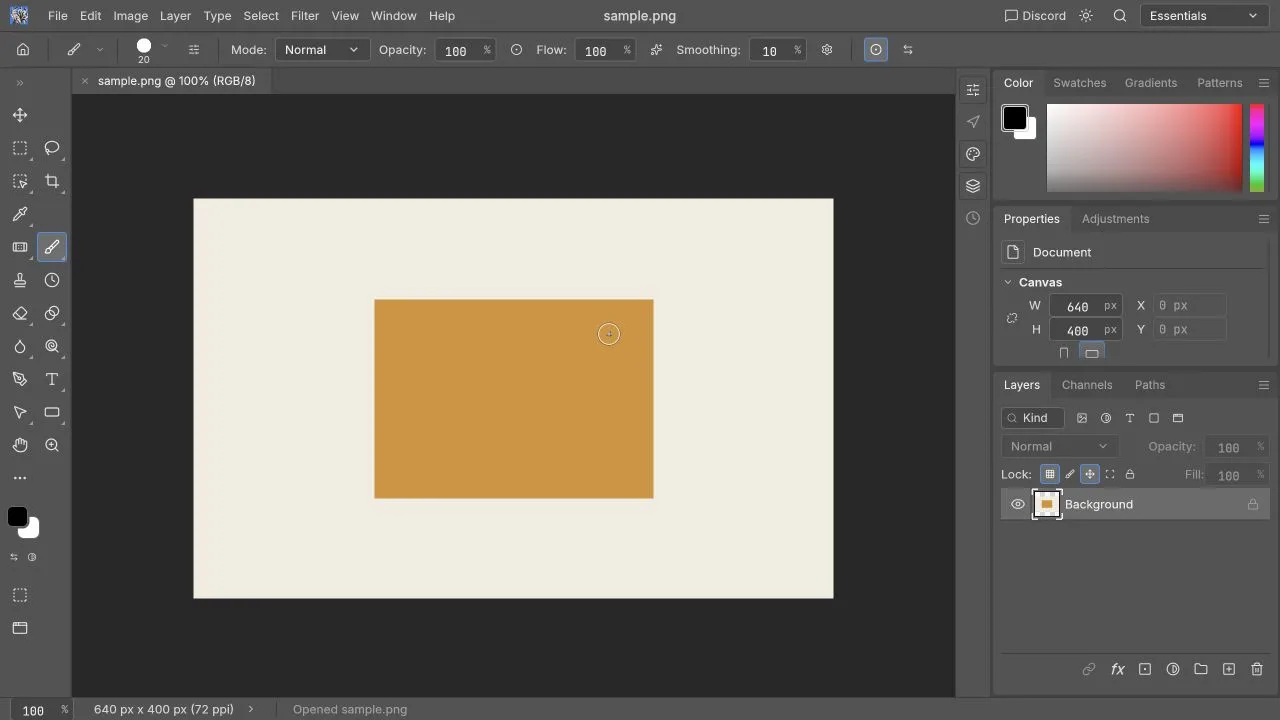 **If your result differs:** try this exact small PNG before repeatedly opening a large image. A missing workspace points to loading or graphics; an empty canvas after opening a file is a different symptom. Use the [troubleshooting guide](https://photocraftonline.org/blog/photocraft-troubleshooting).
### 2. Add a short English text layer
Choose Type, click the canvas, and enter `PhotoCraft test`. In this Web check, Control+Enter committed the text. That key may differ in another browser, macOS desktop build, or customized setup, so use the confirmation control shown by your editor if the shortcut does not work.
**Observed result:** the words appeared and a new Type Layer was visible in the Layers panel. This verifies newly created English text on the sample; it does not verify Chinese glyphs or text imported from a PSD.
**If typing triggers another tool:** confirm the text caret and editor focus. If characters become boxes, consult [Chinese text and fonts](https://photocraftonline.org/blog/photocraft-chinese-and-fonts). Keep the original wording in a text note while diagnosing the problem.
### 3. Undo and Redo the text change
Use Undo, then Redo. In this Web check, Control+Z removed the text and Control+Shift+Z restored it. If browser shortcuts interfere, select the editor’s corresponding menu action instead.
**Observed result:** the canvas visibly returned to the image without the caption, then recovered the caption. This checks current-tab history only; it does not mean the document can recover after refresh or tab closure.
**If your result differs:** try this exact small PNG before repeatedly opening a large image. A missing workspace points to loading or graphics; an empty canvas after opening a file is a different symptom. Use the [troubleshooting guide](https://photocraftonline.org/blog/photocraft-troubleshooting).
### 2. Add a short English text layer
Choose Type, click the canvas, and enter `PhotoCraft test`. In this Web check, Control+Enter committed the text. That key may differ in another browser, macOS desktop build, or customized setup, so use the confirmation control shown by your editor if the shortcut does not work.
**Observed result:** the words appeared and a new Type Layer was visible in the Layers panel. This verifies newly created English text on the sample; it does not verify Chinese glyphs or text imported from a PSD.
**If typing triggers another tool:** confirm the text caret and editor focus. If characters become boxes, consult [Chinese text and fonts](https://photocraftonline.org/blog/photocraft-chinese-and-fonts). Keep the original wording in a text note while diagnosing the problem.
### 3. Undo and Redo the text change
Use Undo, then Redo. In this Web check, Control+Z removed the text and Control+Shift+Z restored it. If browser shortcuts interfere, select the editor’s corresponding menu action instead.
**Observed result:** the canvas visibly returned to the image without the caption, then recovered the caption. This checks current-tab history only; it does not mean the document can recover after refresh or tab closure.
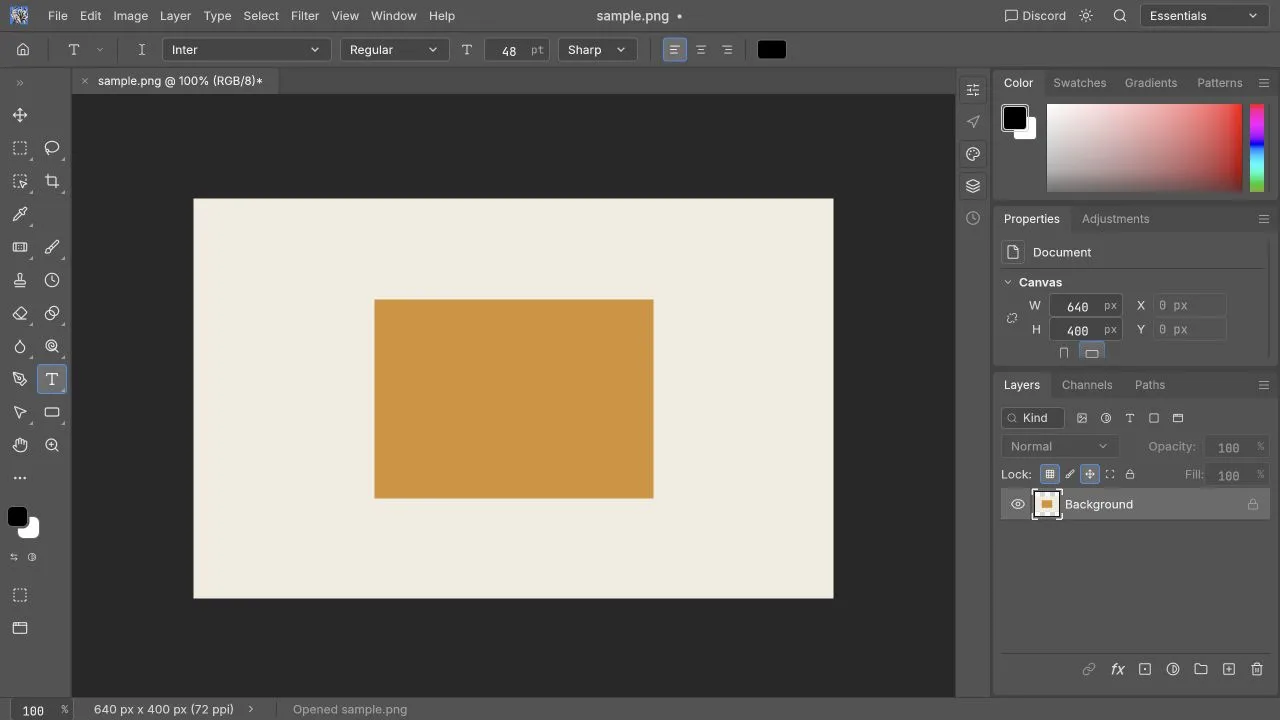 After Redo, verify the text is back before exporting. Use the [shortcut guide](https://photocraftonline.org/blog/photocraft-keyboard-shortcuts) for the distinction between a browser shortcut and an editor shortcut.
### 4. Download a PNG and inspect it elsewhere
Use **File → Export → Quick Export as PNG**. In this check, the download completed, the application warned that layers would flatten, and the PNG decoded at 640 × 400 with the caption preserved.
**Expected result when you repeat it:** the browser produces a finished image you can open in another viewer. Check spelling, edges, dimensions, and the final background. Finding a filename in downloads is useful, but opening the actual file is the acceptance check.
A PNG is the visible result, not a file that preserves separate editable text and photo layers. Browser Save and Export use downloads, and permissions can block them. [Official download behavior](https://github.com/storytold/photocraft/blob/v0.5.0/packaging/web/README.md#embedding-in-a-page-iframe)
**If no download appears:** check the browser’s download list and permission messages before clicking Export repeatedly. Do not close the tab until a usable copy exists.
### 5. Crop after the first export
Choose Crop, drag the lower-right crop handle, and commit using the top-right checkmark. This particular drag produced a **600 × 371** canvas; it is not a fixed preset you will obtain automatically.
**Observed result:** the canvas dimensions changed and the framing was reduced. Cropping changes what the image contains; zoom only changes your view. If you need a specific ratio or output size, verify those requirements separately.
After Redo, verify the text is back before exporting. Use the [shortcut guide](https://photocraftonline.org/blog/photocraft-keyboard-shortcuts) for the distinction between a browser shortcut and an editor shortcut.
### 4. Download a PNG and inspect it elsewhere
Use **File → Export → Quick Export as PNG**. In this check, the download completed, the application warned that layers would flatten, and the PNG decoded at 640 × 400 with the caption preserved.
**Expected result when you repeat it:** the browser produces a finished image you can open in another viewer. Check spelling, edges, dimensions, and the final background. Finding a filename in downloads is useful, but opening the actual file is the acceptance check.
A PNG is the visible result, not a file that preserves separate editable text and photo layers. Browser Save and Export use downloads, and permissions can block them. [Official download behavior](https://github.com/storytold/photocraft/blob/v0.5.0/packaging/web/README.md#embedding-in-a-page-iframe)
**If no download appears:** check the browser’s download list and permission messages before clicking Export repeatedly. Do not close the tab until a usable copy exists.
### 5. Crop after the first export
Choose Crop, drag the lower-right crop handle, and commit using the top-right checkmark. This particular drag produced a **600 × 371** canvas; it is not a fixed preset you will obtain automatically.
**Observed result:** the canvas dimensions changed and the framing was reduced. Cropping changes what the image contains; zoom only changes your view. If you need a specific ratio or output size, verify those requirements separately.
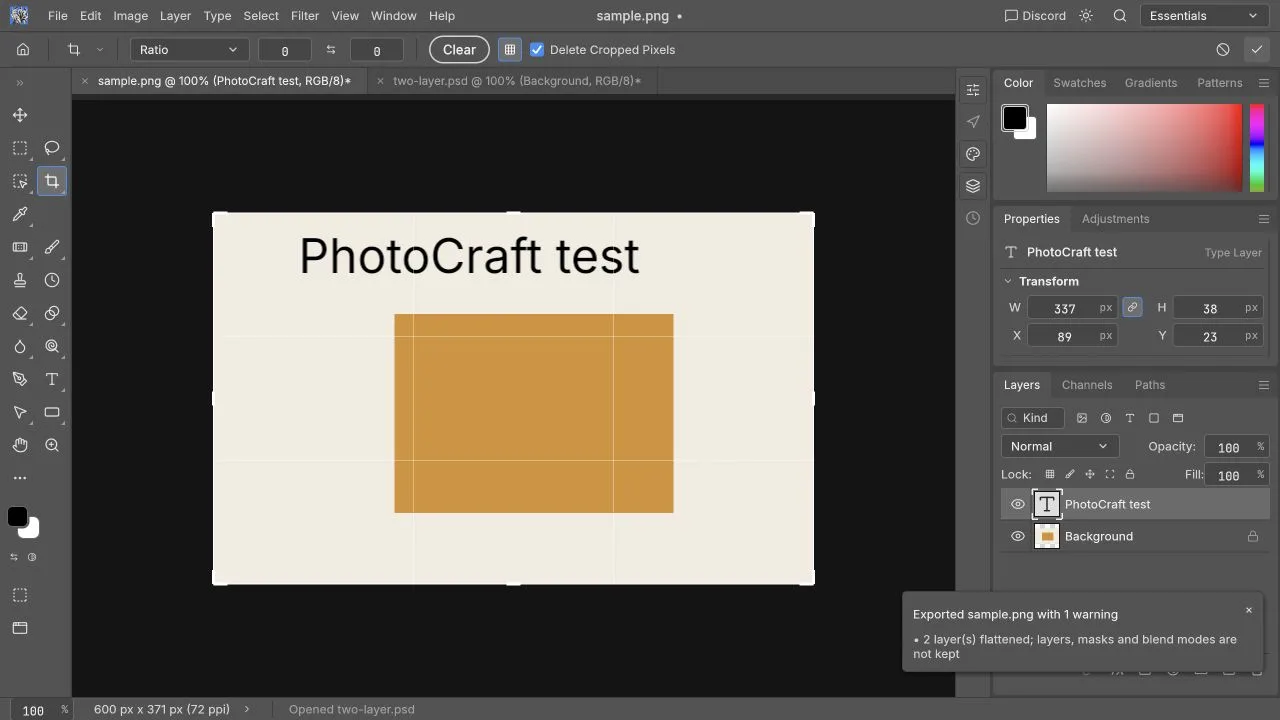 **If the crop removes needed content:** Undo and try a smaller change. Keep your uncropped original. Exporting this cropped result is a sensible next check, but the recorded successful PNG export above preceded the crop.
### 6. Brighten the Background pixels
Select the pixel Background layer. Use **Image → Adjustments → Brightness/Contrast**, move the brightness slider, and confirm. The sample’s background and amber rectangle became visibly brighter.
**Observed result:** the image pixels changed. This was a **direct adjustment**, not a tested live adjustment layer. The separately created Type Layer is a reason to check which layer is selected before applying an operation.
**If the crop removes needed content:** Undo and try a smaller change. Keep your uncropped original. Exporting this cropped result is a sensible next check, but the recorded successful PNG export above preceded the crop.
### 6. Brighten the Background pixels
Select the pixel Background layer. Use **Image → Adjustments → Brightness/Contrast**, move the brightness slider, and confirm. The sample’s background and amber rectangle became visibly brighter.
**Observed result:** the image pixels changed. This was a **direct adjustment**, not a tested live adjustment layer. The separately created Type Layer is a reason to check which layer is selected before applying an operation.
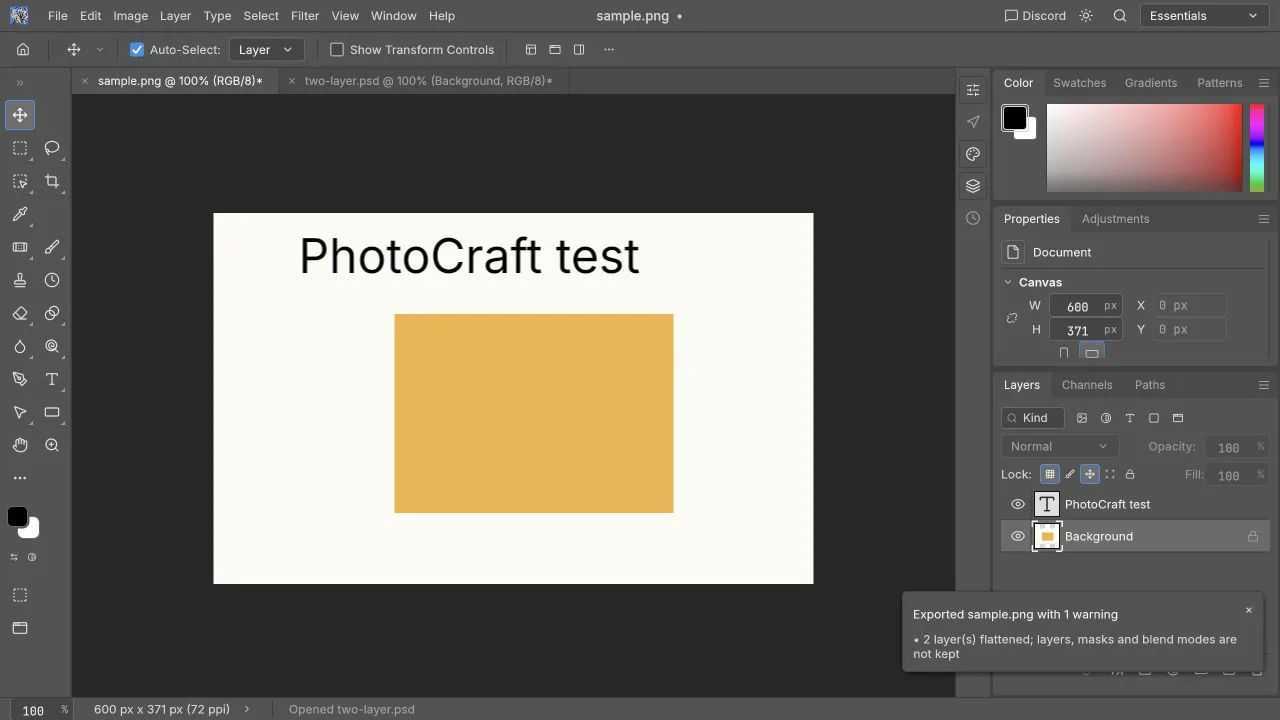 **If the wrong content changes:** Undo and inspect the layer selection. For a reversible layer-based workflow, read [layers and masks](https://photocraftonline.org/blog/photocraft-layers-and-masks); its mask and adjustment-layer procedures remain untested in this browser check.
### What should you save next?
For publication, export the finished appearance and reopen it outside the editor. For later editing, separately save a supported project format and test reopening it before you close the working tab. Editable Save and project reopening still need to be checked on your own file.
| Check | Recorded status |
|---|---|
| Open 640 × 400 PNG | Passed on the shared sample |
| Create English text; Undo and Redo | Passed on the shared sample |
| Download PNG with text | Passed; 640 × 400, before crop |
| Crop to 600 × 371 | Canvas change observed |
| Direct Brightness/Contrast | Visible pixel change observed |
| Project reopening, Chinese, masks | Not tested |
A small-file pass is a useful starting point, not a Photoshop replacement claim. Before editing a PSD, read the [PSD tutorial](https://photocraftonline.org/blog/edit-psd-online), including its layer-order discrepancy, and the [compatibility guide](https://photocraftonline.org/blog/photocraft-psd-compatibility).
---
## PhotoCraft vs Photopea vs Pixlr: Which to Use?
[Original page](https://photocraftonline.org/blog/photocraft-vs-photopea-vs-pixlr) · 2026-10-10
**Choose an online editor by the task you need to finish: PSD revision, simple image creation, or AI-assisted changes.** PhotoCraft is an open-source candidate to evaluate; Photopea documents a PSD-centered browser workflow; Pixlr offers browser editing alongside an extensive AI product lineup. None of those descriptions proves that your specific document will survive editing and export.
This comparison is based on official sources checked on October 10, 2026. We have not run the same benchmark files in all three applications, so use it to build your shortlist, not to pick a measured winner. PhotoCraft refers to upstream v0.5.0 and this independent site's hosted build; Photopea and Pixlr refer to their official live services.
### What does each product emphasize?
Photopea's [introduction](https://www.photopea.com/learn/) describes raster and vector editing in a browser. Its [open-and-save guide](https://www.photopea.com/learn/opening-saving) explains PSD as its principal editable document format. That makes PSD revision a relevant trial, but not a blanket compatibility guarantee.
Pixlr's [Editor](https://pixlr.com/editor/) presents image tools, layers and text. Its [product and pricing page](https://pixlr.com/pricing/) also lists generation, expansion and other AI services. Check which product actually contains the tool you need: “Pixlr” is a family of tools, and a feature promoted for one interface may require another.
PhotoCraft's [pinned documentation](https://github.com/storytold/photocraft/blob/v0.5.0/README.md) describes layered editing and desktop/browser builds, with an explicit early-alpha warning. This site's free editor does not currently add a paid AI generation service. If the name or third-party status is unclear, the product explainer starts with [What is PhotoCraft?](https://photocraftonline.org/blog/what-is-photocraft).
### Side-by-side evidence table
| Requirement | PhotoCraft Online | Photopea | Pixlr |
| --- | --- | --- | --- |
| Browser access | Hosted v0.5.0 Web build | Official browser application | Official browser tools |
| Editable PSD workflow | Two synthetic layers imported with an initial stacking discrepancy; saving and reopening was not checked | Official guide documents PSD-centered saving | Check supported import and editable export for your file; no save-and-reopen claim here |
| Masks | Upstream documents them | Official mask tutorial | Editor offers cutout/mask controls; complex PSD equivalence unverified |
| Adjustments | Upstream documents them | Official adjustment/filter guide | Editor tools documented; saved editability needs a trial |
| Type and fonts | New English type tested on PNG; imported PSD type and CJK untested | Official text tutorial | Editor includes text tools and templates |
| Smart objects | Upstream documents them; fidelity caveats | Official smart-object tutorial | Not established by the sources used here |
| Generative image tools | Unavailable on this site | Check the exact current tool and entitlement; not assessed here | Official pricing lists AI products and credits |
| Professional handoff | Not validated across these services | File-specific recipient check required | File-specific recipient check required |
The table combines attributed documentation with narrowly recorded PhotoCraft tests; it is not a completed comparative test. Photopea's sources for [masks](https://www.photopea.com/learn/masks), [adjustments](https://www.photopea.com/learn/adjustments-filters), [text](https://www.photopea.com/learn/text) and [smart objects](https://www.photopea.com/learn/smart-objects) explain those workflows individually. PhotoCraft's [dated assessment](https://github.com/storytold/photocraft/blob/v0.5.0/docs/roadmap.md) provides caveats. The absence of a verified source in a cell means “not established here,” not “the product cannot do it.”
#### Our separate PhotoCraft browser check
On October 10, 2026, a local PhotoCraft v0.5.0 session on macOS 26.2 and Codex in-app Chromium (1280 × 720 viewport) passed PNG import, new English text, undo/redo, crop, direct pixel brightness and a 640 × 400 PNG download. Browser engine version and rendering backend were unrecorded. A synthetic two-pixel-layer PSD imported, but initial stacking disagreed with its embedded composite; visibility and reordering worked. Fixture encoding versus importer behavior remains unresolved, and no PSD save/reopen was tested.
This screenshot and the [full task-review record](https://photocraftonline.org/blog/photocraft-review) apply to PhotoCraft alone. Neither Photopea nor Pixlr was run in the same session, so this section should not be read as a three-way PSD fidelity result.
### PSD editing: compare the reopened file
A meaningful PSD trial has two deliverables: a finished image and an editable file. Keep your original, modify one text layer and one image, and export both deliverables under new filenames. Reopen the editable result in the application that will receive it.
Inspect layer groups, masks, fonts, shadows and smart-object contents. If an editor imports the document but only delivers a flattened image, it may still finish your immediate social post. It has not met a requirement to return a reusable layered template. Our [PSD compatibility guide](https://photocraftonline.org/blog/photocraft-psd-compatibility) explains that distinction for PhotoCraft.
For complex templates, keep a reference render and check unchanged areas too. “The heading changed correctly” is insufficient if an unrelated clipping mask or shadow changed during the save. Use the same licensed fonts wherever possible; record substitutions instead of silently accepting different typography.
### How much learning is involved?
Someone already familiar with layers can begin with a layered workflow. Someone who only needs a crop and a caption should trial that exact sequence instead of exploring every professional panel. A tool feels easier when its path to the deliverable matches your task.
Do not assume identical shortcuts across products. Give the canvas focus, try the menu action first, and then test the keyboard equivalent. Browser interception and text-field focus can explain an apparent shortcut failure. For PhotoCraft, see the [shortcut guide](https://photocraftonline.org/blog/photocraft-keyboard-shortcuts).
Measure the time to a correct downloaded result, including corrections. Treat that as your own evaluation method, not proof that one product is faster or easier for everyone.
### Free editing, paid plans and AI credits
PhotoCraft Online's basic editing is free and does not require an account. Generative AI is not available here. Photopea's [terms and privacy page](https://www.photopea.com/privacy.html) permits free editing and describes an optional time-limited Premium account purchased with a one-time payment. We have not verified a current regional Premium checkout amount, so no numeric Photopea price is quoted.
The Pixlr pricing page displayed **€2.49/month for Plus** and **€9.99/month for Premium** in its monthly EUR view when checked on October 10, 2026. It separately displayed yearly billing options and AI-credit allowances. These are dated page observations, not guaranteed prices for your currency, country, tax treatment or checkout. Verify the selected plan and term on [Pixlr's current pricing page](https://pixlr.com/pricing/) before buying.
Compare the actual allowance you need: saves, model access, credit expiry, resolution and generation concurrency may affect value more than the headline price. A “free editor” label does not establish that every advertised AI operation is unlimited or included.
### Privacy: editing and cloud services are separate
Photopea's [privacy policy](https://www.photopea.com/privacy.html) states that opened files are processed on the device, and separately describes optional cloud-storage connections and account data. That statement should not be generalized into a claim that every external feature makes zero network requests.
Pixlr's [privacy policy](https://pixlr.com/privacy-policy/) describes account, service-provider and other data handling. The local-storage statement in its children's policy concerns that context; it is not sufficient evidence to call every generative tool local. Read the terms for the exact operation you intend to use.
For PhotoCraft Online, consult our [safety and privacy guide](https://photocraftonline.org/blog/is-photocraft-safe). The editor processes local files in your browser, while the website still makes ordinary network requests. Save by downloading a file; this site has no cloud project storage.
### A task-based selection guide
| Your need | Good first evaluation | What decides the result |
| --- | --- | --- |
| Revise a simple PSD without installing software | Compare PhotoCraft and Photopea using the same copy | Reopened layers and correct final image |
| Crop and caption a personal photo | Try the shortest workflow in each relevant editor | Time to a correct download |
| Create generated content or expand an image | Inspect Pixlr's specific AI tool and current terms | Output quality, credit cost and processing terms |
| Prepare product images repeatedly | Run one representative product through your shortlist | Consistent color, edges and repeatable steps |
| Deliver a professional master or print asset | Retain your established tool until the trial passes | Recipient acceptance and another successful revision |
Use this table to choose what to test first. Large-file capacity, mobile interaction, pen input, print profiles and Adobe-plugin compatibility have not been compared here.
### How to make a defensible choice
Write down three requirements before opening an editor: the output format, whether someone must edit it later, and whether AI is essential. Add fonts and privacy restrictions if they matter to your work. Eliminate options only when a required step is demonstrably unavailable or fails your trial.
Then keep one source copy and reference export, make the same modest revision in each candidate, and compare downloaded files outside the editor. Save the result and the conditions: date, service version if exposed, browser, OS, dimensions, bytes and layer count. That produces a useful answer for your work instead of a generic ranking.
[Try PhotoCraft Online](https://photocraftonline.org/editor), follow the [first editing tutorial](https://photocraftonline.org/blog/photocraft-tutorial), or read [PhotoCraft versus Photoshop](https://photocraftonline.org/blog/photocraft-vs-photoshop) if replacing your desktop workflow is the real question.
---
## PhotoCraft vs Photoshop: Can It Replace Photoshop?
[Original page](https://photocraftonline.org/blog/photocraft-vs-photoshop) · 2026-10-10
**You can try PhotoCraft v0.5.0 for a crop, a caption or a simple image edit. Keep Photoshop for complex PSDs and professional delivery until your required files and features pass a trial.** Before switching, check both the downloaded image and any editable file you need to hand off.
This comparison concerns PhotoCraft v0.5.0 and the browser build offered by this independent website. Sources were checked on October 10, 2026. We have not completed a controlled Photoshop-versus-browser output comparison. If you need the product identity and free/open-source scope first, read [What is PhotoCraft?](https://photocraftonline.org/blog/what-is-photocraft). The [PhotoCraft v0.5.0 documentation](https://github.com/storytold/photocraft/blob/v0.5.0/README.md) identifies the project as early alpha and explicitly cautions against treating it as a daily professional replacement.
### What counts as replacing Photoshop?
There are three different decisions behind that question. You may need to finish one social image without installing anything, modify a particular PSD template, or move an entire production workflow. Each requires different evidence.
For a flat social image, success means correct size, legible type and a usable download. For a template, success also means preserved layers and text. For production, repeatability, fonts, automation, color and downstream acceptance matter. An editor can meet the first definition while failing the other two, so use the recommendations below as task checks rather than a general score.
Use this short rule before reading the detailed matrix: **PhotoCraft can replace Photoshop for a task only after that exact task passes your own acceptance check.** It is reasonable to try for crops, captions and some simple raster-layer edits. It is not ready to replace Photoshop as the only tool for client PSD handoff, paid print delivery, Adobe plugin workflows, generative-fill work or any file that must survive another editable Photoshop revision until you have verified that specific workflow.
### What do the support labels mean?
| Label | Meaning |
| --- | --- |
| Officially documented | The pinned upstream documentation describes the capability; this is not our browser test result. |
| Tested on a named sample | A specific operation passed in our recorded local browser session; it does not establish Photoshop equivalence. |
| Documented limitation | The upstream assessment identifies a gap or incomplete workflow. |
| Not verified here | We have not demonstrated this behavior using the hosted browser build and a matching Photoshop reference. |
| Unavailable on this site | This website does not currently provide the capability. |
The [menu parity report](https://github.com/storytold/photocraft/blob/v0.5.0/docs/parity.md) counts implemented menu commands. A matching menu still needs to produce the right image and save a usable file; the count cannot tell you whether your Photoshop task will work.
### The dimensions that matter
| Feature | Current status in PhotoCraft v0.5.0 | What to check before switching |
| --- | --- | --- |
| PSD open/edit/save | Two synthetic pixel layers imported; initial stacking differed; saving and reopening a PSD was not checked | Open the saved copy in the receiving application. |
| Layers, masks and adjustments | Sample layer visibility/reordering and direct pixel brightness tested; masks/adjustment layers untested | Toggle groups, inspect clipping and revise adjustment values. |
| Editable type | New English type layer tested; imported PSD type/CJK untested; typography depth has documented limitations | Change text and check line breaks with your actual fonts. |
| Smart objects and filters | Officially documented; render fidelity has documented limitations | Reopen, replace object content and recheck filters. |
| Shortcuts | Control+Z and Control+Shift+Z passed in one session; broader mappings not tested | Confirm editor focus and browser interception. |
| Generative AI | Unavailable on this site | Use a separately verified tool if generation is essential. |
| Adobe plugins and scripts | Compatibility has documented limitations | Inventory each extension, action and script you depend on. |
| Color and print | Engine capabilities documented; browser-to-print workflow not verified here | Check profiles and printer acceptance end to end. |
| Large files | Upstream support does not establish browser limits | Test your largest representative file and repeated saves. |
| Migration effort | No universal estimate | Include checking exports, fonts, habits and team handoff. |
Feature descriptions come from the pinned [README](https://github.com/storytold/photocraft/blob/v0.5.0/README.md); workflow caveats come from the dated [roadmap assessment](https://github.com/storytold/photocraft/blob/v0.5.0/docs/roadmap.md). Different sections of that assessment refer to different historical baselines, so their counts are not presented as a current browser score.
Separately, our **October 10, 2026 local browser session** on macOS 26.2, Codex in-app Chromium, 1280 × 720, passed PNG import, new English type, undo/redo, crop, direct brightness and a flattened PNG download. The browser engine version and rendering backend were not identified. The [review test record](https://photocraftonline.org/blog/photocraft-review) supplies sample dimensions, bytes, steps and screenshots. JPEG, complex PSDs, editable save/reopen and Photoshop output comparisons were not tested.
### Replacement decision checklist
Choose according to the file you need to deliver:
| Decision | When PhotoCraft can be enough | When to keep Photoshop or another verified tool |
| --- | --- | --- |
| One-off web image | The final PNG/JPEG opens in another viewer with correct dimensions, text and edges | You need the same file to remain layered for another designer |
| PSD template edit | The specific layers you changed still reopen and the unchanged regions match a reference export | Text, masks, smart objects, effects or layer order cannot be verified |
| AI-assisted removal or expansion | A separate verified AI tool produces an acceptable image that you import manually | You need Photoshop Generative Fill parity inside this site |
| Print or paid handoff | The recipient accepts a checked export and no editable Photoshop handoff is required | The job depends on profiles, separations, plugins, actions or editable PSD delivery |
| Team migration | Representative files, shortcuts, fonts and handoff steps pass repeatedly | Only a menu list or a single easy file has been checked |
### Does opening a PSD mean it is compatible?
No. Check three separate outcomes: **appearance**, **editability**, and **whether the saved file still works in the next editor**. A flattened preview can look right while its type is no longer editable. A document can contain the same layer names while a smart filter behaves differently. A correct first render says nothing about the document after you save and reopen it.
For a useful trial, choose a template you know well. Record dimensions, byte size, layer count, fonts and essential effects. Save a reference image from the original application. In PhotoCraft, change one text layer and one image, then save under a new name. Reopen the result and compare the unchanged regions as well as the edited ones. Never overwrite the only original.
Our synthetic [two-layer PSD](https://photocraftonline.org/test-fixtures/two-layer.psd) exposed an initial stacking mismatch with its embedded composite. Hiding and reordering Background worked, but the cause could be fixture encoding or importer behavior and remains unresolved. Our [PSD compatibility guide](https://photocraftonline.org/blog/photocraft-psd-compatibility) separates supported file features from tested samples. The [online PSD tutorial](https://photocraftonline.org/blog/edit-psd-online) explains the editing sequence. A flat image export delivers pixels; it does not prove the layered PSD remains reusable.
For a replacement decision, require a saved editable copy to pass three checks: reopen in PhotoCraft, reopen in the receiving Photoshop version, and complete one more ordinary edit there. Passing only the first screen render is a preview check. Passing only a PNG export is a final-image check. Neither proves PSD replacement.
### Layers and type: test the next revision
For layers, the decisive question is whether the next requested edit remains possible. Try hiding a group, changing its opacity, revising a mask edge and reopening an adjustment. Inspect shadows and clipped content against both light and dark backgrounds. These checks tell you whether you can revise the design later.
For text, use the exact heading and paragraph you plan to publish. Check punctuation, Chinese characters, line wrapping and alignment at final size. A substituted font can change the layout even when every character is readable. Keep licensed font files and font names with the project; see [Chinese and font troubleshooting](https://photocraftonline.org/blog/photocraft-chinese-and-fonts).
Adobe describes smart objects as containers that preserve source data for nondestructive work in its [Smart Object documentation](https://helpx.adobe.com/photoshop/desktop/create-manage-layers/smart-objects/create-embedded-smart-objects.html). Compare that workflow by replacing content and repeating transforms, not by checking whether an icon exists.
### AI, plugins and professional delivery
Photoshop's [Generative Fill documentation](https://helpx.adobe.com/photoshop/desktop/create-open-import-images/create-images/edit-images-with-generative-fill.html) describes prompt-based image changes. PhotoCraft's automation interfaces and classical image algorithms do not establish an equivalent browser generation service. Read our [AI capability guide](https://photocraftonline.org/blog/photocraft-ai-features) before choosing it for removal, expansion or generated backgrounds.
Likewise, a PhotoCraft command is not an Adobe plugin. Treat every required extension, `.atn` action, UXP script and cloud asset workflow as a separate migration item. If one mandatory step has no verified equivalent, retain your established application for that job.
Color requires more than a CMYK menu. Adobe's [color settings guide](https://helpx.adobe.com/photoshop/using/color-settings.html) explains embedded profiles and conversion policies. For print, agree on the receiving printer's requirements and verify an exported copy through that process. We have not tested soft proofing, printer profiles, separations or professional print delivery in this site's browser build.
Large PSDs also need a practical trial. Compressed file size is not the same as working memory: dimensions, bit depth, effects and layer count all influence the document. We publish no maximum browser file size or speed comparison without measurements on a named machine.
### Which users should try it?
| Your task | Where to start | What to check |
| --- | --- | --- |
| Everyday crop or simple correction | Try a disposable copy | Open the final download and inspect size and detail. |
| Social post with a headline | Try a headline on a copy | Check type, layout and transparency at publish size. |
| Product or ecommerce image | Evaluate one product first | Preserve true color and inspect every cutout edge. |
| Complex PSD template | Keep the established application available | Verify structure, smart objects, effects and another revision. |
| Paid professional or print handoff | Keep your verified production workflow | Require recipient acceptance and reproducible output. |
You can use different editors for different jobs. A website thumbnail may work in PhotoCraft while a catalog template stays in Photoshop because it needs an action, a printer profile or smart-object replacement. Test the full requirements for each job.
### What does switching really cost?
A free editor removes an acquisition cost, but checking a reopened PSD, fixing a missing font and retraining a shortcut still take time. Count those steps during a representative trial instead of estimating savings from a subscription price alone. Photoshop pricing, generative entitlements and regional terms vary; consult [Adobe's current product page](https://www.adobe.com/products/photoshop.html) for an actual purchase decision.
The safest transition is task by task. Keep your source archive and reference exports, use separate filenames, and switch only the tasks that meet your acceptance checks. [Open the free editor](https://photocraftonline.org/editor) to try one image, then use the [browser review and test record](https://photocraftonline.org/blog/photocraft-review) to understand what has and has not been verified.
### Frequently asked questions
#### Is PhotoCraft exactly the same as Photoshop?
No. Similar menus are useful for learning, but behavior, ecosystem and production reliability require separate validation. PhotoCraft is an independent open-source project and is not endorsed by Adobe.
#### Can I cancel Photoshop after installing PhotoCraft?
First test all the files and features you rely on, including the next round of edits and client handoff. Keep Photoshop if a required step still fails or has not been checked.
#### Can PhotoCraft replace Photoshop Generative Fill?
No. This site does not offer generative fill. Conventional repair tools and desktop automation control do not generate prompt-based image content.
---
## What Is PhotoCraft? Free Editor and PSD Basics
[Original page](https://photocraftonline.org/blog/what-is-photocraft) · 2026-10-10 / 2026-10-10
PhotoCraft is an open-source image editor built by the ArtCraft team and contributors. It offers a familiar layered editing workflow and support for Photoshop documents. PhotoCraft Online is an independently operated site that hosts its browser build and explains how to use it. The upstream project is still in early alpha: use a copy of your image or PSD, check the exported result, and keep your original project.
This guide covers v0.5.0. Product facts come from linked official sources. The browser check later in the page helps you decide whether PhotoCraft is worth trying on a copy of your own file; neither the feature list nor that check establishes complete Photoshop compatibility.
### Which PhotoCraft does this website mean?
Names can overlap across photo services, applications, and tutorials. Here, **PhotoCraft means the `storytold/photocraft` open-source project**. Its source repository, versioned releases, and license files are the useful identifiers when comparing a download or a review. The repository points to the ArtCraft website as its official product source. [Official v0.5.0 project overview](https://github.com/storytold/photocraft/blob/v0.5.0/README.md)
This website provides an additional way to open the released Web editor. It is not the upstream developer's official website and is not operated by Adobe. Hosting an open-source release does not imply ownership of its product name or endorsement from its contributors.
If a tutorial describes a mobile app or a different service with the same name, its feature list may not apply here. Check the publisher and release version before following instructions or installing software.
### Is PhotoCraft free?
The upstream application is distributed as free, open-source software under a choice of MIT or Apache-2.0 licenses. That describes the software license; it does not remove the separate rights attached to an image, font, or trademark. [License and attribution files](https://github.com/storytold/photocraft/tree/v0.5.0)
Basic editing in the [online editor](https://photocraftonline.org/editor) is available without a paid plan or account. This site currently does not provide generative AI editing such as image generation, object removal, or generative fill; see the [AI features guide](https://photocraftonline.org/blog/photocraft-ai-features) for the current boundary.
Before choosing a free editor for work, also account for the time needed to check compatibility. A free tool that cannot preserve a client's text layout may cost more effort than using the application in which the project was created.
### What is it useful for?
Start with a concrete output: a resized photograph, a simple image with a caption, or a copy of a layered design with one change. These tasks are easier to verify than a broad promise to replace your entire workflow.
| Your task | A sensible first check | What to keep |
|---|---|---|
| Crop a photograph for a website | Confirm the final width, height, and subject framing | Original photograph |
| Add a title to an image | Check the exact font, line breaks, and readability at output size | Editable project plus image export |
| Update a PSD template | Compare layers and the starting appearance before editing | Untouched PSD and a reference preview |
| Prepare a print deliverable | Ask the recipient about color, profile, format, and proofing requirements | Original project and approved proof |
PhotoCraft's upstream documentation describes tools across layered editing and PSD handling. A list of implemented commands does not establish Photoshop-equivalent behavior for every document. The project explicitly warns against treating its current alpha as a replacement for daily professional work. [Upstream status and limitations](https://github.com/storytold/photocraft/blob/v0.5.0/README.md#get-started)
### Browser version or desktop version?
The browser edition runs a WebAssembly application loaded by a web page. The official Web package is a static site and does not require an application server for editing. Its rendering path can depend on browser graphics support. [Official Web hosting guide](https://github.com/storytold/photocraft/blob/v0.5.0/packaging/web/README.md)
| Question | Browser edition on this site | Official desktop release |
|---|---|---|
| How do I start? | Open the editor page and load a local file | Download the matching platform package |
| How do I save? | Save and Export produce browser downloads | Use the native application's file workflow |
| What can interrupt work? | Tab closure, page refresh, memory pressure, graphics issues | Application exit, system problems, application bugs |
| Which environment should I report? | Browser version, OS, renderer, and deployment version | App version, OS, architecture, and document details |
The browser has its own clipboard, download, font, and storage rules. Do not assume a desktop feature or a desktop performance example describes this Web deployment. Preferences remembered between visits also do not prove that an unsaved document will be recovered.
### What can you trust from the browser check?
The check was recorded on October 10, 2026 using the unchanged official Web package locally on macOS 26.2 (25C56), in the Codex in-app Chromium browser at a 1280 × 720 viewport. The browser engine version was not exposed; the default renderer was used without independently identifying WebGPU or WebGL. There was no timing benchmark or Photoshop comparison.
With [sample.png](https://photocraftonline.org/test-fixtures/sample.png), a 640 × 400 RGB 8-bit image of 3,390 bytes, we opened the image, added English text, undid and redid the text change, and downloaded a PNG checked at 640 × 400 with the text preserved. A later crop produced a 600 × 371 canvas, and a direct Brightness/Contrast adjustment visibly brightened the pixels.
The [two-layer PSD sample](https://photocraftonline.org/test-fixtures/two-layer.psd) (640 × 400, RGB 8-bit, 1,704,206 bytes) exposed both ordinary pixel layers, but their initial ordering did not match the embedded composite. Reordering brought the visible result into alignment. Whether the discrepancy came from the synthetic fixture or the importer is unresolved. Masks, Chinese text, reopening editable projects, and saving a PSD for another editor still need separate checks.
### How should I try it for the first time?
1. Choose a non-sensitive copy of a small PNG or JPEG. Keep the original outside the editor.
2. Open [PhotoCraft Online](https://photocraftonline.org/editor), wait for the workspace, then load the copy. You should see a canvas containing your image.
3. Make one visible change. A crop or a short caption is easier to inspect than a complex sequence.
4. Export an image, find it in your browser's downloads, and open it in another viewer. Confirm dimensions and appearance.
5. If you want to continue editing later, separately test the editable Save workflow. Reopen the saved file before closing your working tab.
Before closing the tab, reopen any file you expect to edit later. Editable Save and project reopening still need to be checked on your own document. Follow the [first-edit tutorial](https://photocraftonline.org/blog/photocraft-tutorial) for a more detailed walkthrough and the [troubleshooting guide](https://photocraftonline.org/blog/photocraft-troubleshooting) if loading or downloads fail.
### Can PhotoCraft replace Photoshop?
The practical answer depends on the deliverable. A flat PNG for a website and a layered PSD that another designer must edit have very different acceptance criteria. Familiar controls help with learning, but they do not guarantee equal typography, plug-in support, AI features, or save-and-reopen behavior.
Read the [PhotoCraft versus Photoshop comparison](https://photocraftonline.org/blog/photocraft-vs-photoshop) before migrating a workflow. For existing documents, use the [PSD compatibility guide](https://photocraftonline.org/blog/photocraft-psd-compatibility) to decide what to inspect. For installation, use the [official download guide](https://photocraftonline.org/download), which links to the upstream release rather than an unrelated installer.
### Is there an account or cloud-save requirement?
Basic editing does not require an account. The released Web application processes its editing work in the browser; this is distinct from the website requests needed to load application assets. An image export in your downloads is also distinct from an online backup.
Save copies regularly, check the [privacy and safety explanation](https://photocraftonline.org/blog/is-photocraft-safe), and avoid assuming that closing a tab is safe merely because settings persist. Your own verified export is the evidence that an editing task is finished.
---
## PhotoCraft Online Privacy Policy
[Original page](https://photocraftonline.org/privacy) · 2026-10-10
Effective date: **10 October 2026**.
PhotoCraft Online independently hosts the open-source PhotoCraft web editor and publishes tutorials. We are not the official PhotoCraft team or Adobe. This policy covers this website; external services apply their own policies.
### Images opened in the basic editor
The basic editor runs in your browser through WebAssembly. Local files you open are processed by the browser editor. This site currently does not provide cloud saving, editor image uploads or paid AI processing. Saving and exporting produce browser downloads. Save copies before closing or refreshing the tab.
Local processing does not mean there are no network requests. Your browser downloads website pages and editor assets, and may fetch additional resources or follow links you choose. Analytics and external links are separate data flows.
### Website requests and infrastructure
Delivering pages requires ordinary request information, such as IP address, requested URL, browser headers and time. The hosting/CDN provider may process operational or security logs to deliver the site, detect abuse and diagnose failures. We do not use those logs as a cloud copy of your editor document.
Avoid placing private information in URLs or public bug reports. Browser extensions and device administrators may also have access outside our control.
### Preferences, accounts and analytics
Your browser may remember your language and editor settings using cookies or local storage. Preferences are not a promise to recover a project. See the [cookie policy](https://photocraftonline.org/cookie).
Editing does not require an account. This site currently does not offer paid plans, cloud storage or newsletter signup. Opening an image does not create an account.
We use Plausible Analytics and Google Analytics 4 to understand page visits, referral sources and reading engagement. Both load by default when you visit the website. Analytics may include page URLs, referrers, browser or device information, time on page, scroll activity and the IP address included in ordinary network requests. Plausible does not use analytics cookies. Google Analytics uses first-party analytics cookies to distinguish browsers and sessions. Neither analytics tool sends image files opened in the editor. See [Plausible’s data policy](https://plausible.io/data-policy), [Google’s cookie explanation](https://support.google.com/analytics/answer/11397207) and [Google’s privacy policy](https://policies.google.com/privacy) for details.
### Contact and external links
Our [contact page](https://photocraftonline.org/contact) lists the support email for website feedback. If you email us, your address, message and any attachments you choose to include are processed so we can read and reply. Email routing may pass through Cloudflare Email Routing and a Gmail inbox. Do not send passwords, tokens, private artwork or client data unless the details are necessary for your request.
If the contact page sends you to GitHub or another service, information you submit there follows that service's policy and may be public. Use the official issue tracker for editor defects, and use email for website copy, links or translation problems.
Downloads, official documentation and community links leave this site. Their operators receive the information needed to serve those requests under their own policies.
### Retention, control and changes
We do not retain a server copy of images opened through basic local editing. Downloads remain under your control. Preferences remain in your browser until removed or changed; clearing site data may reset those preferences. The hosting provider handles website request logs; its policies determine how long these are kept.
You can clear cookies and storage and choose not to follow external links. Use the [contact information](https://photocraftonline.org/contact) for privacy questions without posting sensitive details publicly. Requests concern data actually processed by us: files never sent to our server cannot be retrieved or deleted there. Email messages can be deleted from our mailbox on request when retention is not needed for support, abuse prevention or legal reasons.
We will update this page when data flows change, including before adding AI uploads or cloud saving. The effective date records the policy version. No security measure is an absolute guarantee; use a maintained browser and keep originals.
---
## PhotoCraft Online Cookies and Browser Storage
[Original page](https://photocraftonline.org/cookie) · 2026-10-10
Effective date: **10 October 2026**.
Your browser may remember your language and editor settings and store cookies used for visit statistics. These settings do not save a backup of your images or projects.
### What can be stored?
| Purpose | Possible storage | Current use |
|---|---|---|
| Site language | Locale cookie or URL locale | Remembers or identifies English/Chinese page preference |
| Editor preferences | Editor origin's local storage | Keeps available interface settings, not a cloud project copy |
| Plausible analytics | No analytics cookies | Counts page visits, referrals and engagement |
| Google Analytics 4 | Analytics cookies | Distinguishes browsers and sessions for visit measurement |
Storage depends on site settings and browser behavior. Blocking storage can reset preferences; private browsing may clear them at session end. You do not need advertising cookies to open a local image. This site currently does not show ads.
### Analytics
We use Plausible Analytics and Google Analytics 4 to understand page visits and referral sources. Both load by default when you visit the website. Plausible does not set analytics cookies or store a persistent visitor identifier in your browser. Google Analytics uses first-party analytics cookies to distinguish browsers and sessions. These analytics tools do not save editor documents or send image files opened in the editor. See [Google’s cookie documentation](https://support.google.com/analytics/answer/11397207). External documentation, download and feedback services use their own cookies and policies.
See [privacy](https://photocraftonline.org/privacy) for website requests and local file processing.
### Managing storage
Use your browser's site settings to inspect or remove cookies and stored data. You can block third-party cookies or use a private profile. Save and verify work first: clearing storage, restarting or refreshing can lose unsaved changes. It may also reset your language and editor settings.
Downloaded images are managed separately. Removing site storage does not delete files in Downloads; saved preferences do not prove a project is backed up.
### Changes and questions
We update this page when storage or deployed integrations change. See [contact](https://photocraftonline.org/contact) for questions. Do not put tokens or full cookie values in public issues.
---
## PhotoCraft Online Terms of Use
[Original page](https://photocraftonline.org/terms) · 2026-10-10
Effective date: **10 October 2026**.
These terms cover PhotoCraft Online, an independent website offering a browser editor and educational content. The site is not operated by the official PhotoCraft team and is not affiliated with or endorsed by Adobe.
### Free basic editing
Basic editing is free and does not require registration. Download your images or projects to your device after editing. This site currently does not offer cloud saving or AI image generation.
### Your files and responsibilities
You retain rights to your files. Opening a local file in the browser editor does not grant us permission to publish, sell or distribute it. Use files you are entitled to edit and share, respecting applicable copyright, privacy and other laws.
Keep an original copy and download your results. An alpha editor may lose unsaved work, display a file differently or fail to preserve an editable feature. Reopen and check an export before relying on it. For professional delivery, confirm the recipient's software and requirements; following a tutorial does not guarantee that your files will be fully compatible with Photoshop.
### Software and content rights
PhotoCraft is provided under its official open-source licenses and notices supplied with the hosted runtime. Those licenses govern the editor; this page does not replace them. Bundled assets may have separate licenses. See [PhotoCraft licensing and attribution](https://github.com/storytold/photocraft/blob/v0.5.0/README.md#license-and-credits).
Third-party product names identify software or workflows; they do not imply ownership or endorsement. A tool's ability to open artwork does not authorize copying it.
### Acceptable use and external services
Do not use the site to harm others, distribute malware, attack infrastructure or attempt unauthorized access. Do not submit credentials, client files or dangerous samples to public support channels.
Official downloads, issue trackers and documentation are external services. Their terms and policies apply after following a link. We do not guarantee availability or approve every contribution to an open-source tracker.
### Availability and limitations
PhotoCraft is early alpha. Browser, GPU, font and file differences can affect results. We may update, suspend or remove website features to address defects or operational needs. We do not promise uninterrupted access, permanent storage, identical Photoshop output or compatibility with every PSD.
The site and tutorials are provided as available. To the extent permitted by applicable law, we do not provide implied warranties or accept liability for losses from reliance on unverified output, loss of unsaved work or service unavailability. Nothing excludes rights or liabilities that applicable law prohibits excluding.
### Changes and contact
Material changes appear on this page with an updated date. For questions, see [contact](https://photocraftonline.org/contact). See [privacy](https://photocraftonline.org/privacy) and [cookies](https://photocraftonline.org/cookie) for data handling and [the changelog](https://photocraftonline.org/changelog) for runtime versions and verification limits.
---
## PhotoCraft v0.5.0: release notes and online edition
[Original page](https://photocraftonline.org/changelog) · 2026-10-10
**Upstream release date:** 8 October 2026. **Site review date:** 10 October 2026. **Hosted runtime:** the official `photocraft-web-0.5.0.zip`, pinned to v0.5.0 rather than silently following a latest-release URL.
PhotoCraft Online is an independent hosting and documentation site. This record separates upstream release information from evidence about our hosted web editor.
#### Upstream changes
The [official v0.5.0 release notes](https://github.com/storytold/photocraft/releases/tag/v0.5.0) describe rendering fallback work, PSD and smart-object fixes, editing interaction improvements and additional interface translations, including the Simplified Chinese catalog. They also list importer hardening and export fixes. These are upstream reports, not a claim that this website has retested every change.
The source project remains early alpha. Menu coverage is not equivalent to Photoshop behavior, and generative AI parity is not established by the release. Read the [pinned project overview](https://github.com/storytold/photocraft/blob/v0.5.0/README.md) alongside the [dated parity assessment](https://github.com/storytold/photocraft/blob/v0.5.0/docs/roadmap.md#honest-parity-assessment-2026-10-05); older assessment rows can lag later release changes.
#### Site additions
- Open v0.5.0 in the [online editor](https://photocraftonline.org/editor), with loading help and a WebGL fallback mode.
- English and Chinese product explanations, task tutorials, compatibility guidance and comparison articles.
- [Download guide](https://photocraftonline.org/download) linking to official desktop packages and checksum verification instructions.
- Clear independent-site identity and local-editing privacy boundaries; basic editing does not require registration.
#### Verification boundaries
The official Web archive's SHA-256 was verified as `855da01e7ce518049c6f3a090f1218864f7b780811e340db409e5c3cef93cd6d`. The hosted package matches that archive and includes the MIT and Apache license notices. A checksum establishes an artifact match, not a security or workflow certification.
On 10 October 2026, local browser checks ran on macOS 26.2 (25C56), Codex in-app Chromium, 1280 × 720. Browser engine version was not exposed and the default graphics backend was not independently identified. The observed results were:
- 640 × 400 RGB 8-bit [PNG input](https://photocraftonline.org/test-fixtures/sample.png), 3,390 bytes: opened, added English text, removed/restored it using Control+Z / Control+Shift+Z, cropped to 600 × 371 and applied destructive brightness adjustment.
- Quick Export as PNG completed; the text export was checked at 640 × 400 with text visible. Export flattened the layers, as warned by the UI.
- 640 × 400 RGB 8-bit [synthetic PSD](https://photocraftonline.org/test-fixtures/two-layer.psd), 1,704,206 bytes: both raster layers opened, hiding worked and reordering restored the reference appearance. The initial order differed from the embedded composite; fixture-versus-importer responsibility is unknown.
[Fixture hashes and provenance](https://photocraftonline.org/test-fixtures/README.md) and the [illustrated compatibility record](https://photocraftonline.org/blog/photocraft-psd-compatibility) make these limited checks reproducible. No editable-project or PSD save/reopen test, Photoshop handoff or complete network-payload audit was performed.
Typography, smart-filter rendering, large PSD/PSB behavior, mobile interactions and professional color delivery require task-specific checks. The [PSD compatibility guide](https://photocraftonline.org/blog/photocraft-psd-compatibility) identifies what to test; [troubleshooting](https://photocraftonline.org/blog/photocraft-troubleshooting) gives a diagnostic sequence.
This online edition does not offer generative AI or cloud project storage. Download your edited files before closing the editor.
**If the wrong content changes:** Undo and inspect the layer selection. For a reversible layer-based workflow, read [layers and masks](https://photocraftonline.org/blog/photocraft-layers-and-masks); its mask and adjustment-layer procedures remain untested in this browser check.
### What should you save next?
For publication, export the finished appearance and reopen it outside the editor. For later editing, separately save a supported project format and test reopening it before you close the working tab. Editable Save and project reopening still need to be checked on your own file.
| Check | Recorded status |
|---|---|
| Open 640 × 400 PNG | Passed on the shared sample |
| Create English text; Undo and Redo | Passed on the shared sample |
| Download PNG with text | Passed; 640 × 400, before crop |
| Crop to 600 × 371 | Canvas change observed |
| Direct Brightness/Contrast | Visible pixel change observed |
| Project reopening, Chinese, masks | Not tested |
A small-file pass is a useful starting point, not a Photoshop replacement claim. Before editing a PSD, read the [PSD tutorial](https://photocraftonline.org/blog/edit-psd-online), including its layer-order discrepancy, and the [compatibility guide](https://photocraftonline.org/blog/photocraft-psd-compatibility).
---
## PhotoCraft vs Photopea vs Pixlr: Which to Use?
[Original page](https://photocraftonline.org/blog/photocraft-vs-photopea-vs-pixlr) · 2026-10-10
**Choose an online editor by the task you need to finish: PSD revision, simple image creation, or AI-assisted changes.** PhotoCraft is an open-source candidate to evaluate; Photopea documents a PSD-centered browser workflow; Pixlr offers browser editing alongside an extensive AI product lineup. None of those descriptions proves that your specific document will survive editing and export.
This comparison is based on official sources checked on October 10, 2026. We have not run the same benchmark files in all three applications, so use it to build your shortlist, not to pick a measured winner. PhotoCraft refers to upstream v0.5.0 and this independent site's hosted build; Photopea and Pixlr refer to their official live services.
### What does each product emphasize?
Photopea's [introduction](https://www.photopea.com/learn/) describes raster and vector editing in a browser. Its [open-and-save guide](https://www.photopea.com/learn/opening-saving) explains PSD as its principal editable document format. That makes PSD revision a relevant trial, but not a blanket compatibility guarantee.
Pixlr's [Editor](https://pixlr.com/editor/) presents image tools, layers and text. Its [product and pricing page](https://pixlr.com/pricing/) also lists generation, expansion and other AI services. Check which product actually contains the tool you need: “Pixlr” is a family of tools, and a feature promoted for one interface may require another.
PhotoCraft's [pinned documentation](https://github.com/storytold/photocraft/blob/v0.5.0/README.md) describes layered editing and desktop/browser builds, with an explicit early-alpha warning. This site's free editor does not currently add a paid AI generation service. If the name or third-party status is unclear, the product explainer starts with [What is PhotoCraft?](https://photocraftonline.org/blog/what-is-photocraft).
### Side-by-side evidence table
| Requirement | PhotoCraft Online | Photopea | Pixlr |
| --- | --- | --- | --- |
| Browser access | Hosted v0.5.0 Web build | Official browser application | Official browser tools |
| Editable PSD workflow | Two synthetic layers imported with an initial stacking discrepancy; saving and reopening was not checked | Official guide documents PSD-centered saving | Check supported import and editable export for your file; no save-and-reopen claim here |
| Masks | Upstream documents them | Official mask tutorial | Editor offers cutout/mask controls; complex PSD equivalence unverified |
| Adjustments | Upstream documents them | Official adjustment/filter guide | Editor tools documented; saved editability needs a trial |
| Type and fonts | New English type tested on PNG; imported PSD type and CJK untested | Official text tutorial | Editor includes text tools and templates |
| Smart objects | Upstream documents them; fidelity caveats | Official smart-object tutorial | Not established by the sources used here |
| Generative image tools | Unavailable on this site | Check the exact current tool and entitlement; not assessed here | Official pricing lists AI products and credits |
| Professional handoff | Not validated across these services | File-specific recipient check required | File-specific recipient check required |
The table combines attributed documentation with narrowly recorded PhotoCraft tests; it is not a completed comparative test. Photopea's sources for [masks](https://www.photopea.com/learn/masks), [adjustments](https://www.photopea.com/learn/adjustments-filters), [text](https://www.photopea.com/learn/text) and [smart objects](https://www.photopea.com/learn/smart-objects) explain those workflows individually. PhotoCraft's [dated assessment](https://github.com/storytold/photocraft/blob/v0.5.0/docs/roadmap.md) provides caveats. The absence of a verified source in a cell means “not established here,” not “the product cannot do it.”
#### Our separate PhotoCraft browser check
On October 10, 2026, a local PhotoCraft v0.5.0 session on macOS 26.2 and Codex in-app Chromium (1280 × 720 viewport) passed PNG import, new English text, undo/redo, crop, direct pixel brightness and a 640 × 400 PNG download. Browser engine version and rendering backend were unrecorded. A synthetic two-pixel-layer PSD imported, but initial stacking disagreed with its embedded composite; visibility and reordering worked. Fixture encoding versus importer behavior remains unresolved, and no PSD save/reopen was tested.
This screenshot and the [full task-review record](https://photocraftonline.org/blog/photocraft-review) apply to PhotoCraft alone. Neither Photopea nor Pixlr was run in the same session, so this section should not be read as a three-way PSD fidelity result.
### PSD editing: compare the reopened file
A meaningful PSD trial has two deliverables: a finished image and an editable file. Keep your original, modify one text layer and one image, and export both deliverables under new filenames. Reopen the editable result in the application that will receive it.
Inspect layer groups, masks, fonts, shadows and smart-object contents. If an editor imports the document but only delivers a flattened image, it may still finish your immediate social post. It has not met a requirement to return a reusable layered template. Our [PSD compatibility guide](https://photocraftonline.org/blog/photocraft-psd-compatibility) explains that distinction for PhotoCraft.
For complex templates, keep a reference render and check unchanged areas too. “The heading changed correctly” is insufficient if an unrelated clipping mask or shadow changed during the save. Use the same licensed fonts wherever possible; record substitutions instead of silently accepting different typography.
### How much learning is involved?
Someone already familiar with layers can begin with a layered workflow. Someone who only needs a crop and a caption should trial that exact sequence instead of exploring every professional panel. A tool feels easier when its path to the deliverable matches your task.
Do not assume identical shortcuts across products. Give the canvas focus, try the menu action first, and then test the keyboard equivalent. Browser interception and text-field focus can explain an apparent shortcut failure. For PhotoCraft, see the [shortcut guide](https://photocraftonline.org/blog/photocraft-keyboard-shortcuts).
Measure the time to a correct downloaded result, including corrections. Treat that as your own evaluation method, not proof that one product is faster or easier for everyone.
### Free editing, paid plans and AI credits
PhotoCraft Online's basic editing is free and does not require an account. Generative AI is not available here. Photopea's [terms and privacy page](https://www.photopea.com/privacy.html) permits free editing and describes an optional time-limited Premium account purchased with a one-time payment. We have not verified a current regional Premium checkout amount, so no numeric Photopea price is quoted.
The Pixlr pricing page displayed **€2.49/month for Plus** and **€9.99/month for Premium** in its monthly EUR view when checked on October 10, 2026. It separately displayed yearly billing options and AI-credit allowances. These are dated page observations, not guaranteed prices for your currency, country, tax treatment or checkout. Verify the selected plan and term on [Pixlr's current pricing page](https://pixlr.com/pricing/) before buying.
Compare the actual allowance you need: saves, model access, credit expiry, resolution and generation concurrency may affect value more than the headline price. A “free editor” label does not establish that every advertised AI operation is unlimited or included.
### Privacy: editing and cloud services are separate
Photopea's [privacy policy](https://www.photopea.com/privacy.html) states that opened files are processed on the device, and separately describes optional cloud-storage connections and account data. That statement should not be generalized into a claim that every external feature makes zero network requests.
Pixlr's [privacy policy](https://pixlr.com/privacy-policy/) describes account, service-provider and other data handling. The local-storage statement in its children's policy concerns that context; it is not sufficient evidence to call every generative tool local. Read the terms for the exact operation you intend to use.
For PhotoCraft Online, consult our [safety and privacy guide](https://photocraftonline.org/blog/is-photocraft-safe). The editor processes local files in your browser, while the website still makes ordinary network requests. Save by downloading a file; this site has no cloud project storage.
### A task-based selection guide
| Your need | Good first evaluation | What decides the result |
| --- | --- | --- |
| Revise a simple PSD without installing software | Compare PhotoCraft and Photopea using the same copy | Reopened layers and correct final image |
| Crop and caption a personal photo | Try the shortest workflow in each relevant editor | Time to a correct download |
| Create generated content or expand an image | Inspect Pixlr's specific AI tool and current terms | Output quality, credit cost and processing terms |
| Prepare product images repeatedly | Run one representative product through your shortlist | Consistent color, edges and repeatable steps |
| Deliver a professional master or print asset | Retain your established tool until the trial passes | Recipient acceptance and another successful revision |
Use this table to choose what to test first. Large-file capacity, mobile interaction, pen input, print profiles and Adobe-plugin compatibility have not been compared here.
### How to make a defensible choice
Write down three requirements before opening an editor: the output format, whether someone must edit it later, and whether AI is essential. Add fonts and privacy restrictions if they matter to your work. Eliminate options only when a required step is demonstrably unavailable or fails your trial.
Then keep one source copy and reference export, make the same modest revision in each candidate, and compare downloaded files outside the editor. Save the result and the conditions: date, service version if exposed, browser, OS, dimensions, bytes and layer count. That produces a useful answer for your work instead of a generic ranking.
[Try PhotoCraft Online](https://photocraftonline.org/editor), follow the [first editing tutorial](https://photocraftonline.org/blog/photocraft-tutorial), or read [PhotoCraft versus Photoshop](https://photocraftonline.org/blog/photocraft-vs-photoshop) if replacing your desktop workflow is the real question.
---
## PhotoCraft vs Photoshop: Can It Replace Photoshop?
[Original page](https://photocraftonline.org/blog/photocraft-vs-photoshop) · 2026-10-10
**You can try PhotoCraft v0.5.0 for a crop, a caption or a simple image edit. Keep Photoshop for complex PSDs and professional delivery until your required files and features pass a trial.** Before switching, check both the downloaded image and any editable file you need to hand off.
This comparison concerns PhotoCraft v0.5.0 and the browser build offered by this independent website. Sources were checked on October 10, 2026. We have not completed a controlled Photoshop-versus-browser output comparison. If you need the product identity and free/open-source scope first, read [What is PhotoCraft?](https://photocraftonline.org/blog/what-is-photocraft). The [PhotoCraft v0.5.0 documentation](https://github.com/storytold/photocraft/blob/v0.5.0/README.md) identifies the project as early alpha and explicitly cautions against treating it as a daily professional replacement.
### What counts as replacing Photoshop?
There are three different decisions behind that question. You may need to finish one social image without installing anything, modify a particular PSD template, or move an entire production workflow. Each requires different evidence.
For a flat social image, success means correct size, legible type and a usable download. For a template, success also means preserved layers and text. For production, repeatability, fonts, automation, color and downstream acceptance matter. An editor can meet the first definition while failing the other two, so use the recommendations below as task checks rather than a general score.
Use this short rule before reading the detailed matrix: **PhotoCraft can replace Photoshop for a task only after that exact task passes your own acceptance check.** It is reasonable to try for crops, captions and some simple raster-layer edits. It is not ready to replace Photoshop as the only tool for client PSD handoff, paid print delivery, Adobe plugin workflows, generative-fill work or any file that must survive another editable Photoshop revision until you have verified that specific workflow.
### What do the support labels mean?
| Label | Meaning |
| --- | --- |
| Officially documented | The pinned upstream documentation describes the capability; this is not our browser test result. |
| Tested on a named sample | A specific operation passed in our recorded local browser session; it does not establish Photoshop equivalence. |
| Documented limitation | The upstream assessment identifies a gap or incomplete workflow. |
| Not verified here | We have not demonstrated this behavior using the hosted browser build and a matching Photoshop reference. |
| Unavailable on this site | This website does not currently provide the capability. |
The [menu parity report](https://github.com/storytold/photocraft/blob/v0.5.0/docs/parity.md) counts implemented menu commands. A matching menu still needs to produce the right image and save a usable file; the count cannot tell you whether your Photoshop task will work.
### The dimensions that matter
| Feature | Current status in PhotoCraft v0.5.0 | What to check before switching |
| --- | --- | --- |
| PSD open/edit/save | Two synthetic pixel layers imported; initial stacking differed; saving and reopening a PSD was not checked | Open the saved copy in the receiving application. |
| Layers, masks and adjustments | Sample layer visibility/reordering and direct pixel brightness tested; masks/adjustment layers untested | Toggle groups, inspect clipping and revise adjustment values. |
| Editable type | New English type layer tested; imported PSD type/CJK untested; typography depth has documented limitations | Change text and check line breaks with your actual fonts. |
| Smart objects and filters | Officially documented; render fidelity has documented limitations | Reopen, replace object content and recheck filters. |
| Shortcuts | Control+Z and Control+Shift+Z passed in one session; broader mappings not tested | Confirm editor focus and browser interception. |
| Generative AI | Unavailable on this site | Use a separately verified tool if generation is essential. |
| Adobe plugins and scripts | Compatibility has documented limitations | Inventory each extension, action and script you depend on. |
| Color and print | Engine capabilities documented; browser-to-print workflow not verified here | Check profiles and printer acceptance end to end. |
| Large files | Upstream support does not establish browser limits | Test your largest representative file and repeated saves. |
| Migration effort | No universal estimate | Include checking exports, fonts, habits and team handoff. |
Feature descriptions come from the pinned [README](https://github.com/storytold/photocraft/blob/v0.5.0/README.md); workflow caveats come from the dated [roadmap assessment](https://github.com/storytold/photocraft/blob/v0.5.0/docs/roadmap.md). Different sections of that assessment refer to different historical baselines, so their counts are not presented as a current browser score.
Separately, our **October 10, 2026 local browser session** on macOS 26.2, Codex in-app Chromium, 1280 × 720, passed PNG import, new English type, undo/redo, crop, direct brightness and a flattened PNG download. The browser engine version and rendering backend were not identified. The [review test record](https://photocraftonline.org/blog/photocraft-review) supplies sample dimensions, bytes, steps and screenshots. JPEG, complex PSDs, editable save/reopen and Photoshop output comparisons were not tested.
### Replacement decision checklist
Choose according to the file you need to deliver:
| Decision | When PhotoCraft can be enough | When to keep Photoshop or another verified tool |
| --- | --- | --- |
| One-off web image | The final PNG/JPEG opens in another viewer with correct dimensions, text and edges | You need the same file to remain layered for another designer |
| PSD template edit | The specific layers you changed still reopen and the unchanged regions match a reference export | Text, masks, smart objects, effects or layer order cannot be verified |
| AI-assisted removal or expansion | A separate verified AI tool produces an acceptable image that you import manually | You need Photoshop Generative Fill parity inside this site |
| Print or paid handoff | The recipient accepts a checked export and no editable Photoshop handoff is required | The job depends on profiles, separations, plugins, actions or editable PSD delivery |
| Team migration | Representative files, shortcuts, fonts and handoff steps pass repeatedly | Only a menu list or a single easy file has been checked |
### Does opening a PSD mean it is compatible?
No. Check three separate outcomes: **appearance**, **editability**, and **whether the saved file still works in the next editor**. A flattened preview can look right while its type is no longer editable. A document can contain the same layer names while a smart filter behaves differently. A correct first render says nothing about the document after you save and reopen it.
For a useful trial, choose a template you know well. Record dimensions, byte size, layer count, fonts and essential effects. Save a reference image from the original application. In PhotoCraft, change one text layer and one image, then save under a new name. Reopen the result and compare the unchanged regions as well as the edited ones. Never overwrite the only original.
Our synthetic [two-layer PSD](https://photocraftonline.org/test-fixtures/two-layer.psd) exposed an initial stacking mismatch with its embedded composite. Hiding and reordering Background worked, but the cause could be fixture encoding or importer behavior and remains unresolved. Our [PSD compatibility guide](https://photocraftonline.org/blog/photocraft-psd-compatibility) separates supported file features from tested samples. The [online PSD tutorial](https://photocraftonline.org/blog/edit-psd-online) explains the editing sequence. A flat image export delivers pixels; it does not prove the layered PSD remains reusable.
For a replacement decision, require a saved editable copy to pass three checks: reopen in PhotoCraft, reopen in the receiving Photoshop version, and complete one more ordinary edit there. Passing only the first screen render is a preview check. Passing only a PNG export is a final-image check. Neither proves PSD replacement.
### Layers and type: test the next revision
For layers, the decisive question is whether the next requested edit remains possible. Try hiding a group, changing its opacity, revising a mask edge and reopening an adjustment. Inspect shadows and clipped content against both light and dark backgrounds. These checks tell you whether you can revise the design later.
For text, use the exact heading and paragraph you plan to publish. Check punctuation, Chinese characters, line wrapping and alignment at final size. A substituted font can change the layout even when every character is readable. Keep licensed font files and font names with the project; see [Chinese and font troubleshooting](https://photocraftonline.org/blog/photocraft-chinese-and-fonts).
Adobe describes smart objects as containers that preserve source data for nondestructive work in its [Smart Object documentation](https://helpx.adobe.com/photoshop/desktop/create-manage-layers/smart-objects/create-embedded-smart-objects.html). Compare that workflow by replacing content and repeating transforms, not by checking whether an icon exists.
### AI, plugins and professional delivery
Photoshop's [Generative Fill documentation](https://helpx.adobe.com/photoshop/desktop/create-open-import-images/create-images/edit-images-with-generative-fill.html) describes prompt-based image changes. PhotoCraft's automation interfaces and classical image algorithms do not establish an equivalent browser generation service. Read our [AI capability guide](https://photocraftonline.org/blog/photocraft-ai-features) before choosing it for removal, expansion or generated backgrounds.
Likewise, a PhotoCraft command is not an Adobe plugin. Treat every required extension, `.atn` action, UXP script and cloud asset workflow as a separate migration item. If one mandatory step has no verified equivalent, retain your established application for that job.
Color requires more than a CMYK menu. Adobe's [color settings guide](https://helpx.adobe.com/photoshop/using/color-settings.html) explains embedded profiles and conversion policies. For print, agree on the receiving printer's requirements and verify an exported copy through that process. We have not tested soft proofing, printer profiles, separations or professional print delivery in this site's browser build.
Large PSDs also need a practical trial. Compressed file size is not the same as working memory: dimensions, bit depth, effects and layer count all influence the document. We publish no maximum browser file size or speed comparison without measurements on a named machine.
### Which users should try it?
| Your task | Where to start | What to check |
| --- | --- | --- |
| Everyday crop or simple correction | Try a disposable copy | Open the final download and inspect size and detail. |
| Social post with a headline | Try a headline on a copy | Check type, layout and transparency at publish size. |
| Product or ecommerce image | Evaluate one product first | Preserve true color and inspect every cutout edge. |
| Complex PSD template | Keep the established application available | Verify structure, smart objects, effects and another revision. |
| Paid professional or print handoff | Keep your verified production workflow | Require recipient acceptance and reproducible output. |
You can use different editors for different jobs. A website thumbnail may work in PhotoCraft while a catalog template stays in Photoshop because it needs an action, a printer profile or smart-object replacement. Test the full requirements for each job.
### What does switching really cost?
A free editor removes an acquisition cost, but checking a reopened PSD, fixing a missing font and retraining a shortcut still take time. Count those steps during a representative trial instead of estimating savings from a subscription price alone. Photoshop pricing, generative entitlements and regional terms vary; consult [Adobe's current product page](https://www.adobe.com/products/photoshop.html) for an actual purchase decision.
The safest transition is task by task. Keep your source archive and reference exports, use separate filenames, and switch only the tasks that meet your acceptance checks. [Open the free editor](https://photocraftonline.org/editor) to try one image, then use the [browser review and test record](https://photocraftonline.org/blog/photocraft-review) to understand what has and has not been verified.
### Frequently asked questions
#### Is PhotoCraft exactly the same as Photoshop?
No. Similar menus are useful for learning, but behavior, ecosystem and production reliability require separate validation. PhotoCraft is an independent open-source project and is not endorsed by Adobe.
#### Can I cancel Photoshop after installing PhotoCraft?
First test all the files and features you rely on, including the next round of edits and client handoff. Keep Photoshop if a required step still fails or has not been checked.
#### Can PhotoCraft replace Photoshop Generative Fill?
No. This site does not offer generative fill. Conventional repair tools and desktop automation control do not generate prompt-based image content.
---
## What Is PhotoCraft? Free Editor and PSD Basics
[Original page](https://photocraftonline.org/blog/what-is-photocraft) · 2026-10-10 / 2026-10-10
PhotoCraft is an open-source image editor built by the ArtCraft team and contributors. It offers a familiar layered editing workflow and support for Photoshop documents. PhotoCraft Online is an independently operated site that hosts its browser build and explains how to use it. The upstream project is still in early alpha: use a copy of your image or PSD, check the exported result, and keep your original project.
This guide covers v0.5.0. Product facts come from linked official sources. The browser check later in the page helps you decide whether PhotoCraft is worth trying on a copy of your own file; neither the feature list nor that check establishes complete Photoshop compatibility.
### Which PhotoCraft does this website mean?
Names can overlap across photo services, applications, and tutorials. Here, **PhotoCraft means the `storytold/photocraft` open-source project**. Its source repository, versioned releases, and license files are the useful identifiers when comparing a download or a review. The repository points to the ArtCraft website as its official product source. [Official v0.5.0 project overview](https://github.com/storytold/photocraft/blob/v0.5.0/README.md)
This website provides an additional way to open the released Web editor. It is not the upstream developer's official website and is not operated by Adobe. Hosting an open-source release does not imply ownership of its product name or endorsement from its contributors.
If a tutorial describes a mobile app or a different service with the same name, its feature list may not apply here. Check the publisher and release version before following instructions or installing software.
### Is PhotoCraft free?
The upstream application is distributed as free, open-source software under a choice of MIT or Apache-2.0 licenses. That describes the software license; it does not remove the separate rights attached to an image, font, or trademark. [License and attribution files](https://github.com/storytold/photocraft/tree/v0.5.0)
Basic editing in the [online editor](https://photocraftonline.org/editor) is available without a paid plan or account. This site currently does not provide generative AI editing such as image generation, object removal, or generative fill; see the [AI features guide](https://photocraftonline.org/blog/photocraft-ai-features) for the current boundary.
Before choosing a free editor for work, also account for the time needed to check compatibility. A free tool that cannot preserve a client's text layout may cost more effort than using the application in which the project was created.
### What is it useful for?
Start with a concrete output: a resized photograph, a simple image with a caption, or a copy of a layered design with one change. These tasks are easier to verify than a broad promise to replace your entire workflow.
| Your task | A sensible first check | What to keep |
|---|---|---|
| Crop a photograph for a website | Confirm the final width, height, and subject framing | Original photograph |
| Add a title to an image | Check the exact font, line breaks, and readability at output size | Editable project plus image export |
| Update a PSD template | Compare layers and the starting appearance before editing | Untouched PSD and a reference preview |
| Prepare a print deliverable | Ask the recipient about color, profile, format, and proofing requirements | Original project and approved proof |
PhotoCraft's upstream documentation describes tools across layered editing and PSD handling. A list of implemented commands does not establish Photoshop-equivalent behavior for every document. The project explicitly warns against treating its current alpha as a replacement for daily professional work. [Upstream status and limitations](https://github.com/storytold/photocraft/blob/v0.5.0/README.md#get-started)
### Browser version or desktop version?
The browser edition runs a WebAssembly application loaded by a web page. The official Web package is a static site and does not require an application server for editing. Its rendering path can depend on browser graphics support. [Official Web hosting guide](https://github.com/storytold/photocraft/blob/v0.5.0/packaging/web/README.md)
| Question | Browser edition on this site | Official desktop release |
|---|---|---|
| How do I start? | Open the editor page and load a local file | Download the matching platform package |
| How do I save? | Save and Export produce browser downloads | Use the native application's file workflow |
| What can interrupt work? | Tab closure, page refresh, memory pressure, graphics issues | Application exit, system problems, application bugs |
| Which environment should I report? | Browser version, OS, renderer, and deployment version | App version, OS, architecture, and document details |
The browser has its own clipboard, download, font, and storage rules. Do not assume a desktop feature or a desktop performance example describes this Web deployment. Preferences remembered between visits also do not prove that an unsaved document will be recovered.
### What can you trust from the browser check?
The check was recorded on October 10, 2026 using the unchanged official Web package locally on macOS 26.2 (25C56), in the Codex in-app Chromium browser at a 1280 × 720 viewport. The browser engine version was not exposed; the default renderer was used without independently identifying WebGPU or WebGL. There was no timing benchmark or Photoshop comparison.
With [sample.png](https://photocraftonline.org/test-fixtures/sample.png), a 640 × 400 RGB 8-bit image of 3,390 bytes, we opened the image, added English text, undid and redid the text change, and downloaded a PNG checked at 640 × 400 with the text preserved. A later crop produced a 600 × 371 canvas, and a direct Brightness/Contrast adjustment visibly brightened the pixels.
The [two-layer PSD sample](https://photocraftonline.org/test-fixtures/two-layer.psd) (640 × 400, RGB 8-bit, 1,704,206 bytes) exposed both ordinary pixel layers, but their initial ordering did not match the embedded composite. Reordering brought the visible result into alignment. Whether the discrepancy came from the synthetic fixture or the importer is unresolved. Masks, Chinese text, reopening editable projects, and saving a PSD for another editor still need separate checks.
### How should I try it for the first time?
1. Choose a non-sensitive copy of a small PNG or JPEG. Keep the original outside the editor.
2. Open [PhotoCraft Online](https://photocraftonline.org/editor), wait for the workspace, then load the copy. You should see a canvas containing your image.
3. Make one visible change. A crop or a short caption is easier to inspect than a complex sequence.
4. Export an image, find it in your browser's downloads, and open it in another viewer. Confirm dimensions and appearance.
5. If you want to continue editing later, separately test the editable Save workflow. Reopen the saved file before closing your working tab.
Before closing the tab, reopen any file you expect to edit later. Editable Save and project reopening still need to be checked on your own document. Follow the [first-edit tutorial](https://photocraftonline.org/blog/photocraft-tutorial) for a more detailed walkthrough and the [troubleshooting guide](https://photocraftonline.org/blog/photocraft-troubleshooting) if loading or downloads fail.
### Can PhotoCraft replace Photoshop?
The practical answer depends on the deliverable. A flat PNG for a website and a layered PSD that another designer must edit have very different acceptance criteria. Familiar controls help with learning, but they do not guarantee equal typography, plug-in support, AI features, or save-and-reopen behavior.
Read the [PhotoCraft versus Photoshop comparison](https://photocraftonline.org/blog/photocraft-vs-photoshop) before migrating a workflow. For existing documents, use the [PSD compatibility guide](https://photocraftonline.org/blog/photocraft-psd-compatibility) to decide what to inspect. For installation, use the [official download guide](https://photocraftonline.org/download), which links to the upstream release rather than an unrelated installer.
### Is there an account or cloud-save requirement?
Basic editing does not require an account. The released Web application processes its editing work in the browser; this is distinct from the website requests needed to load application assets. An image export in your downloads is also distinct from an online backup.
Save copies regularly, check the [privacy and safety explanation](https://photocraftonline.org/blog/is-photocraft-safe), and avoid assuming that closing a tab is safe merely because settings persist. Your own verified export is the evidence that an editing task is finished.
---
## PhotoCraft Online Privacy Policy
[Original page](https://photocraftonline.org/privacy) · 2026-10-10
Effective date: **10 October 2026**.
PhotoCraft Online independently hosts the open-source PhotoCraft web editor and publishes tutorials. We are not the official PhotoCraft team or Adobe. This policy covers this website; external services apply their own policies.
### Images opened in the basic editor
The basic editor runs in your browser through WebAssembly. Local files you open are processed by the browser editor. This site currently does not provide cloud saving, editor image uploads or paid AI processing. Saving and exporting produce browser downloads. Save copies before closing or refreshing the tab.
Local processing does not mean there are no network requests. Your browser downloads website pages and editor assets, and may fetch additional resources or follow links you choose. Analytics and external links are separate data flows.
### Website requests and infrastructure
Delivering pages requires ordinary request information, such as IP address, requested URL, browser headers and time. The hosting/CDN provider may process operational or security logs to deliver the site, detect abuse and diagnose failures. We do not use those logs as a cloud copy of your editor document.
Avoid placing private information in URLs or public bug reports. Browser extensions and device administrators may also have access outside our control.
### Preferences, accounts and analytics
Your browser may remember your language and editor settings using cookies or local storage. Preferences are not a promise to recover a project. See the [cookie policy](https://photocraftonline.org/cookie).
Editing does not require an account. This site currently does not offer paid plans, cloud storage or newsletter signup. Opening an image does not create an account.
We use Plausible Analytics and Google Analytics 4 to understand page visits, referral sources and reading engagement. Both load by default when you visit the website. Analytics may include page URLs, referrers, browser or device information, time on page, scroll activity and the IP address included in ordinary network requests. Plausible does not use analytics cookies. Google Analytics uses first-party analytics cookies to distinguish browsers and sessions. Neither analytics tool sends image files opened in the editor. See [Plausible’s data policy](https://plausible.io/data-policy), [Google’s cookie explanation](https://support.google.com/analytics/answer/11397207) and [Google’s privacy policy](https://policies.google.com/privacy) for details.
### Contact and external links
Our [contact page](https://photocraftonline.org/contact) lists the support email for website feedback. If you email us, your address, message and any attachments you choose to include are processed so we can read and reply. Email routing may pass through Cloudflare Email Routing and a Gmail inbox. Do not send passwords, tokens, private artwork or client data unless the details are necessary for your request.
If the contact page sends you to GitHub or another service, information you submit there follows that service's policy and may be public. Use the official issue tracker for editor defects, and use email for website copy, links or translation problems.
Downloads, official documentation and community links leave this site. Their operators receive the information needed to serve those requests under their own policies.
### Retention, control and changes
We do not retain a server copy of images opened through basic local editing. Downloads remain under your control. Preferences remain in your browser until removed or changed; clearing site data may reset those preferences. The hosting provider handles website request logs; its policies determine how long these are kept.
You can clear cookies and storage and choose not to follow external links. Use the [contact information](https://photocraftonline.org/contact) for privacy questions without posting sensitive details publicly. Requests concern data actually processed by us: files never sent to our server cannot be retrieved or deleted there. Email messages can be deleted from our mailbox on request when retention is not needed for support, abuse prevention or legal reasons.
We will update this page when data flows change, including before adding AI uploads or cloud saving. The effective date records the policy version. No security measure is an absolute guarantee; use a maintained browser and keep originals.
---
## PhotoCraft Online Cookies and Browser Storage
[Original page](https://photocraftonline.org/cookie) · 2026-10-10
Effective date: **10 October 2026**.
Your browser may remember your language and editor settings and store cookies used for visit statistics. These settings do not save a backup of your images or projects.
### What can be stored?
| Purpose | Possible storage | Current use |
|---|---|---|
| Site language | Locale cookie or URL locale | Remembers or identifies English/Chinese page preference |
| Editor preferences | Editor origin's local storage | Keeps available interface settings, not a cloud project copy |
| Plausible analytics | No analytics cookies | Counts page visits, referrals and engagement |
| Google Analytics 4 | Analytics cookies | Distinguishes browsers and sessions for visit measurement |
Storage depends on site settings and browser behavior. Blocking storage can reset preferences; private browsing may clear them at session end. You do not need advertising cookies to open a local image. This site currently does not show ads.
### Analytics
We use Plausible Analytics and Google Analytics 4 to understand page visits and referral sources. Both load by default when you visit the website. Plausible does not set analytics cookies or store a persistent visitor identifier in your browser. Google Analytics uses first-party analytics cookies to distinguish browsers and sessions. These analytics tools do not save editor documents or send image files opened in the editor. See [Google’s cookie documentation](https://support.google.com/analytics/answer/11397207). External documentation, download and feedback services use their own cookies and policies.
See [privacy](https://photocraftonline.org/privacy) for website requests and local file processing.
### Managing storage
Use your browser's site settings to inspect or remove cookies and stored data. You can block third-party cookies or use a private profile. Save and verify work first: clearing storage, restarting or refreshing can lose unsaved changes. It may also reset your language and editor settings.
Downloaded images are managed separately. Removing site storage does not delete files in Downloads; saved preferences do not prove a project is backed up.
### Changes and questions
We update this page when storage or deployed integrations change. See [contact](https://photocraftonline.org/contact) for questions. Do not put tokens or full cookie values in public issues.
---
## PhotoCraft Online Terms of Use
[Original page](https://photocraftonline.org/terms) · 2026-10-10
Effective date: **10 October 2026**.
These terms cover PhotoCraft Online, an independent website offering a browser editor and educational content. The site is not operated by the official PhotoCraft team and is not affiliated with or endorsed by Adobe.
### Free basic editing
Basic editing is free and does not require registration. Download your images or projects to your device after editing. This site currently does not offer cloud saving or AI image generation.
### Your files and responsibilities
You retain rights to your files. Opening a local file in the browser editor does not grant us permission to publish, sell or distribute it. Use files you are entitled to edit and share, respecting applicable copyright, privacy and other laws.
Keep an original copy and download your results. An alpha editor may lose unsaved work, display a file differently or fail to preserve an editable feature. Reopen and check an export before relying on it. For professional delivery, confirm the recipient's software and requirements; following a tutorial does not guarantee that your files will be fully compatible with Photoshop.
### Software and content rights
PhotoCraft is provided under its official open-source licenses and notices supplied with the hosted runtime. Those licenses govern the editor; this page does not replace them. Bundled assets may have separate licenses. See [PhotoCraft licensing and attribution](https://github.com/storytold/photocraft/blob/v0.5.0/README.md#license-and-credits).
Third-party product names identify software or workflows; they do not imply ownership or endorsement. A tool's ability to open artwork does not authorize copying it.
### Acceptable use and external services
Do not use the site to harm others, distribute malware, attack infrastructure or attempt unauthorized access. Do not submit credentials, client files or dangerous samples to public support channels.
Official downloads, issue trackers and documentation are external services. Their terms and policies apply after following a link. We do not guarantee availability or approve every contribution to an open-source tracker.
### Availability and limitations
PhotoCraft is early alpha. Browser, GPU, font and file differences can affect results. We may update, suspend or remove website features to address defects or operational needs. We do not promise uninterrupted access, permanent storage, identical Photoshop output or compatibility with every PSD.
The site and tutorials are provided as available. To the extent permitted by applicable law, we do not provide implied warranties or accept liability for losses from reliance on unverified output, loss of unsaved work or service unavailability. Nothing excludes rights or liabilities that applicable law prohibits excluding.
### Changes and contact
Material changes appear on this page with an updated date. For questions, see [contact](https://photocraftonline.org/contact). See [privacy](https://photocraftonline.org/privacy) and [cookies](https://photocraftonline.org/cookie) for data handling and [the changelog](https://photocraftonline.org/changelog) for runtime versions and verification limits.
---
## PhotoCraft v0.5.0: release notes and online edition
[Original page](https://photocraftonline.org/changelog) · 2026-10-10
**Upstream release date:** 8 October 2026. **Site review date:** 10 October 2026. **Hosted runtime:** the official `photocraft-web-0.5.0.zip`, pinned to v0.5.0 rather than silently following a latest-release URL.
PhotoCraft Online is an independent hosting and documentation site. This record separates upstream release information from evidence about our hosted web editor.
#### Upstream changes
The [official v0.5.0 release notes](https://github.com/storytold/photocraft/releases/tag/v0.5.0) describe rendering fallback work, PSD and smart-object fixes, editing interaction improvements and additional interface translations, including the Simplified Chinese catalog. They also list importer hardening and export fixes. These are upstream reports, not a claim that this website has retested every change.
The source project remains early alpha. Menu coverage is not equivalent to Photoshop behavior, and generative AI parity is not established by the release. Read the [pinned project overview](https://github.com/storytold/photocraft/blob/v0.5.0/README.md) alongside the [dated parity assessment](https://github.com/storytold/photocraft/blob/v0.5.0/docs/roadmap.md#honest-parity-assessment-2026-10-05); older assessment rows can lag later release changes.
#### Site additions
- Open v0.5.0 in the [online editor](https://photocraftonline.org/editor), with loading help and a WebGL fallback mode.
- English and Chinese product explanations, task tutorials, compatibility guidance and comparison articles.
- [Download guide](https://photocraftonline.org/download) linking to official desktop packages and checksum verification instructions.
- Clear independent-site identity and local-editing privacy boundaries; basic editing does not require registration.
#### Verification boundaries
The official Web archive's SHA-256 was verified as `855da01e7ce518049c6f3a090f1218864f7b780811e340db409e5c3cef93cd6d`. The hosted package matches that archive and includes the MIT and Apache license notices. A checksum establishes an artifact match, not a security or workflow certification.
On 10 October 2026, local browser checks ran on macOS 26.2 (25C56), Codex in-app Chromium, 1280 × 720. Browser engine version was not exposed and the default graphics backend was not independently identified. The observed results were:
- 640 × 400 RGB 8-bit [PNG input](https://photocraftonline.org/test-fixtures/sample.png), 3,390 bytes: opened, added English text, removed/restored it using Control+Z / Control+Shift+Z, cropped to 600 × 371 and applied destructive brightness adjustment.
- Quick Export as PNG completed; the text export was checked at 640 × 400 with text visible. Export flattened the layers, as warned by the UI.
- 640 × 400 RGB 8-bit [synthetic PSD](https://photocraftonline.org/test-fixtures/two-layer.psd), 1,704,206 bytes: both raster layers opened, hiding worked and reordering restored the reference appearance. The initial order differed from the embedded composite; fixture-versus-importer responsibility is unknown.
[Fixture hashes and provenance](https://photocraftonline.org/test-fixtures/README.md) and the [illustrated compatibility record](https://photocraftonline.org/blog/photocraft-psd-compatibility) make these limited checks reproducible. No editable-project or PSD save/reopen test, Photoshop handoff or complete network-payload audit was performed.
Typography, smart-filter rendering, large PSD/PSB behavior, mobile interactions and professional color delivery require task-specific checks. The [PSD compatibility guide](https://photocraftonline.org/blog/photocraft-psd-compatibility) identifies what to test; [troubleshooting](https://photocraftonline.org/blog/photocraft-troubleshooting) gives a diagnostic sequence.
This online edition does not offer generative AI or cloud project storage. Download your edited files before closing the editor.