
PhotoCraft Online Editorial Team
PhotoCraft Keyboard Shortcuts for Web
A practical PhotoCraft v0.5.0 shortcut reference, with Windows and Mac keys, browser conflicts, focus checks and menu alternatives.
PhotoCraft uses Photoshop-style keyboard bindings, but the web editor shares its keyboard with your browser. A shortcut listed by the application may open a browser tab, reload the page or operate on a text field instead. Start by clicking inside the editor, use menus for commands that conflict, and download your work before experimenting with browser-reserved keys.
This reference is based on the v0.5.0 source, reviewed on 10 October 2026. Treat it as a starting map, then confirm the keys in your browser before editing an important file. User-customized shortcuts can differ. The upstream shortcut implementation interprets Cmd as Command on macOS and Control elsewhere; WebAssembly menu labels can use different platform notation, so check the displayed command too.
Which key behavior is confirmed here?
On 10 October 2026, the official v0.5.0 runtime in Codex's in-app Chromium on macOS 26.2 (25C56) accepted Control+Z to remove newly added English text and Control+Shift+Z to restore it. Control+Enter committed the text. The check used a 640 × 400 RGB 8-bit PNG (3,390 bytes) at a 1280 × 720 viewport. The browser engine version and graphics backend were not independently identified.
This matters on Mac: the confirmed Web combinations used Control, while the upstream native-macOS convention uses Command. The table below describes source defaults; it is not proof that every Mac Web key combination matches the desktop convention. A Windows browser shortcut matrix has not been run. Use the menu when a listed key is intercepted, and check the result on a disposable document.
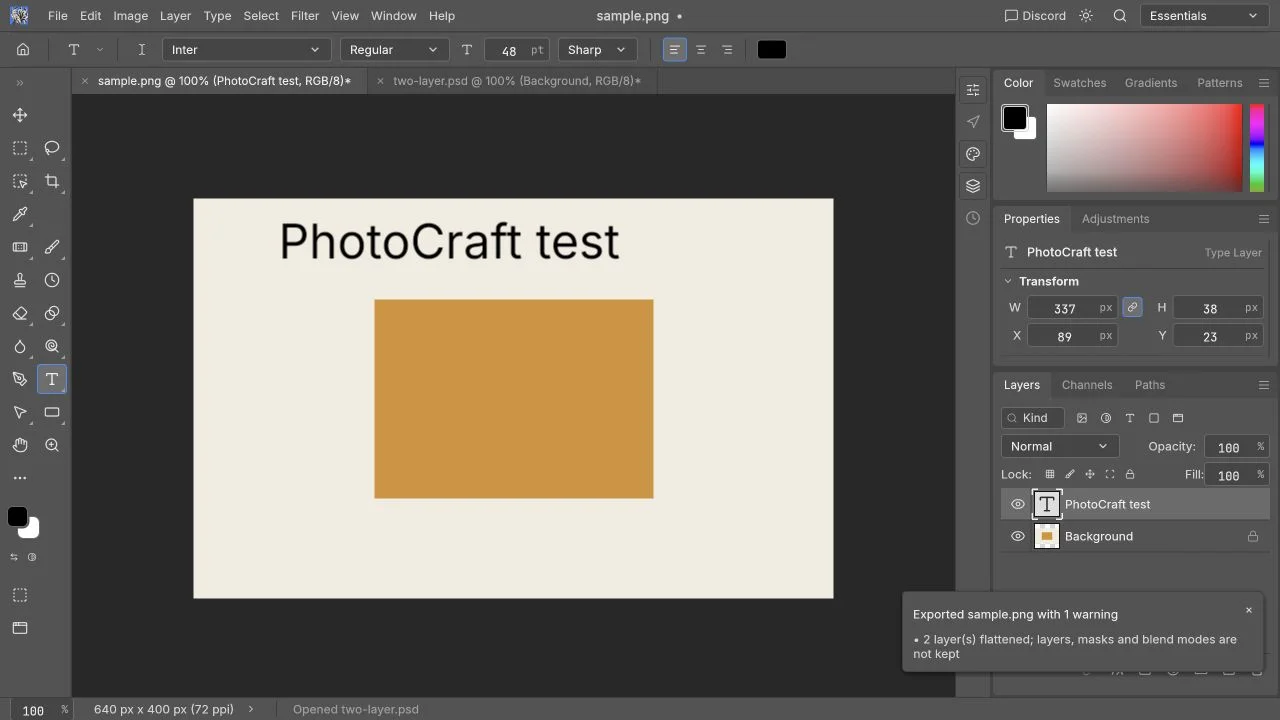
Which shortcuts should I learn first?
Learn Open, Save, Free Transform and canvas navigation before a long list of tool keys. These cover the repeated parts of a small image-editing session. Prefer File → Open for your first file and File → Export → Quick Export as PNG for a visible result; the menu makes it clear which application received the command.
| Operation | Windows / Linux default | macOS default | Menu alternative |
|---|---|---|---|
| Open a file | Ctrl+O | Command+O | File → Open |
| Save | Ctrl+S | Command+S | File → Save |
| Save As | Ctrl+Shift+S | Command+Shift+S | File → Save As |
| Free Transform | Ctrl+T | Command+T | Edit → Free Transform |
| Export As | Ctrl+Alt+Shift+W | Command+Option+Shift+W | File → Export → Export As |
| Zoom in | Ctrl+plus or Ctrl+= | Command+plus or Command+= | View → Zoom In |
| Zoom out | Ctrl+minus | Command+minus | View → Zoom Out |
| Fit canvas on screen | Ctrl+0 | Command+0 | View → Fit on Screen |
| View at 100% | Ctrl+1 | Command+1 | View → 100% |
| Show rulers | Ctrl+R | Command+R | View → Rulers |
| Show Layers panel | F7 | F7, sometimes Fn+F7 | Window → Layers |
| Search commands | Ctrl+K | Command+K | Edit → Search |
These bindings come from the v0.5.0 UI command registry. A command being registered does not establish that every browser delivers its shortcut. Save in the web build downloads a file; it does not give the site permission to overwrite the original on your disk.
What happens during an active edit?
Keyboard behavior depends on the current task. While entering text, typing belongs to the text object or field. While a menu is open, arrow keys navigate that menu. A modal dialog can keep other editor commands from running. This is why a key that worked a moment ago may stop selecting a tool.
For Free Transform, Enter commits the change and Escape cancels it. For an active crop, Enter commits and Escape cancels the crop frame. Outside text input, arrow keys can nudge with the Move tool or transform active; Shift increases the nudge. These rules are documented by the shortcut handlers, and should be confirmed on a disposable layer before editing an important layout.
To undo a trial, choose the undo command shown in Edit and inspect Window → History. Do not infer the complete redo history model from Photoshop muscle memory: check the current menu label and the visible history result.
Why does Ctrl+T open a new browser tab?
Browsers reserve several familiar editor combinations. They may intercept a key before the embedded canvas sees it. Fullscreen and a standalone editor window improve working space; neither guarantees that browser-reserved keys will become available.
| Symptom | Likely competing action | Safe alternative |
|---|---|---|
| Free Transform opens a tab | Browser new-tab shortcut | Edit → Free Transform |
| Rulers reloads the page | Browser refresh shortcut | View → Rulers; save before any retry |
| Fit on Screen changes page zoom | Browser reset-zoom shortcut | View → Fit on Screen |
| Search moves to the address bar | Browser search shortcut | Edit → Search |
| Save downloads an HTML page | Browser save-page shortcut | File → Save As; inspect the downloaded extension |
| F7 toggles caret browsing | Browser accessibility shortcut | Window → Layers |
Browser behavior varies with OS, extensions and settings. This table identifies conflicts to watch for rather than asserting that all browsers intercept all listed keys.
A five-step check for a shortcut that does nothing
- Protect the current work. Download an editable copy or an export before trying keys that could refresh or close the tab.
- Give the canvas focus. Click inside the editor, away from a text box. The embedding guide specifically notes that shortcuts reach an iframe after the user clicks into it.
- Finish the current operation. Commit or cancel the crop, transform or dialog. If you are editing text, finish that edit first.
- Try the menu command. A disabled item can indicate a missing active document, unsuitable layer type or unavailable service. If the menu works, investigate key delivery rather than the image operation.
- Check customization and layout. Inspect Edit → Keyboard Shortcuts for changed bindings. Punctuation keys differ on international layouts; laptop function keys may need Fn. Retry with the actual key shown in the editor.
If both the menu and key fail, record the file type, selected layer type, operation and error, then use the troubleshooting guide.
Are these exactly the same as Photoshop?
Familiar bindings reduce learning effort, but command names and default keys are only one part of compatibility. Clipboard image permissions, browser focus, platform modifiers and alpha-stage interaction bugs affect the workflow. Keep a short list of menu alternatives for your first project; rely on shortcuts for speed only after you have checked them on your own device.
For a complete first session, follow the PhotoCraft tutorial. For editable PSD handoff, read the PSD compatibility checklist. You can open the free editor without an account.