
PhotoCraft Online Editorial Team · Updated:
What Is PhotoCraft? Free Editor and PSD Basics
Understand what PhotoCraft is, whether it is free, how its browser and desktop versions differ, and when it can help with Photoshop documents.
PhotoCraft is an open-source image editor built by the ArtCraft team and contributors. It offers a familiar layered editing workflow and support for Photoshop documents. PhotoCraft Online is an independently operated site that hosts its browser build and explains how to use it. The upstream project is still in early alpha: use a copy of your image or PSD, check the exported result, and keep your original project.
This guide covers v0.5.0. Product facts come from linked official sources. The browser check later in the page helps you decide whether PhotoCraft is worth trying on a copy of your own file; neither the feature list nor that check establishes complete Photoshop compatibility.
Which PhotoCraft does this website mean?
Names can overlap across photo services, applications, and tutorials. Here, PhotoCraft means the storytold/photocraft open-source project. Its source repository, versioned releases, and license files are the useful identifiers when comparing a download or a review. The repository points to the ArtCraft website as its official product source. Official v0.5.0 project overview
This website provides an additional way to open the released Web editor. It is not the upstream developer's official website and is not operated by Adobe. Hosting an open-source release does not imply ownership of its product name or endorsement from its contributors.
If a tutorial describes a mobile app or a different service with the same name, its feature list may not apply here. Check the publisher and release version before following instructions or installing software.
Is PhotoCraft free?
The upstream application is distributed as free, open-source software under a choice of MIT or Apache-2.0 licenses. That describes the software license; it does not remove the separate rights attached to an image, font, or trademark. License and attribution files
Basic editing in the online editor is available without a paid plan or account. This site currently does not provide generative AI editing such as image generation, object removal, or generative fill; see the AI features guide for the current boundary.
Before choosing a free editor for work, also account for the time needed to check compatibility. A free tool that cannot preserve a client's text layout may cost more effort than using the application in which the project was created.
What is it useful for?
Start with a concrete output: a resized photograph, a simple image with a caption, or a copy of a layered design with one change. These tasks are easier to verify than a broad promise to replace your entire workflow.
| Your task | A sensible first check | What to keep |
|---|---|---|
| Crop a photograph for a website | Confirm the final width, height, and subject framing | Original photograph |
| Add a title to an image | Check the exact font, line breaks, and readability at output size | Editable project plus image export |
| Update a PSD template | Compare layers and the starting appearance before editing | Untouched PSD and a reference preview |
| Prepare a print deliverable | Ask the recipient about color, profile, format, and proofing requirements | Original project and approved proof |
PhotoCraft's upstream documentation describes tools across layered editing and PSD handling. A list of implemented commands does not establish Photoshop-equivalent behavior for every document. The project explicitly warns against treating its current alpha as a replacement for daily professional work. Upstream status and limitations
Browser version or desktop version?
The browser edition runs a WebAssembly application loaded by a web page. The official Web package is a static site and does not require an application server for editing. Its rendering path can depend on browser graphics support. Official Web hosting guide
| Question | Browser edition on this site | Official desktop release |
|---|---|---|
| How do I start? | Open the editor page and load a local file | Download the matching platform package |
| How do I save? | Save and Export produce browser downloads | Use the native application's file workflow |
| What can interrupt work? | Tab closure, page refresh, memory pressure, graphics issues | Application exit, system problems, application bugs |
| Which environment should I report? | Browser version, OS, renderer, and deployment version | App version, OS, architecture, and document details |
The browser has its own clipboard, download, font, and storage rules. Do not assume a desktop feature or a desktop performance example describes this Web deployment. Preferences remembered between visits also do not prove that an unsaved document will be recovered.
What can you trust from the browser check?
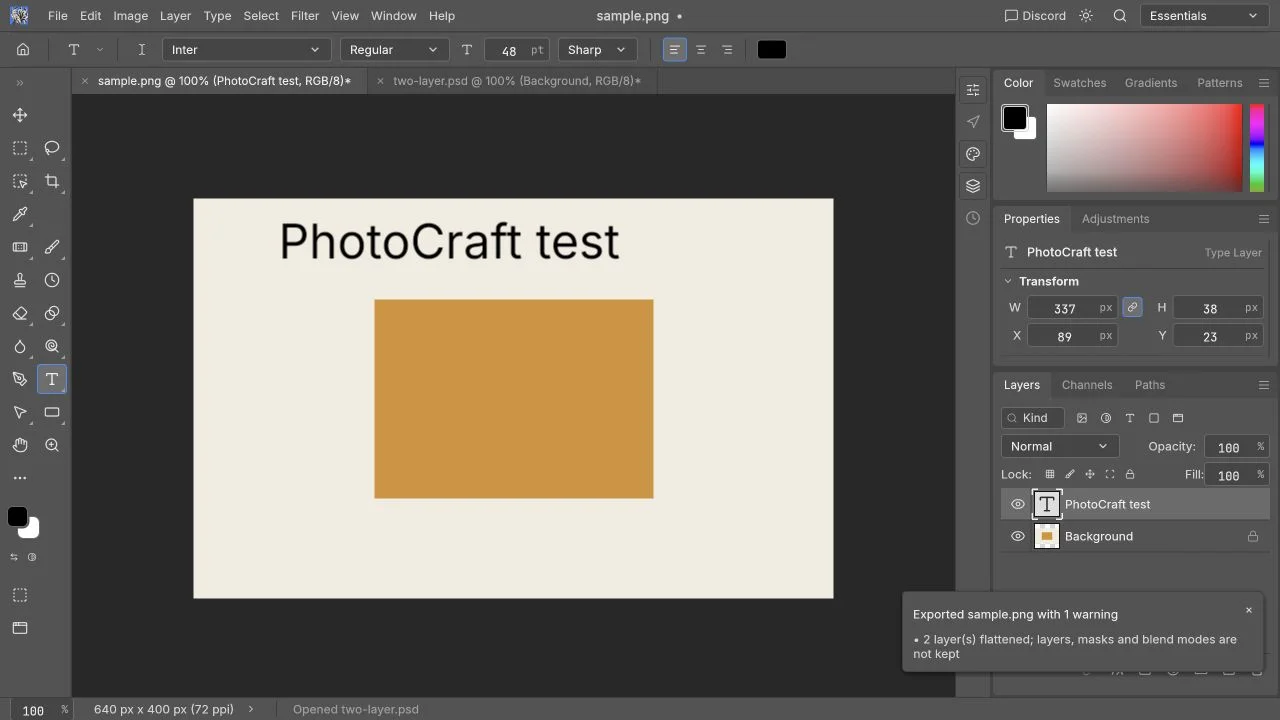
The check was recorded on October 10, 2026 using the unchanged official Web package locally on macOS 26.2 (25C56), in the Codex in-app Chromium browser at a 1280 × 720 viewport. The browser engine version was not exposed; the default renderer was used without independently identifying WebGPU or WebGL. There was no timing benchmark or Photoshop comparison.
With sample.png, a 640 × 400 RGB 8-bit image of 3,390 bytes, we opened the image, added English text, undid and redid the text change, and downloaded a PNG checked at 640 × 400 with the text preserved. A later crop produced a 600 × 371 canvas, and a direct Brightness/Contrast adjustment visibly brightened the pixels.
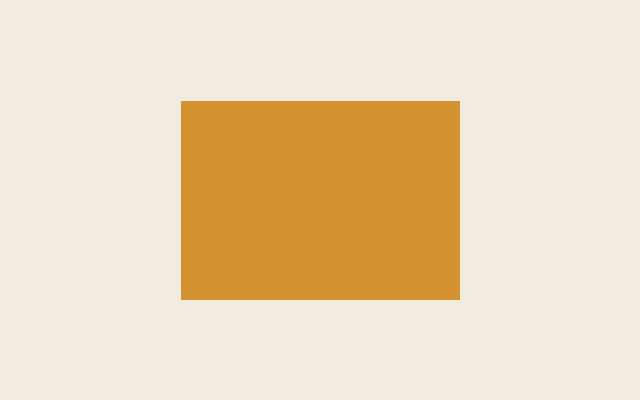
The two-layer PSD sample (640 × 400, RGB 8-bit, 1,704,206 bytes) exposed both ordinary pixel layers, but their initial ordering did not match the embedded composite. Reordering brought the visible result into alignment. Whether the discrepancy came from the synthetic fixture or the importer is unresolved. Masks, Chinese text, reopening editable projects, and saving a PSD for another editor still need separate checks.
How should I try it for the first time?
- Choose a non-sensitive copy of a small PNG or JPEG. Keep the original outside the editor.
- Open PhotoCraft Online, wait for the workspace, then load the copy. You should see a canvas containing your image.
- Make one visible change. A crop or a short caption is easier to inspect than a complex sequence.
- Export an image, find it in your browser's downloads, and open it in another viewer. Confirm dimensions and appearance.
- If you want to continue editing later, separately test the editable Save workflow. Reopen the saved file before closing your working tab.
Before closing the tab, reopen any file you expect to edit later. Editable Save and project reopening still need to be checked on your own document. Follow the first-edit tutorial for a more detailed walkthrough and the troubleshooting guide if loading or downloads fail.
Can PhotoCraft replace Photoshop?
The practical answer depends on the deliverable. A flat PNG for a website and a layered PSD that another designer must edit have very different acceptance criteria. Familiar controls help with learning, but they do not guarantee equal typography, plug-in support, AI features, or save-and-reopen behavior.
Read the PhotoCraft versus Photoshop comparison before migrating a workflow. For existing documents, use the PSD compatibility guide to decide what to inspect. For installation, use the official download guide, which links to the upstream release rather than an unrelated installer.
Is there an account or cloud-save requirement?
Basic editing does not require an account. The released Web application processes its editing work in the browser; this is distinct from the website requests needed to load application assets. An image export in your downloads is also distinct from an online backup.
Save copies regularly, check the privacy and safety explanation, and avoid assuming that closing a tab is safe merely because settings persist. Your own verified export is the evidence that an editing task is finished.