
PhotoCraft Online Editorial Team
How to Save PhotoCraft as PNG or JPG: Export and File Location
Choose Save, Save As or Export in PhotoCraft, find browser downloads, preserve an editable copy and troubleshoot missing files or unsaved prompts.
For a finished image, export PNG or JPEG. For future layer edits, save a separate editable master. In this site's Web editor, look in your browser's downloads for the output. Do not close the tab until you have opened the downloaded file and checked it.
Tested on 28 October 2026 in the site's unchanged Web v0.5.0 runtime, served locally on macOS 26.2 (25C56), headless Chromium 145.0.7632.6 at 1280 × 900. We opened the 640 × 400 sample PNG, painted a black checkmark, exported both PNG and JPG, independently decoded the downloads and reopened them in PhotoCraft. Both retained the dimensions and visible edit. Transparency and desktop v0.16.0 were not tested. The renderer backend was not independently identified.

A separate basic two-layer PSD test completed an edit, Save As PSD, reopening, independent layer hiding, another edit, saving and reopening again. Both layers, the 640 × 400 dimensions and both edits survived. The initial import needed a manual layer reorder; text, masks, smart objects and reopening in Photoshop remain unverified. See the PSD test result and limits.
Should I use Save, Save As or Export?
| Goal | Action to look for | Check afterward |
|---|---|---|
| Keep working on an existing editable document | Save | Verify the actual output; in Web, expect a download rather than assume the original was overwritten |
| Preserve the original or choose another editable format | Save As | Use a new filename and a supported project format, then reopen and inspect layers |
| Share a finished picture | Export; Quick Export as PNG for the recorded Web path | Open the image outside PhotoCraft and check dimensions, text and transparency |
The official desktop overview documents editable project and PSD workflows. That does not guarantee every imported PSD feature survives a round trip. Keep the original and follow the PSD compatibility checks if someone must continue editing.
How to export PNG in the browser editor
- Open PhotoCraft Online. Use File → Open to select a small image copy, such as the public sample PNG.
- Make one visible change. For our October 28 check, we painted a black checkmark with the default brush and confirmed it appeared on the canvas.
- Open File → Export → Quick Export as PNG. This menu path passed the October 28 check on this site's v0.5.0 build.
- Wait for a completed entry in the browser's Downloads list. If the browser asks where to save, choose a folder and a new filename.
- Open that downloaded file in a separate image viewer. Check its pixel dimensions, the visible edit, edges and any transparent areas before closing the editor.
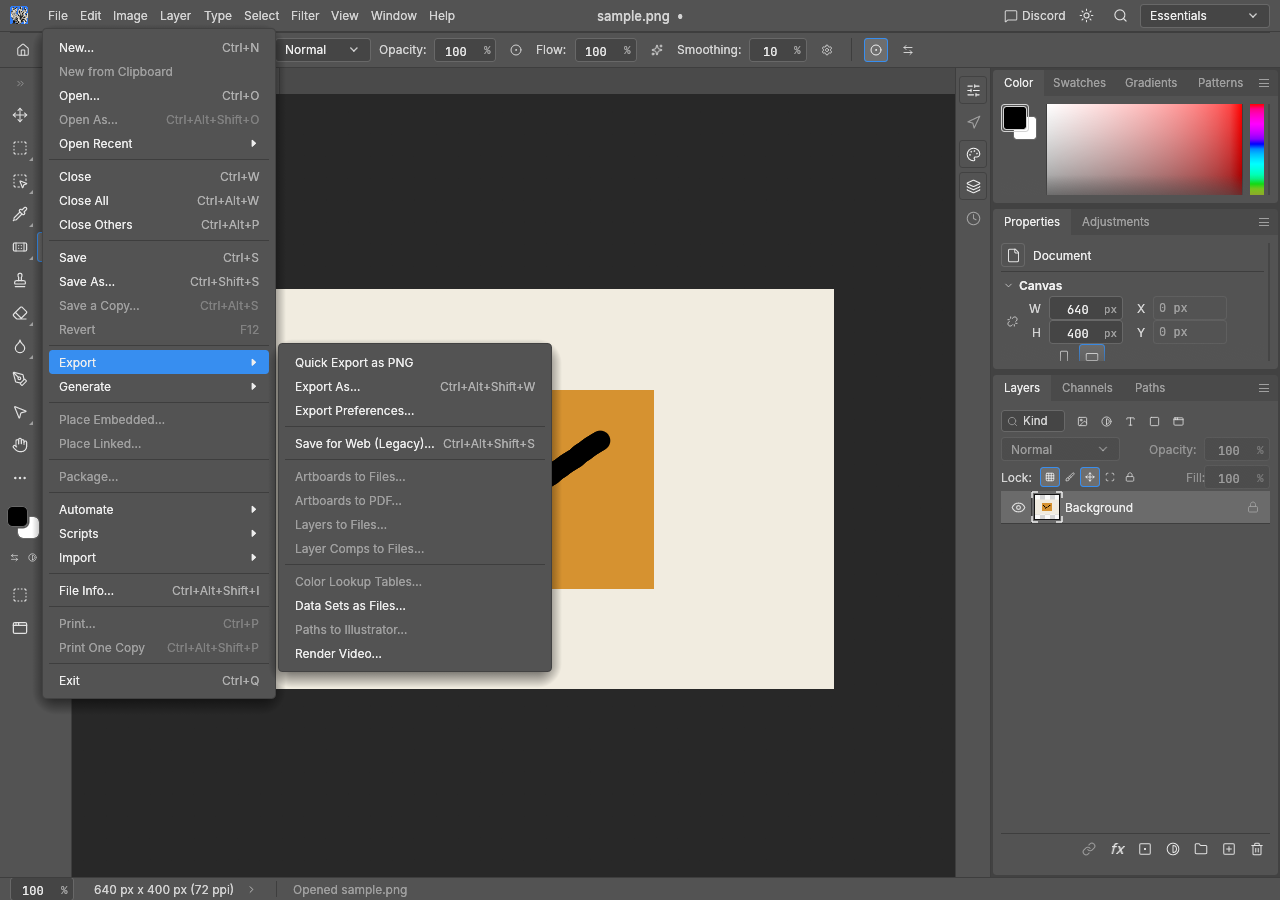
The screenshot shows the October 28 v0.5.0 test. In that test, the PNG download was 5,666 bytes, decoded as 640 × 400 RGB, and reopened with the painted edit present. For text that is missing or wraps differently, use the font guide before repeating the export.
How do I save as JPG instead?
- Choose File → Export → Export As.
- Select JPG in the format options. Our October 28 test used the defaults: Quality 85%, Scale 100%, Metadata None.
- Click Export, wait for the completed download and open it outside the editor.
- Check dimensions, the visible edit and compression artifacts. Reopen the JPG in PhotoCraft if you need to confirm the editor reads its own output.
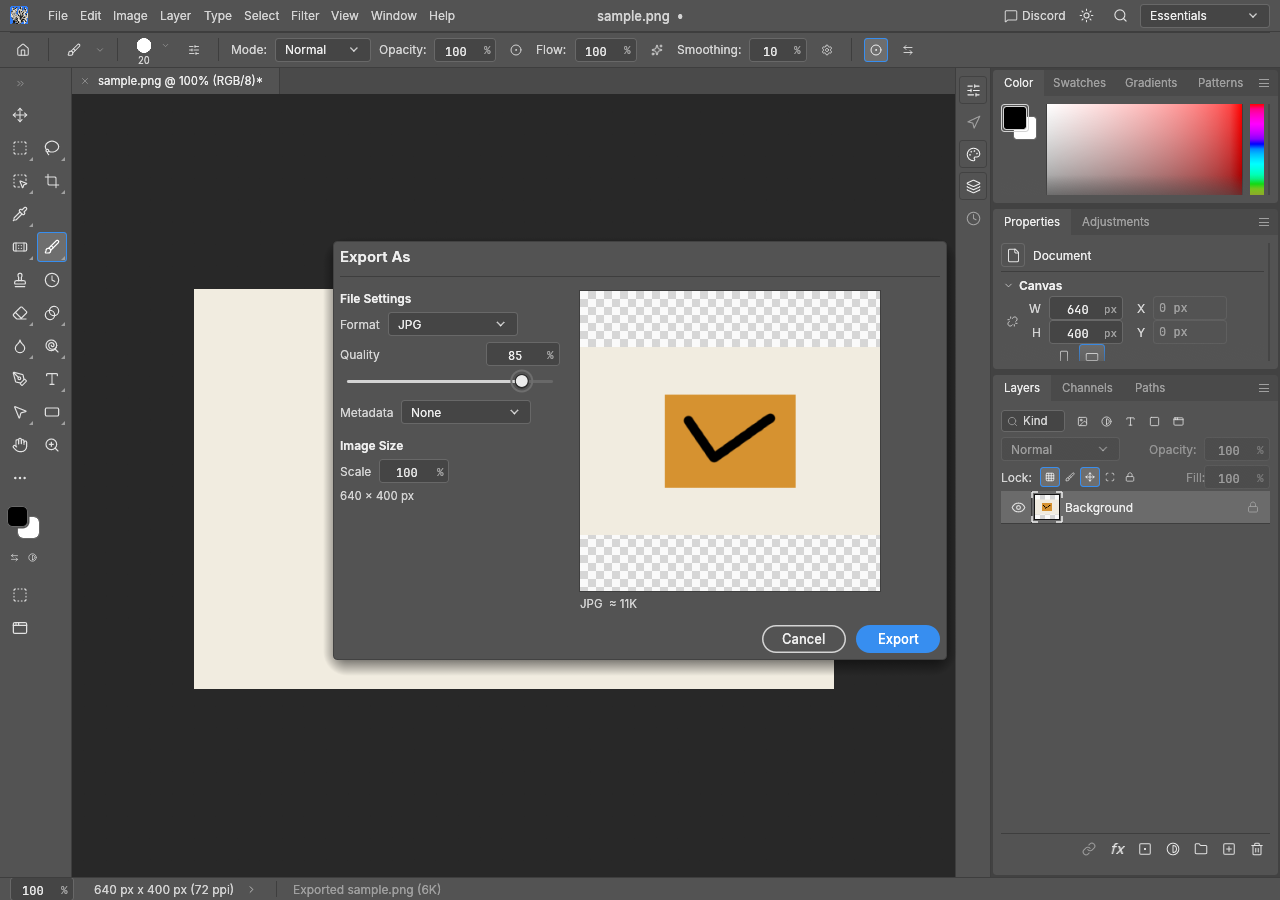
The test produced a 10,729-byte JPEG, independently decoded as 640 × 400 RGB, then reopened with the black brush mark visible. The export dialog identified JPEG as lossy. This does not establish identical pixels or color-profile preservation.
JPEG cannot preserve transparency. Choose the intended solid background before exporting; keep a PNG or editable master if you need transparency or further layer edits. Do not rename .png to .jpg: changing an extension does not convert the encoding. Transparency was outside this test's scope.
Where does PhotoCraft save files?
Browser: open the browser menu and select Downloads. In Chrome or Edge on Windows, Ctrl+J opens that list. Use its “Show in folder” or equivalent command to locate the exact file. The default is often Downloads, but your browser may use another folder or ask each time. A filename with (1) may be a second download, not an updated original. Our automated test captured downloads into an evidence folder; it did not test your browser's chosen download folder or prompting preference.
Desktop: check the folder and filename chosen in Save As or Export. Saving a project beside the source and exporting a picture to another folder can create two valid files in different places. Record both paths instead of searching only the application's installation folder.
The versioned Web guide identifies Save and Export as browser downloads. See Web versus desktop for the other file-access differences.
PhotoCraft is not saving: what should I check?
| Symptom | Next check |
|---|---|
| No visible file after export | Look for a pending save dialog, failed download or blocked-download notice; record the message |
| Old image opens again | Compare the new download's filename, modified time, dimensions and visible edit; you may have reopened the source |
| Layers disappeared | Check whether you opened a flat PNG/JPEG instead of the separately saved editable document |
| Download opens but looks wrong | Preserve both files, compare fonts and masks, and try a small non-sensitive example |
| Save keeps showing an unsaved warning | Save under a new name and reopen that file before deciding whether the warning reflects a failed save |
For a browser-specific failure, try the small sample through the editor page and consult troubleshooting. Avoid refreshing an unsaved document as your first step. The current upstream Web documentation explicitly says Web autosave and crash recovery are absent.
An October 26 desktop report describes repeated unsaved prompts: issue #9700. The report establishes a symptom, not its cause or a verified fix. When reporting your own case, include edition, version, OS/browser, menu action, output extension and whether the output reopens. Use a non-sensitive sample.
What counts as a successful save?
In the October 28 test, exporting PNG/JPG left the original document's unsaved marker visible. That is why a flat export is not proof that the editable project was saved.
A finished image is ready when the downloaded file opens independently and its size, text, colors and transparency meet the task. An editable master needs an extra check: reopen it, inspect the required layers, make a small edit and save another copy. For handoff, test in the recipient's application.
Keep both files if you need both outcomes. After a desktop OpenFill edit, apply the same checks to the generated result and any layered master; a successful AI preview alone does not verify either saved file.