
PhotoCraft Online Editorial Team
PhotoCraft vs Photopea vs Pixlr: Which to Use?
Compare online PSD workflows, masks, text, AI, pricing, privacy and learning effort using official sources, with a practical trial for your own files.
Choose an online editor by the task you need to finish: PSD revision, simple image creation, or AI-assisted changes. PhotoCraft is an open-source candidate to evaluate; Photopea documents a PSD-centered browser workflow; Pixlr offers browser editing alongside an extensive AI product lineup. None of those descriptions proves that your specific document will survive editing and export.
This comparison is based on official sources checked on October 10, 2026. We have not run the same benchmark files in all three applications, so use it to build your shortlist, not to pick a measured winner. PhotoCraft refers to upstream v0.5.0 and this independent site's hosted build; Photopea and Pixlr refer to their official live services.
What does each product emphasize?
Photopea's introduction describes raster and vector editing in a browser. Its open-and-save guide explains PSD as its principal editable document format. That makes PSD revision a relevant trial, but not a blanket compatibility guarantee.
Pixlr's Editor presents image tools, layers and text. Its product and pricing page also lists generation, expansion and other AI services. Check which product actually contains the tool you need: “Pixlr” is a family of tools, and a feature promoted for one interface may require another.
PhotoCraft's pinned documentation describes layered editing and desktop/browser builds, with an explicit early-alpha warning. This site's free editor does not currently add a paid AI generation service. If the name or third-party status is unclear, the product explainer starts with What is PhotoCraft?.
Side-by-side evidence table
| Requirement | PhotoCraft Online | Photopea | Pixlr |
|---|---|---|---|
| Browser access | Hosted v0.5.0 Web build | Official browser application | Official browser tools |
| Editable PSD workflow | Two synthetic layers imported with an initial stacking discrepancy; saving and reopening was not checked | Official guide documents PSD-centered saving | Check supported import and editable export for your file; no save-and-reopen claim here |
| Masks | Upstream documents them | Official mask tutorial | Editor offers cutout/mask controls; complex PSD equivalence unverified |
| Adjustments | Upstream documents them | Official adjustment/filter guide | Editor tools documented; saved editability needs a trial |
| Type and fonts | New English type tested on PNG; imported PSD type and CJK untested | Official text tutorial | Editor includes text tools and templates |
| Smart objects | Upstream documents them; fidelity caveats | Official smart-object tutorial | Not established by the sources used here |
| Generative image tools | Unavailable on this site | Check the exact current tool and entitlement; not assessed here | Official pricing lists AI products and credits |
| Professional handoff | Not validated across these services | File-specific recipient check required | File-specific recipient check required |
The table combines attributed documentation with narrowly recorded PhotoCraft tests; it is not a completed comparative test. Photopea's sources for masks, adjustments, text and smart objects explain those workflows individually. PhotoCraft's dated assessment provides caveats. The absence of a verified source in a cell means “not established here,” not “the product cannot do it.”
Our separate PhotoCraft browser check
On October 10, 2026, a local PhotoCraft v0.5.0 session on macOS 26.2 and Codex in-app Chromium (1280 × 720 viewport) passed PNG import, new English text, undo/redo, crop, direct pixel brightness and a 640 × 400 PNG download. Browser engine version and rendering backend were unrecorded. A synthetic two-pixel-layer PSD imported, but initial stacking disagreed with its embedded composite; visibility and reordering worked. Fixture encoding versus importer behavior remains unresolved, and no PSD save/reopen was tested.
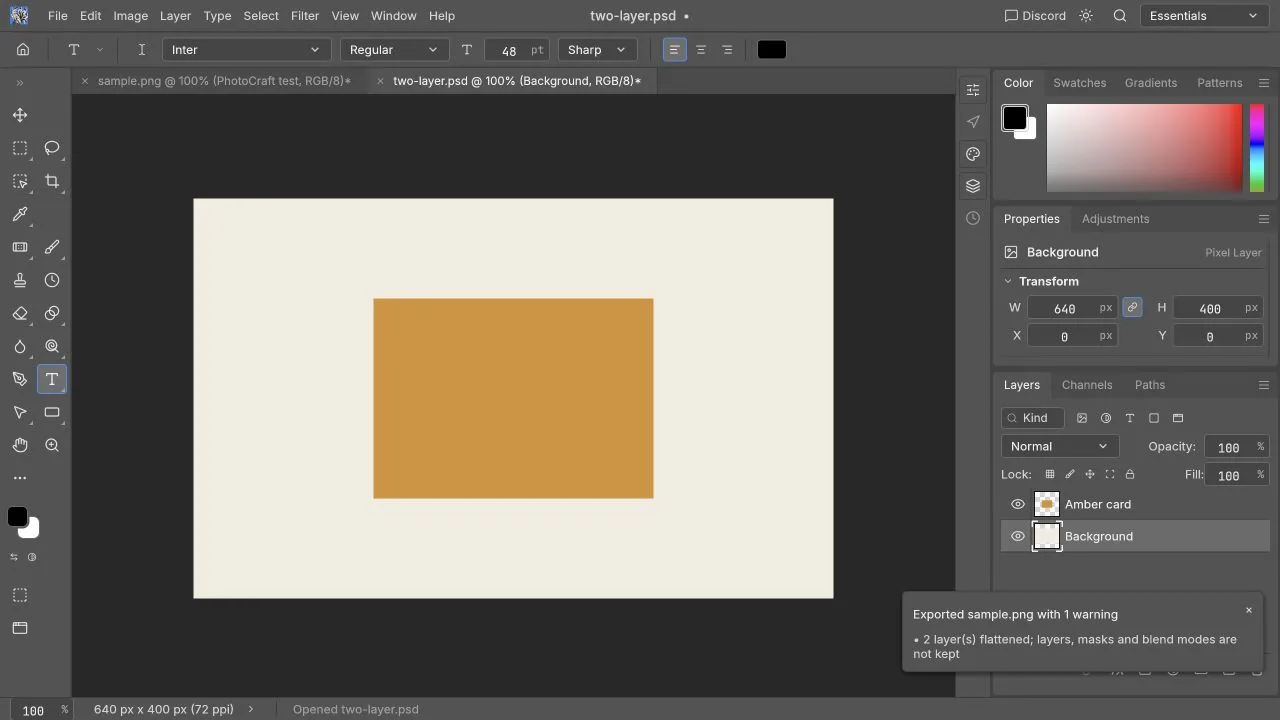
This screenshot and the full task-review record apply to PhotoCraft alone. Neither Photopea nor Pixlr was run in the same session, so this section should not be read as a three-way PSD fidelity result.
PSD editing: compare the reopened file
A meaningful PSD trial has two deliverables: a finished image and an editable file. Keep your original, modify one text layer and one image, and export both deliverables under new filenames. Reopen the editable result in the application that will receive it.
Inspect layer groups, masks, fonts, shadows and smart-object contents. If an editor imports the document but only delivers a flattened image, it may still finish your immediate social post. It has not met a requirement to return a reusable layered template. Our PSD compatibility guide explains that distinction for PhotoCraft.
For complex templates, keep a reference render and check unchanged areas too. “The heading changed correctly” is insufficient if an unrelated clipping mask or shadow changed during the save. Use the same licensed fonts wherever possible; record substitutions instead of silently accepting different typography.
How much learning is involved?
Someone already familiar with layers can begin with a layered workflow. Someone who only needs a crop and a caption should trial that exact sequence instead of exploring every professional panel. A tool feels easier when its path to the deliverable matches your task.
Do not assume identical shortcuts across products. Give the canvas focus, try the menu action first, and then test the keyboard equivalent. Browser interception and text-field focus can explain an apparent shortcut failure. For PhotoCraft, see the shortcut guide.
Measure the time to a correct downloaded result, including corrections. Treat that as your own evaluation method, not proof that one product is faster or easier for everyone.
Free editing, paid plans and AI credits
PhotoCraft Online's basic editing is free and does not require an account. Generative AI is not available here. Photopea's terms and privacy page permits free editing and describes an optional time-limited Premium account purchased with a one-time payment. We have not verified a current regional Premium checkout amount, so no numeric Photopea price is quoted.
The Pixlr pricing page displayed €2.49/month for Plus and €9.99/month for Premium in its monthly EUR view when checked on October 10, 2026. It separately displayed yearly billing options and AI-credit allowances. These are dated page observations, not guaranteed prices for your currency, country, tax treatment or checkout. Verify the selected plan and term on Pixlr's current pricing page before buying.
Compare the actual allowance you need: saves, model access, credit expiry, resolution and generation concurrency may affect value more than the headline price. A “free editor” label does not establish that every advertised AI operation is unlimited or included.
Privacy: editing and cloud services are separate
Photopea's privacy policy states that opened files are processed on the device, and separately describes optional cloud-storage connections and account data. That statement should not be generalized into a claim that every external feature makes zero network requests.
Pixlr's privacy policy describes account, service-provider and other data handling. The local-storage statement in its children's policy concerns that context; it is not sufficient evidence to call every generative tool local. Read the terms for the exact operation you intend to use.
For PhotoCraft Online, consult our safety and privacy guide. The editor processes local files in your browser, while the website still makes ordinary network requests. Save by downloading a file; this site has no cloud project storage.
A task-based selection guide
| Your need | Good first evaluation | What decides the result |
|---|---|---|
| Revise a simple PSD without installing software | Compare PhotoCraft and Photopea using the same copy | Reopened layers and correct final image |
| Crop and caption a personal photo | Try the shortest workflow in each relevant editor | Time to a correct download |
| Create generated content or expand an image | Inspect Pixlr's specific AI tool and current terms | Output quality, credit cost and processing terms |
| Prepare product images repeatedly | Run one representative product through your shortlist | Consistent color, edges and repeatable steps |
| Deliver a professional master or print asset | Retain your established tool until the trial passes | Recipient acceptance and another successful revision |
Use this table to choose what to test first. Large-file capacity, mobile interaction, pen input, print profiles and Adobe-plugin compatibility have not been compared here.
How to make a defensible choice
Write down three requirements before opening an editor: the output format, whether someone must edit it later, and whether AI is essential. Add fonts and privacy restrictions if they matter to your work. Eliminate options only when a required step is demonstrably unavailable or fails your trial.
Then keep one source copy and reference export, make the same modest revision in each candidate, and compare downloaded files outside the editor. Save the result and the conditions: date, service version if exposed, browser, OS, dimensions, bytes and layer count. That produces a useful answer for your work instead of a generic ranking.
Try PhotoCraft Online, follow the first editing tutorial, or read PhotoCraft versus Photoshop if replacing your desktop workflow is the real question.