
PhotoCraft Online Editorial Team
PhotoCraft Review: Photo Editing, Text and PSD Files
A practical v0.5.0 browser review covering image import, text, undo, crop, brightness, PNG export and what to check before editing PSD files.
PhotoCraft v0.5.0 is worth trying for small browser edits such as opening an image, adding English text, undoing changes, cropping, adjusting brightness and downloading a PNG. In a simple two-layer PSD, both layers appeared and could be shown, hidden and reordered, but the first view did not match the intended layer order. Treat PSD templates as files to test with a copy before using them in a real Photoshop handoff.
This review explains what the browser editor handled in our session and where you should try your own file first. Official sources were reviewed on October 10, 2026. The test details below are included so you can compare them with your own image or PSD.
Which version did we try?
This review is about the PhotoCraft v0.5.0 browser editor hosted on this site. Desktop packages, future releases and other hosted builds may behave differently, so treat this as a guide to the current online experience rather than a review of every PhotoCraft edition.
The v0.5.0 README presents layered image editing and PSD workflows, while explicitly describing the project as early alpha. The Web packaging notes describe the browser distribution. All conclusions here are tied to that pinned release, because later development changes may behave differently.
The source-based case for trying it
Its main attraction is the prospect of doing familiar image-editing work without installing a desktop application. A layer-oriented workflow lets you revise an image in stages: retain the background, add text separately, and keep a correction adjustable. Those are useful evaluation tasks because you can check both the final picture and the next edit.
For someone learning, a familiar arrangement of tools can reduce the initial search for controls. That does not remove the need to understand layers, selections and export formats. Our first editing tutorial follows a complete task rather than asking beginners to memorize every panel.
For a Photoshop user, PSD support is potentially more valuable than another filter collection. The important question is whether your particular template remains useful after editing and saving. The PSD compatibility guide explains what to check for text layers, ordinary layers, masks, styles and saved copies.
What prevents an unconditional recommendation?
The upstream roadmap assessment describes an early product with unfinished production workflows. For users, the practical takeaway is simple: even if the editor opens cleanly, you should still test complex typography, smart filters, demanding documents and files that another person must continue editing.
The generated parity report helps explain why some familiar menus appear. A menu item you can click does not guarantee the full task will behave the way you expect: still check the canvas result, exported file, fonts and any saved copy you plan to reopen.
We also avoid an “offline therefore private” shortcut. Document processing and website traffic are separate questions. See the safety guide for the project's source, this site's role, and the distinction between editing, downloads and optional external services.
Browser test conditions
We tested on October 10, 2026, using macOS 26.2 (25C56), the Codex in-app Chromium browser and a 1280 × 720 viewport. The browser engine version was not exposed by the automation surface, and we did not independently identify whether WebGPU or WebGL was selected. The official, unchanged v0.5.0 runtime ran on a local HTTP server. No Photoshop installation or timing benchmark was used.
The downloadable PNG sample is 640 × 400, RGB, 8-bit and 3,390 bytes. The PSD sample is 640 × 400, RGB, 8-bit and 1,704,206 bytes, with two ordinary pixel layers named Background and Amber card. Both are locally generated synthetic fixtures; the PSD was not authored in Adobe Photoshop. Fixture hashes and provenance are available separately.

What worked in this session?
| Operation | What happened | What to keep in mind |
|---|---|---|
| Start the Web runtime | Welcome canvas and menus appeared | One local browser environment |
| Open sample.png | Correct 640 × 400 canvas, one Background layer | PNG only; JPEG untested |
Type PhotoCraft test, then Control+Enter | Visible English text and a new Type Layer | Chinese and imported PSD text untested |
| Control+Z, then Control+Shift+Z | Text disappeared and returned | This pair in this focused session |
| File → Export → Quick Export as PNG | Download completed; independent decoding confirmed 640 × 400 and preserved text | Flattened image, not an editable save |
| Crop by handles and confirm | Canvas became 600 × 371 | Crop interaction observed; this state was not the exported PNG above |
| Brightness/Contrast on pixel Background | Background and amber rectangle became brighter | Direct pixel adjustment; adjustment layers after saving were not checked |
| Open two-layer.psd | Both named layers appeared, but Background initially covered Amber card | Check layer order before editing a PSD template |
| Toggle Background; drag it below Amber card | Rectangle appeared over transparency, then expected composite appeared | Visibility and reordering passed; saving and reopening a PSD was not checked |
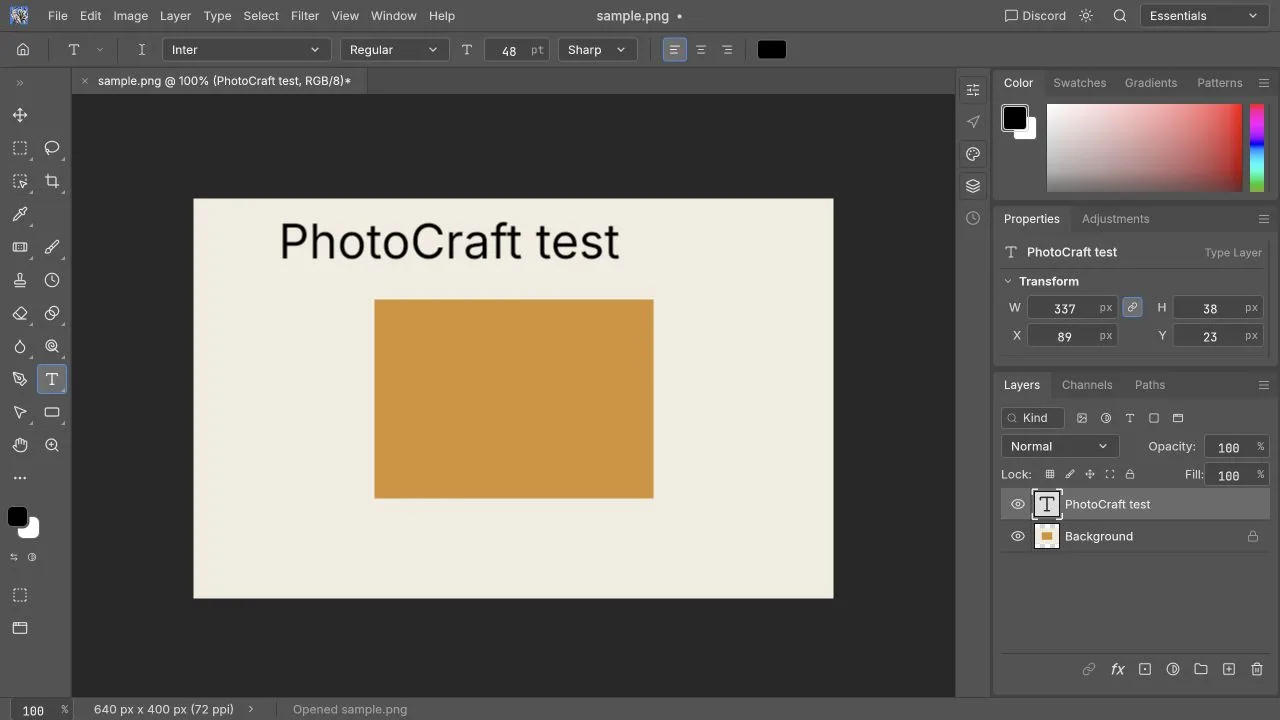
The screenshot shows the newly created English type layer. It does not establish imported Photoshop typography or Chinese font compatibility.
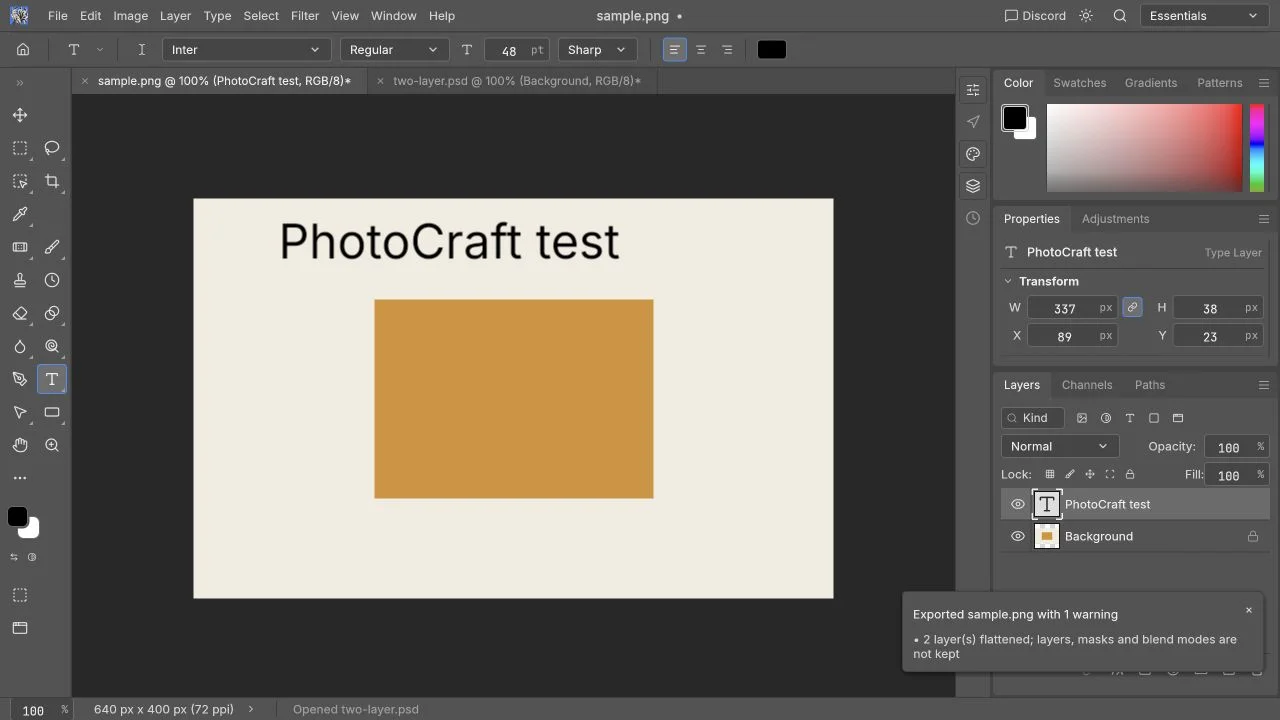
The export warning explicitly states that layers flatten. The downloaded file preserved the text and original 640 × 400 dimensions. This proves a finished PNG was produced, not that the layered project could be reopened for another edit.
How to reproduce the tested small-image task
- Open the editor, choose Open and load the PNG fixture. Confirm the 640 × 400 canvas and Background layer.
- Select Type, enter
PhotoCraft testand commit with Control+Enter. Check the visible heading and Type Layer. - Use Control+Z and Control+Shift+Z in the focused editor. Observe the heading disappear and return.
- Choose File → Export → Quick Export as PNG. Open the downloaded image outside the editor and inspect its dimensions and text.
- Drag the lower-right crop handle and confirm using the top-right checkmark. Our gesture produced 600 × 371; your drag may produce a different size.
- Select the pixel Background, open Image → Adjustments → Brightness/Contrast, move the brightness slider and confirm. Check that the background pixels brighten.
These are recorded operations. They do not include exporting the later crop/brightness state. For your own image, repeat the final download check after all edits. If a control fails, record focus, the menu or shortcut, and the error before refreshing away a recoverable session.
The PSD layer-order caution
The synthetic fixture was intended to show Amber card over Background. The imported layer list contained both names, but the initial canvas showed the background covering the card. Hiding Background exposed the card over transparency; moving Background below Amber card made the composite visually match the synthetic PNG.
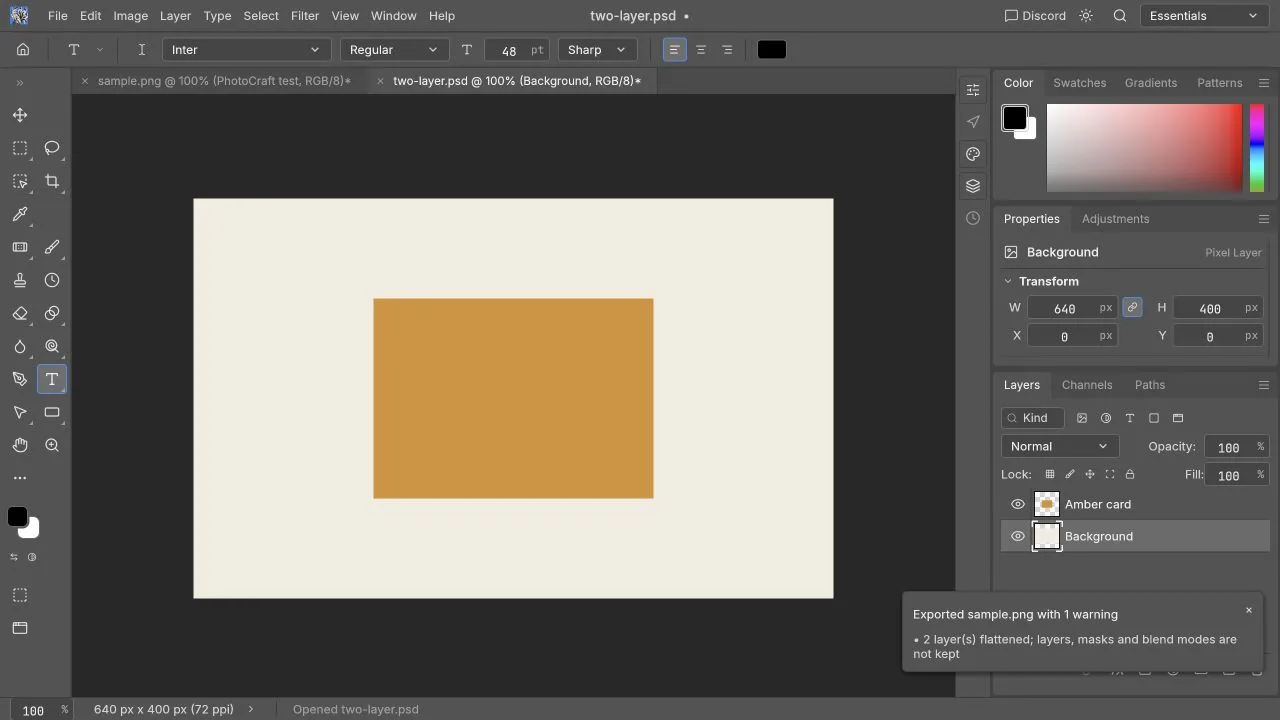
This does not prove every PSD will open with the wrong order, and it also does not prove PSD compatibility for professional handoff. The sample contains no text, masks, smart objects or styles. We did not save it back to PSD and reopen it. Before using your own PSD, open a copy, check the visible result, inspect the Layers panel, make one small change, save separately and reopen that saved file.
What remains untested?
Editable project reopening, saving and reopening PSD files, JPEG import, imported text layers, Chinese rendering, masks, adjustment layers after saving, smart objects, styles, CMYK/ICC/print, plugins, generative AI, large documents, mobile editing, tablet hardware and desktop installers remain outside this session. A Photoshop visual comparison was not performed.
A separate PSD trial
Use a template with at least a background, an image and editable type. Identify important masks and effects before opening it. Change one text element, move one image, and save a distinct copy. Then reopen it and inspect group structure, editable text and unchanged visual regions.
If the deliverable goes to another person, their receiving application must open the saved document and make another edit. A PNG exported from a PSD can be a useful finished image, but it does not show that the layered file is ready for handoff. Read the PSD tutorial before using an irreplaceable file.
Who should evaluate it first?
| User | Suitable first trial | Reason to stop the trial |
|---|---|---|
| Beginner | Crop a personal image and add a heading | Cannot reliably repeat or download the task. |
| Social creator | One post with a fixed output size | Font or layout differs in the final file. |
| Ecommerce operator | One product photo | Edge quality or color changes the product's appearance. |
| Template user | A copy with simple layers | Editable content is lost on reopening. |
| Professional designer | A copy of a noncritical file | A saved copy reopens wrong, or fonts and layout shift. |
The useful conclusion is try it first on a small, reversible task, and keep your current tool for files that must survive a professional handoff. For the choice itself, read PhotoCraft versus Photoshop; for browser alternatives, read PhotoCraft, Photopea and Pixlr.